Club leaders, faculty advisors, and administrators bring people into a club from one pop-up. You can pick people by name, invite an email address, share a join link or QR code, sign students up at a club fair, or import a spreadsheet. The club's Members tab shows every invitation nobody has answered yet.
Who can invite
| Invite people | Add immediately | Invite grade(s) | |
|---|---|---|---|
| Administrator | Any approved or paused club | Yes | Yes |
| Faculty advisor | The clubs they advise | Yes | No |
| Club leader | The clubs they lead | No | No |
Open the invite pop-up
There are three ways in:
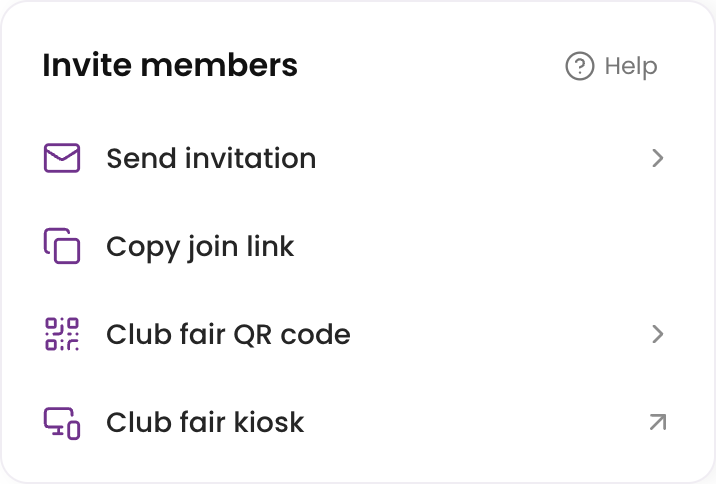
- On the club's page, use the Invite members card: Send invitation, Copy join link, Club fair QR code, and Club fair kiosk.
- On the club's Members tab, click Invite beside Filters.
- Click the three dots beside the club's name and, under Invite, choose Share Join Link, Club fair QR code, or Open Club Fair Kiosk.
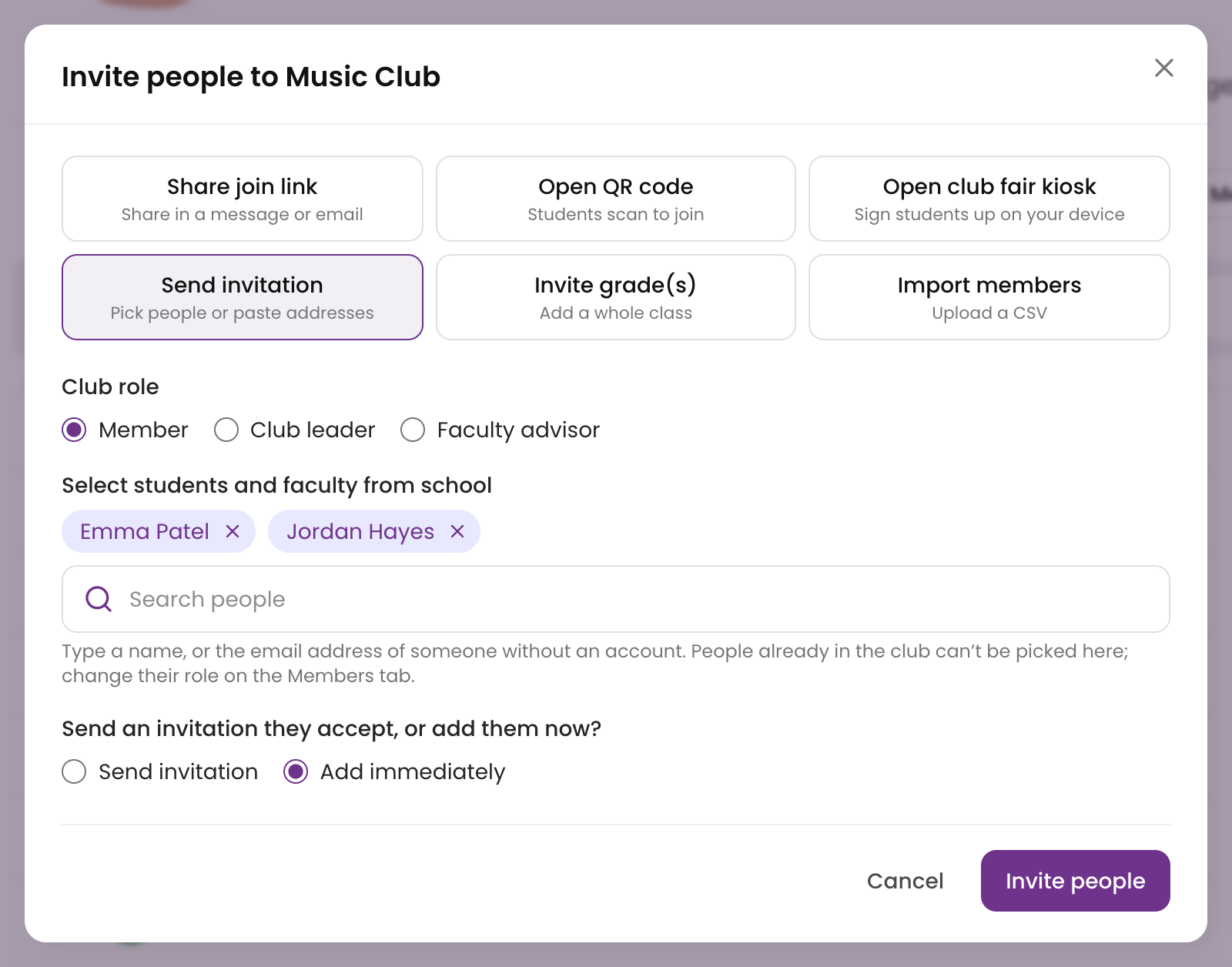
The pop-up, Invite people to and the club's name, has a card for each way to invite:
- Share join link. The club's link, with a Copy button, to paste into a message or an email.
- Open QR code. A code to show on a screen or print. See Club Fair Join QR Codes.
- Open club fair kiosk. Shown only where your school uses the kiosk. See No Phone Club Fair Kiosk.
- Send invitation. Pick people or paste addresses (below).
- Invite grade(s). Administrators only. See School-wide and Grade-wide Clubs.
- Import members. Upload a CSV. Shown on a computer only.
Invite people by name or email address
- Choose the Club role: Member, Club leader, or Faculty advisor.
- Type a name in the search box and pick the person. People who have not signed up yet are listed too, marked Not signed up yet.
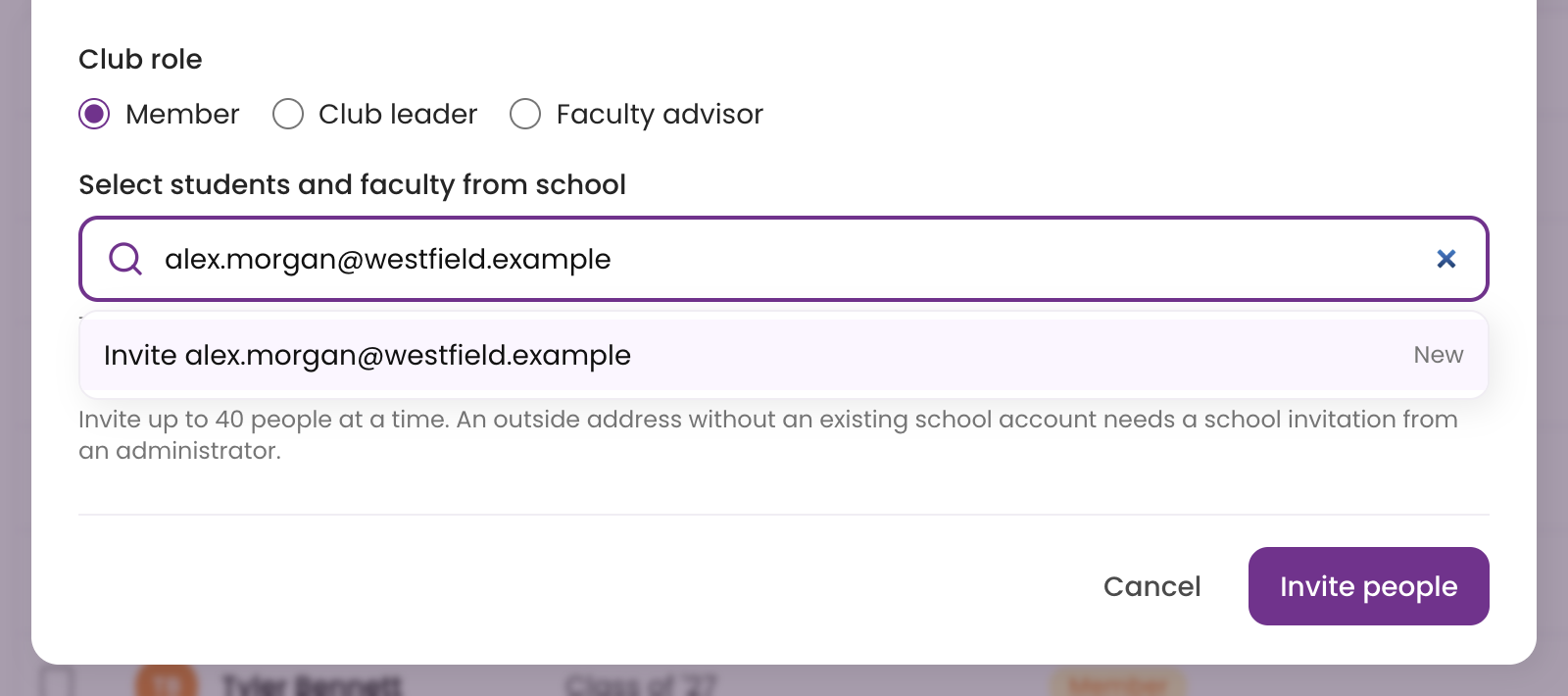
- For someone without an account, type their whole email address and pick Invite with the address.
- Administrators and faculty advisors choose Send invitation or Add immediately.
- Click Invite people.
A few rules decide who you can pick:
- A club leader is a student, and a faculty advisor is not. The search lists only the people the role allows.
- People already in the club show as Already in the club and can't be picked. Change their role on the Members tab instead. See Updating Club Leaders and Faculty Advisors.
- An account waiting for approval cannot be invited until an administrator approves it.
- An address outside your school's email domains needs an invitation to your school first, from an administrator. See Invite Users.
Send invitation or Add immediately
Add immediately is the default. For administrators and faculty advisors, the people you pick become members as soon as you click Invite people.
- Send invitation. They get an email and see the invitation in Club Hub. They are in the club once they accept.
- Add immediately. They are members right away and get an email saying they were added.
Student club leaders always send invitations.
Someone who has not signed up yet gets an email asking them to create an account. With Send invitation, they are asked to accept once they sign up. With Add immediately, they join the club when they sign up.
What the invited person sees
- An email, Invitation to and the club's name. A club leader or faculty advisor gets one that names their role.
- The club on their Dashboard (Home on a phone), marked Invited, and under Clubs → My Clubs.
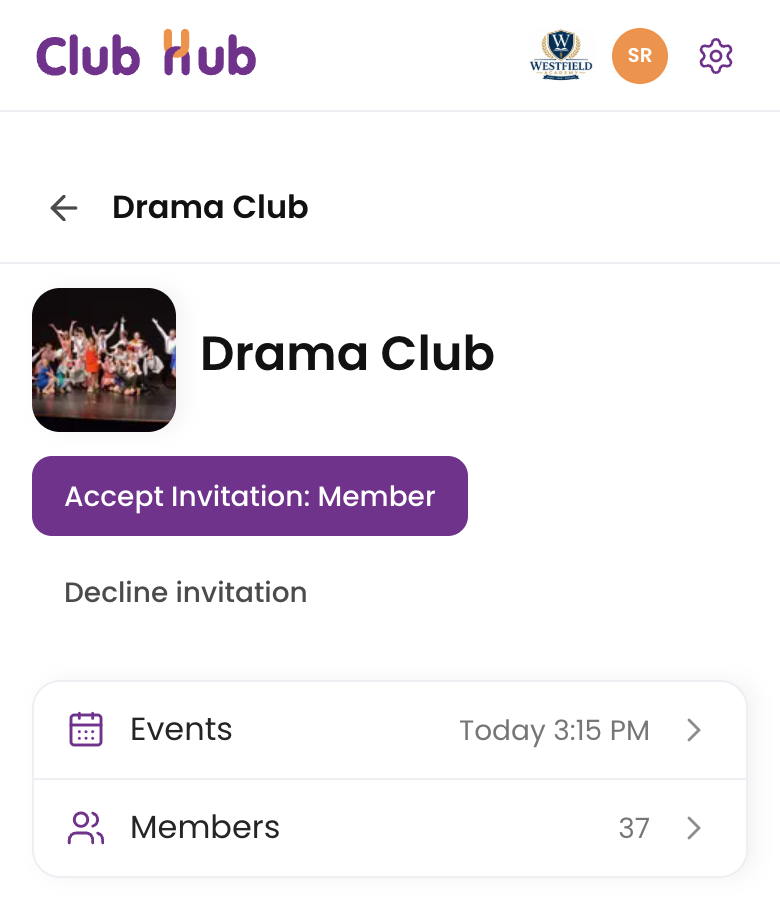
- On the club's page, Accept Invitation: Member (or the role they were invited as) and Decline invitation.
Follow up on open invitations
On the club's Members tab, click Filters and choose Open invitations. Each row says who sent the invitation, when, and where it stands:
- Has an account, hasn't answered
- Will be asked to accept after signing up
- Joins when they sign up
Waiting for an answer and Not signed up yet narrow the list.
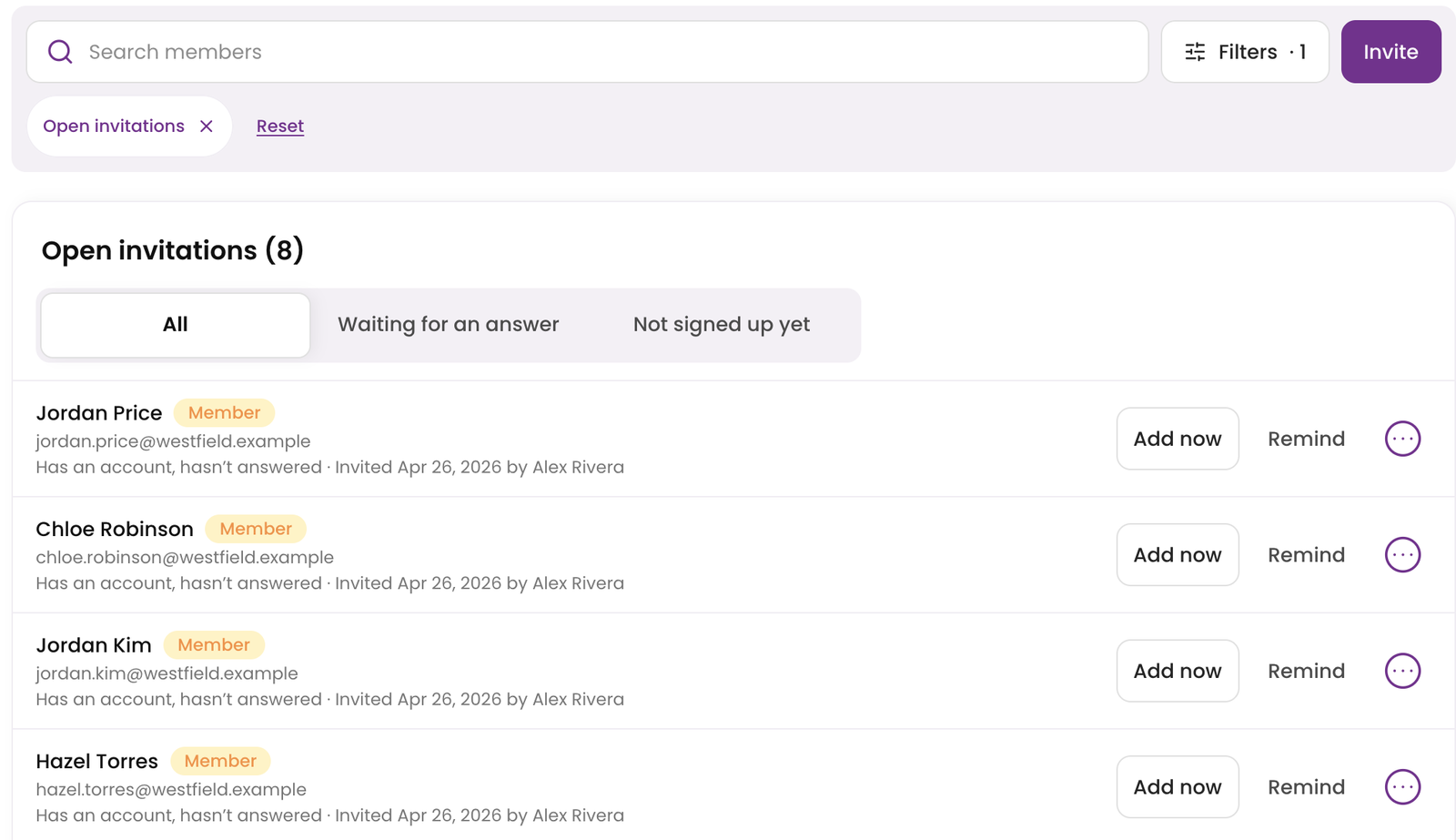
- Add now makes someone with an account a member without waiting for them.
- Add on sign-up lets someone who has not signed up join as soon as they do, without being asked.
- Remind sends the invitation email again.
- The three dots change the role (Make club leader, Make member) or withdraws the invitation (Withdraw invitation).
Add now, Add on sign-up, and the three dots are for administrators and faculty advisors. A student club leader sees Remind and Withdraw.
Import members from a spreadsheet
On a computer, choose Import members in the pop-up.
- Click Download the template.
- Fill in the Email and Role columns, and save it as CSV. Up to 2,000 rows.
- Choose the file. Club Hub checks every row first and lists anything to fix.
- Select Do not send email if the people on the sheet should not get the invitation email.
- Click Invite members.
The roles are Member (or Student), Club Leader, and Faculty Advisor. On a team, they are Athlete (or Member), Captain, and Coach. Everyone on the sheet gets an invitation to accept. Nobody is added immediately.
Frequently asked questions
Can I invite someone who isn't at my school yet?
Yes, if their address is on one of your school's email domains. They get an email to sign up, and the invitation waits for them. An address on any other domain needs a school invitation from an administrator first.
Why can't I find someone in the search?
Their account may be waiting for approval, or the role you chose doesn't fit them. A student cannot be a faculty advisor, and staff cannot be club leaders.
Does inviting work the same for teams?
Yes. On a team, the roles are Athlete, Captain, and Coach. See Using the Athletics tab in Club Hub.