Remove a whole group of students from a club in one step: its club leaders, its members, its requests to join, or only the members who did not attend in a school year. It is most useful at the start of a year, when you clear last year's roster.
Administrators can use it on any club, and faculty advisors on the clubs they advise.
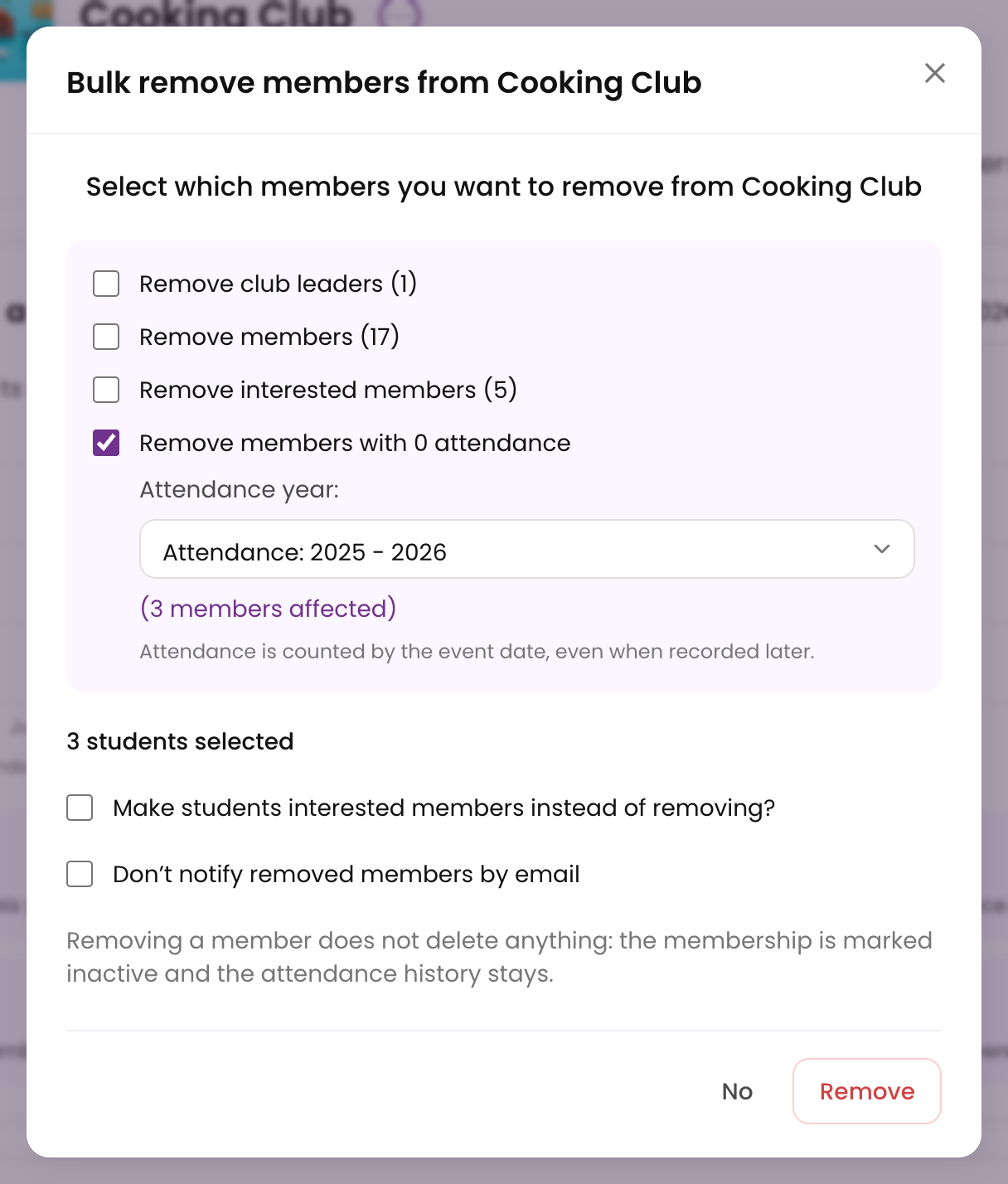
Remove students in bulk
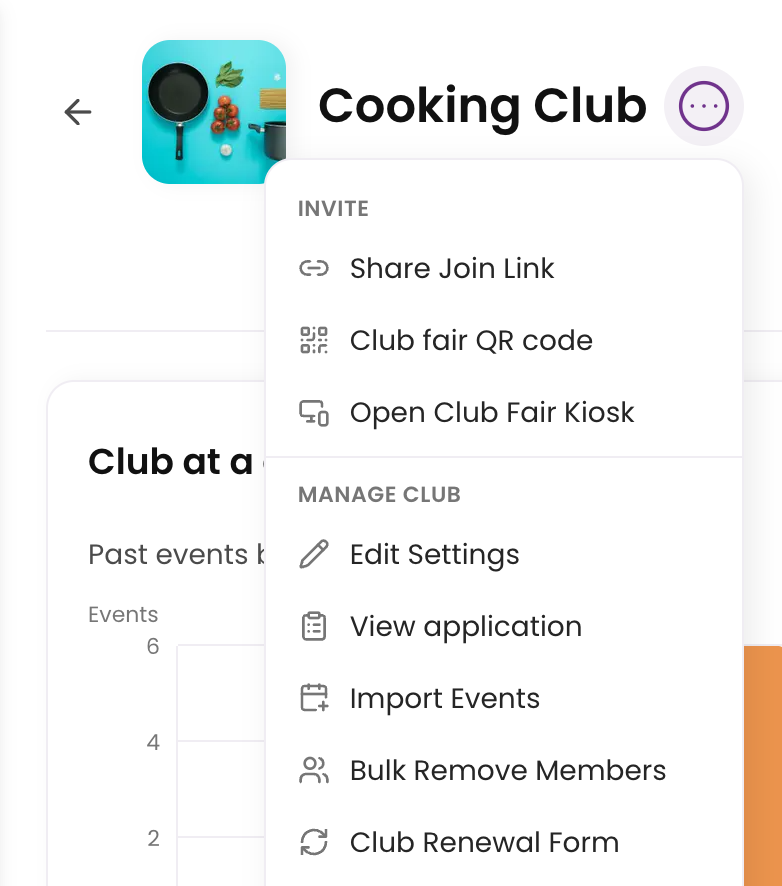
- Open the club and click the three dots beside its name.
- Under Manage club, choose Bulk Remove Members.
- Select the groups to remove. The number beside each group is how many students are in it.
- Click Remove, then Yes to confirm.
Club Hub confirms how many members it removed.
The groups
- Remove club leaders: the club's student leaders.
- Remove members: every student member.
- Remove interested members: students whose request to join is waiting for an answer. It appears only on a club where joining needs approval.
- Remove members with 0 attendance: members who were not marked present at any of the club's events in the year you choose. Club leaders are never in this group.
On a team, the first two read Remove captains and Remove athletes.
Only students are removed. Faculty advisors, staff, and you yourself stay in the club, whichever groups you select.
Choosing the attendance year
Attendance year lists the school years since the club was created. It starts on the most recently finished year, which is the one a start-of-year cleanup needs. The number of members affected changes as you pick another year.
Keep them as interested members instead
On a club where joining needs approval, you can select Make students interested members instead of removing? The leaders and members you selected stay in the club as interested members, keep their attendance, and are not emailed. The button becomes Update members.
Use it when students should be accepted again each year: a club leader accepts each one on the Members tab.
The removal email
By default, each removed student gets an email that names the club. A student removed for no attendance is told that no attendance was recorded for them in the club.
Select Don’t notify removed members by email to send nothing. It applies to every group you select. An email cannot be taken back, so decide before you click Remove.
What a removal keeps, and how to bring someone back
Removing a student deletes nothing. Their membership is closed, they leave the club's chats, and their attendance history stays.
To see who was removed, open the club's Members tab, click Filters, and choose Past members. Each one shows the status Removed.
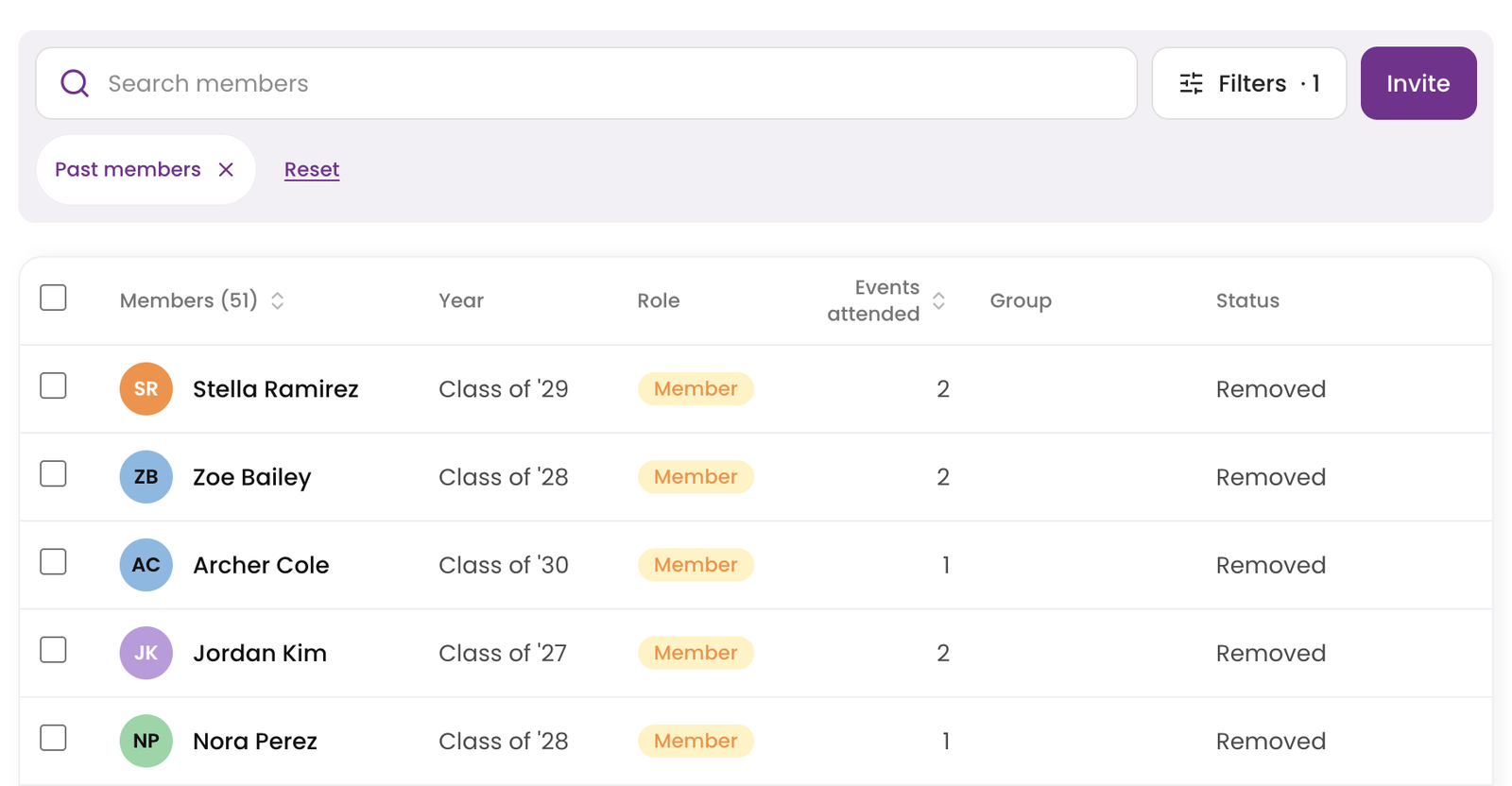
There is no undo button. To bring a student back, add them again:
- On the club's Members tab, click Invite.
- Under Send invitation, pick the student.
- Keep Add immediately selected and click Invite people.
They are members again, with their attendance as it was. A club leader who is a student can only send an invitation, which the student accepts. Students can also join again on their own where the club lets them. See Invite Club Members.
Remove only some members
To remove a few students rather than a whole group, select them on the club's Members tab and click Remove in the bar that appears. Administrators and faculty advisors can do this. Each student removed this way is emailed.
Frequently asked questions
Can club leaders use Bulk Remove Members?
No. Only administrators and the club's faculty advisors see it.
Does it work on a school-wide or grade-wide club?
Yes, but the next time an administrator saves the club's grades, every student in those grades is added back. Unselect the grades first. See School-wide and Grade-wide Clubs.
Why is Bulk Remove Members missing from the menu?
The club is waiting for approval, or you are not an administrator or one of its faculty advisors.
Do removed students lose their attendance?
No. Their attendance stays recorded on the club's events, and counts for them again if they are added back.