How to Update Club Leaders and Faculty Advisors
This guide walks you through the different methods for updating club leadership roles and managing faculty advisors in Club Hub.
Existing Club Leaders and Faculty Advisors are able to update and add new Club Leaders and Faculty Advisors.
Changing Faculty Advisors
Method 1: Edit an Existing Member
If the person is already a member of the club, you can promote them to Faculty Advisor:
- Navigate to the club page
- Click on the Members tab
- Click the Edit Icon next to the member you want to make an advisor
- Change their role from Member to Faculty Advisor
- Click Update
Method 2: Invite a New Faculty Advisor
To add someone new as a Faculty Advisor:
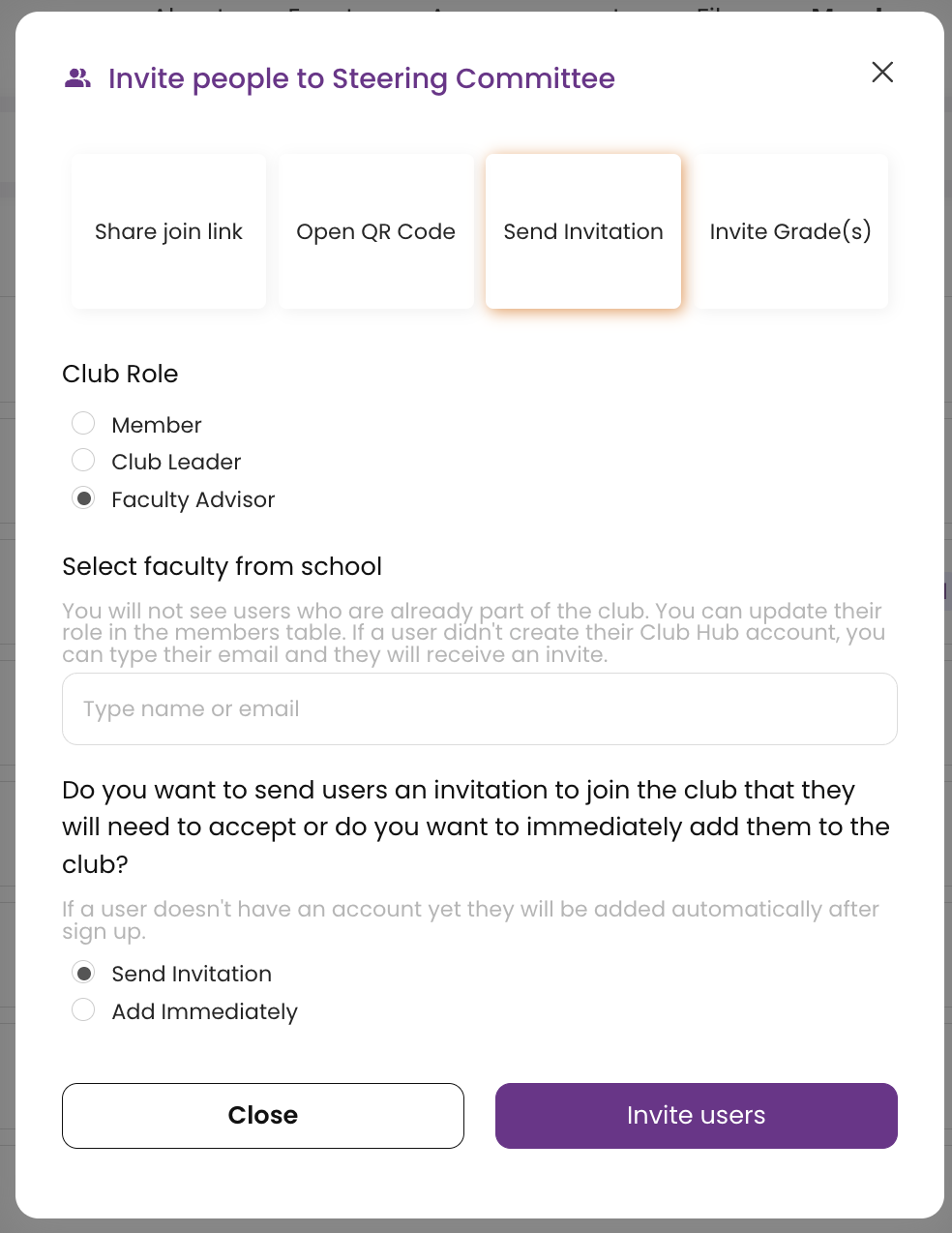
- On the club's Members page, click the purple + Invite button
- Select Faculty Advisor under Club Role
- Type the faculty member's name or email to select them
- Click Invite
Managing Club Leaders
Club leaders can be updated using the same member management process:
- Go to the Members tab on the club page
- Use the Edit Icon to change existing members to Club Leader roles
- Or use + Invite to add new club leaders directly
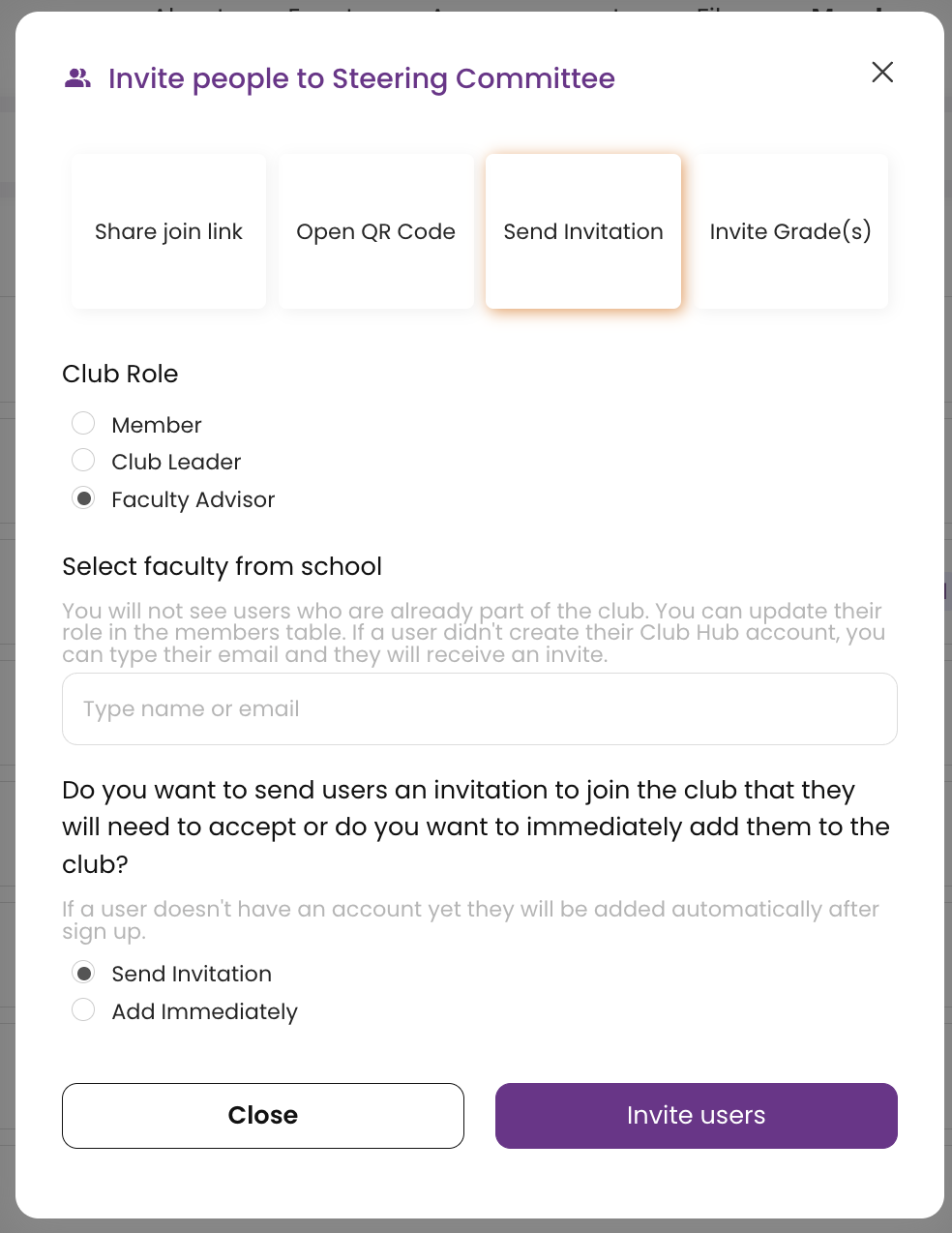
This method is best for changes being made throughout the year. When planning for leadership transitions for the upcoming school year, we recommend using the Club Renewal Process.
##