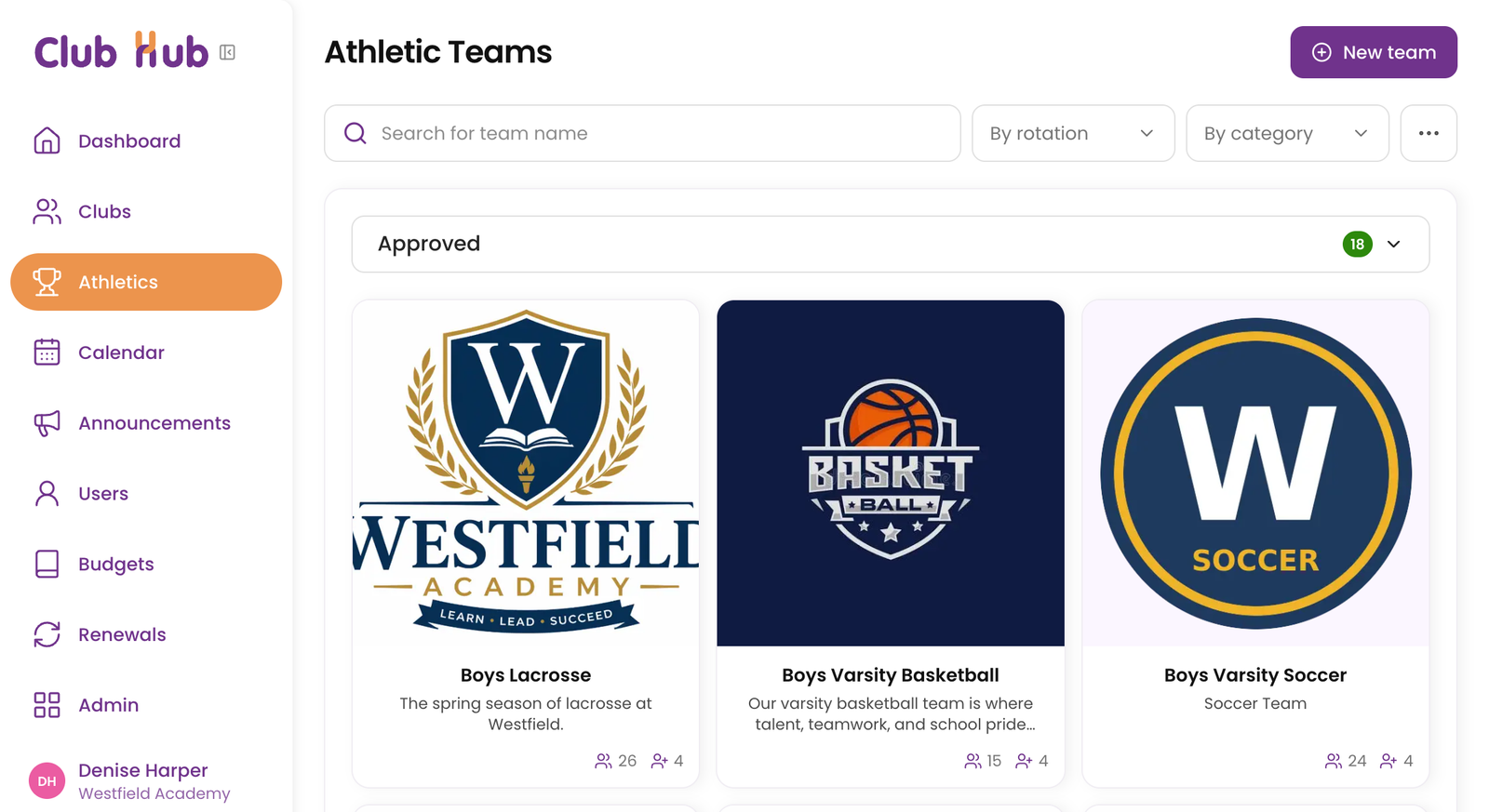
The Athletics tab gives your school's sports teams a home of their own in Club Hub, beside your clubs. Teams get the same events, attendance, announcements, and files as clubs, in their own words: Coach, Captain, and Athlete. You can import a season's schedule from a spreadsheet, and a coach can send one announcement to several teams at once.
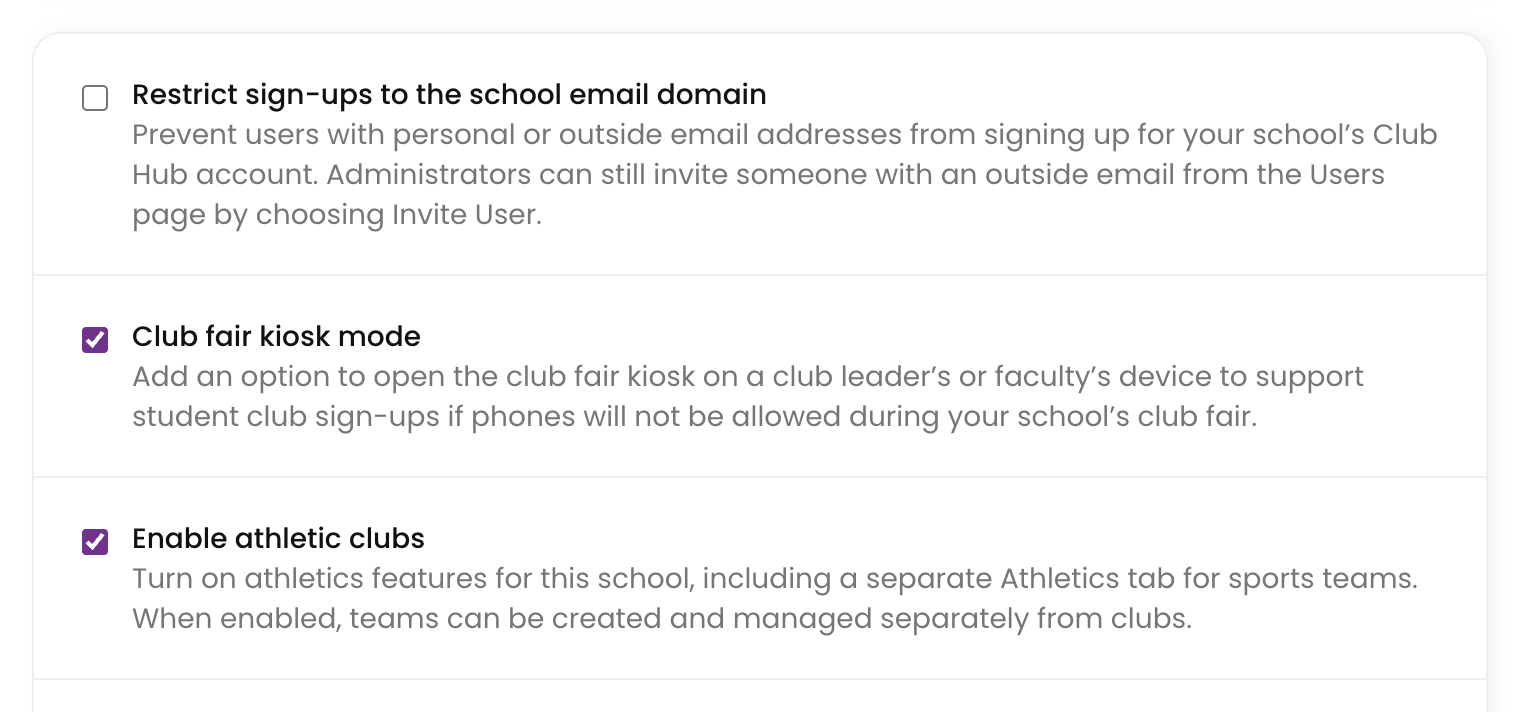
Athletics is off until an administrator turns it on. Any administrator can do it from Settings; there is no need to contact Club Hub.
Turning on Athletics
- Open Settings → School settings.
- Tick Enable athletic clubs. It saves as soon as you tick it.
Everyone at your school then sees Athletics beside Clubs in the menu, on a computer and in the mobile app. The Calendar and the Admin dashboard gain a filter for Clubs or Athletics, and so does your public clubs page if your school has one.
Teams use their own words
A team works exactly like a club. Only the names change:
| On a club | On a team |
|---|---|
| Faculty advisor | Coach |
| Club leader | Captain |
| Member | Athlete |
| New club | New team |
| The Clubs page | The Athletics page, headed Athletic Teams |
A coach can do everything a faculty advisor can, and a captain everything a club leader can. Students find teams under Athletics → Explore Teams and join them the way they join clubs.
Creating a team
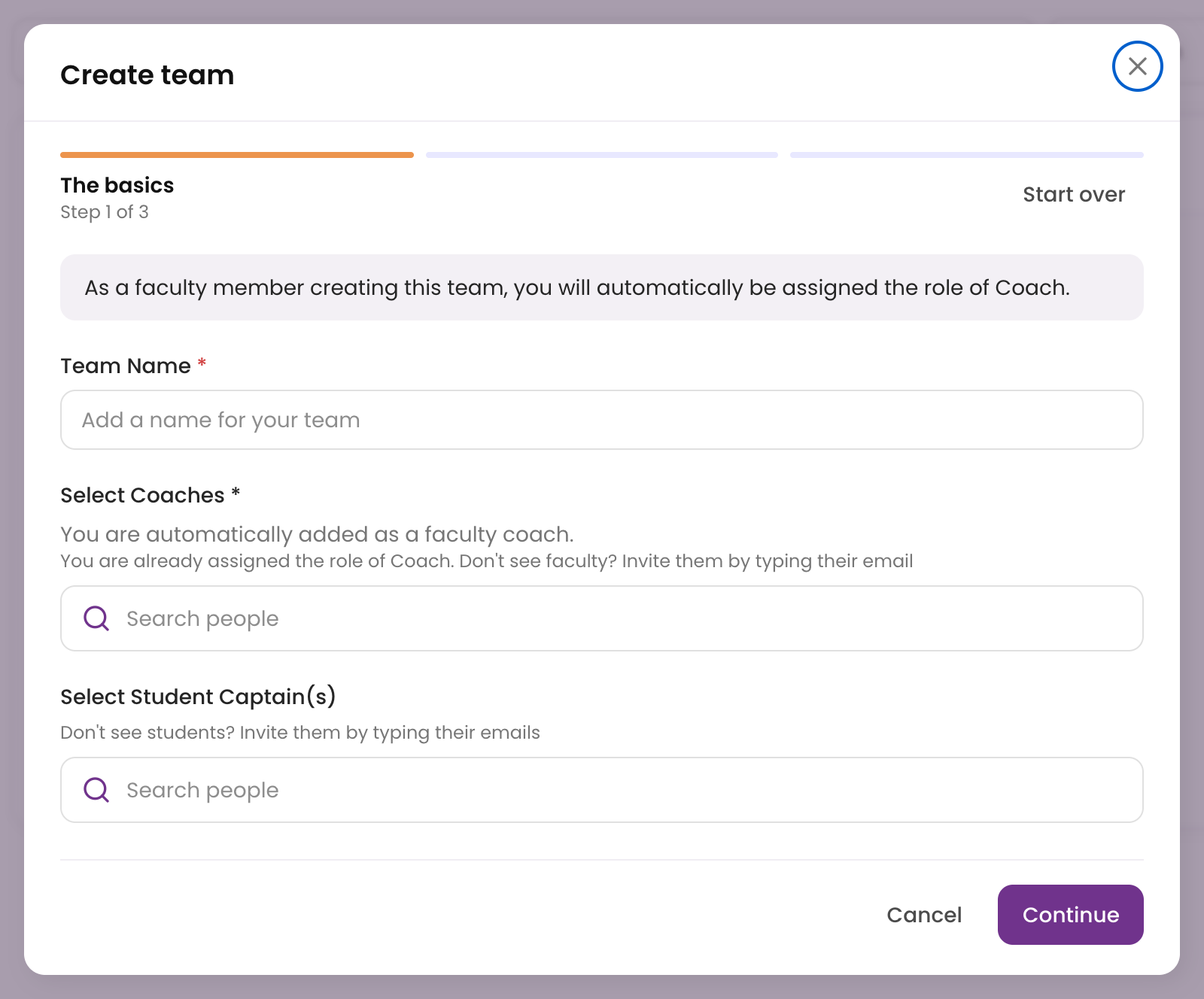
- Open Athletics and click New team.
- The basics: the Team Name, its coaches under Select Coaches, and its student captains. To invite someone who is not in the list, type their email address.
- Team Settings: its category, the student interests it fits, its usual meeting day and place if your school asks for them, and Member join settings.
- Team description: a One-sentence pitch, a Description, and a Logo.
- Click Create Team!
Who becomes what:
- A student who creates a team becomes its Captain.
- A faculty member becomes its Coach.
- An administrator is not added to the team. Administrators manage every team anyway.
Your school's club rules apply to teams too, under Settings → Club settings: whether students and faculty may create one, whether an administrator approves it first, and whether a student must name a coach. A team waiting for approval is under Awaiting Approval on the Athletics page.
Already running a sport as a club? Open it, click the three dot menu beside its name, choose Edit Settings, and change Club type to Athletics. It moves to the Athletics page with its members, events, and history.
A team's page
A team has the same tabs as a club:
- About: the description, the usual meeting time and place, and the coaches. On a computer, administrators also see Team at a glance, the team's events over the school year.
- Events: practices, games, and meets. Practice and Game are event types of their own, and attendance works as it does for a club (How to take attendance).
- Announcements: posts the team receives by email.
- Files: forms, schedules, and links.
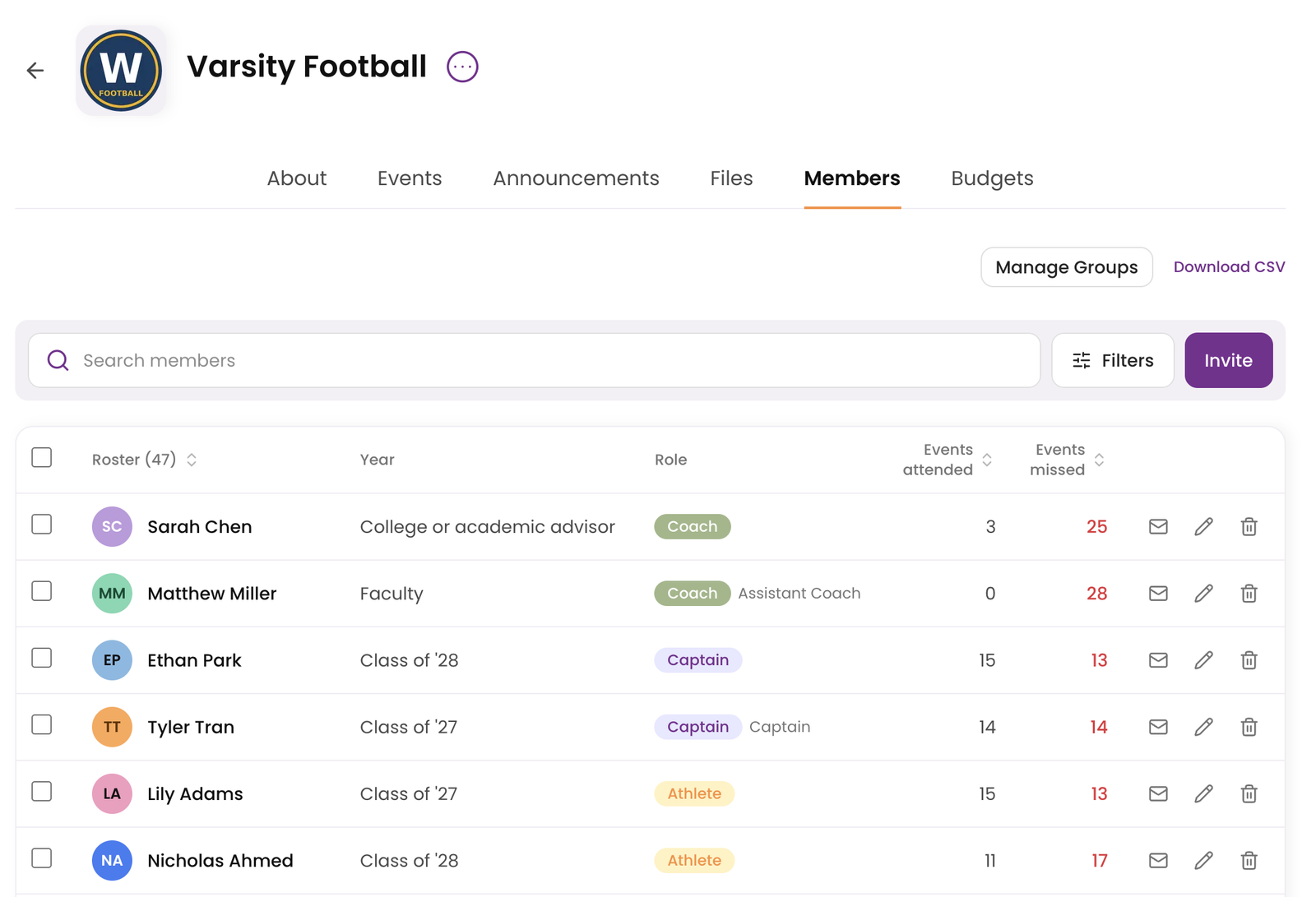
- Members: the roster, each person's role, and how many events each athlete attended and missed.
- Tasks, Feedback, and Budgets, where your school uses them.
If your school has Group Chat on, a team has its own chats too (Group Chat).
Importing a season's schedule
Enter a whole season of games and practices from a spreadsheet instead of one event at a time. Coaches, captains, and administrators can import into a team.
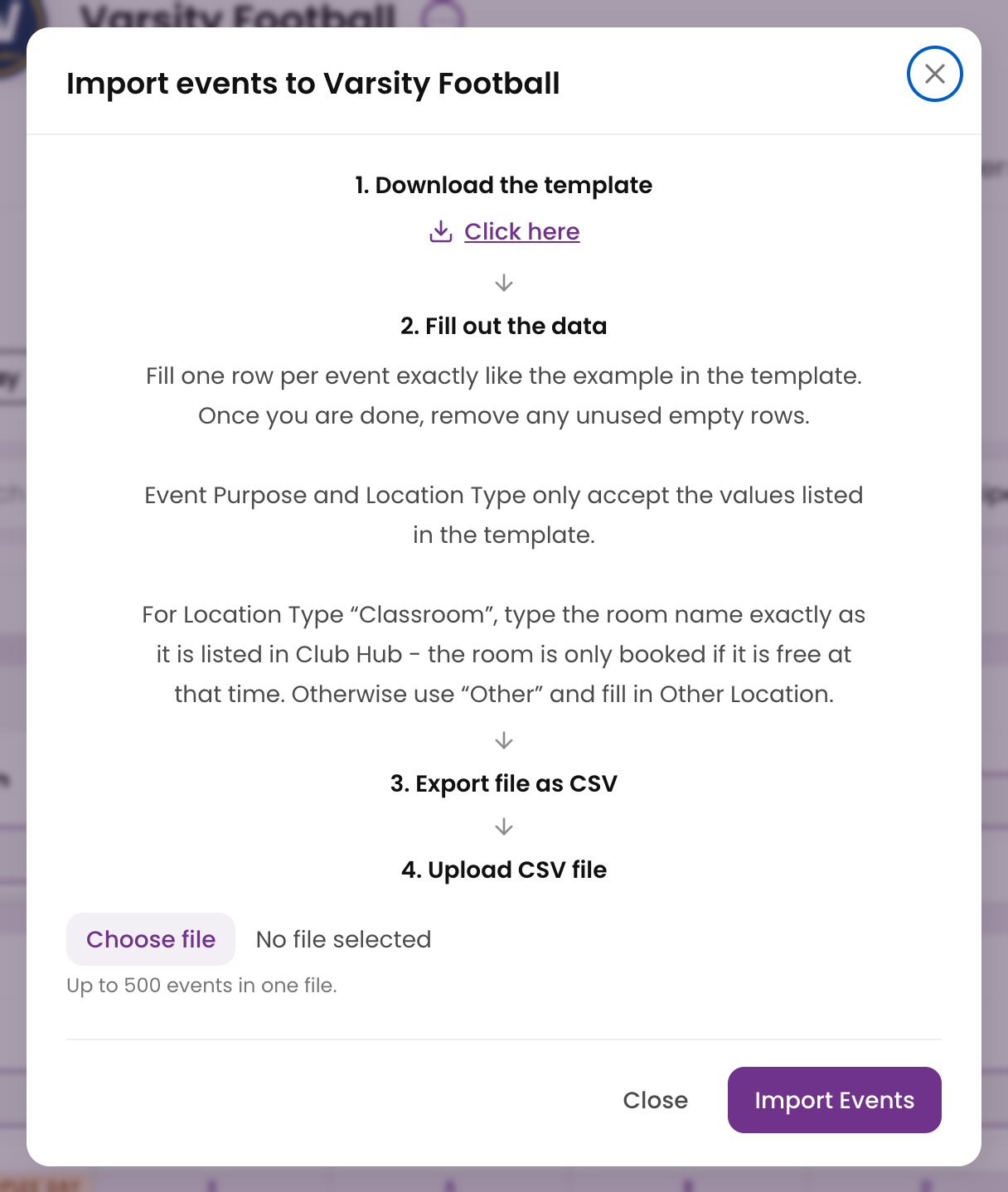
- On the team's Events tab, click Import.
- Under Download the template, click Click here.
- Fill in one row per event, replacing the example row, and delete any empty rows.
- Save or export the sheet as a CSV file.
- Choose the file and click Import Events.
The template's columns:
| Column | What goes in it |
|---|---|
| Name | The event's name, such as "vs. Glenwood" |
| Date | 2026-10-03, 10/3/2026, or 3-Oct-2026 |
| Start Time, End Time | 15:30 or 3:30 PM |
| Event Purpose | Practice, Game, Competition, Meeting, Trip, Social, Fundraiser, Volunteering, Presentation, or Guest speaker |
| Location Type | Classroom for one of your school's rooms, or Other |
| Classroom | The room's name exactly as it is in Club Hub |
| Other Location | Any other place, such as an away field |
| Description | Optional details, such as when the bus leaves |
- Up to 500 events in one file.
- Nobody is notified. Imported events send no email or push, so you can load a whole season without filling inboxes.
- A room is booked only when it is free. A Classroom row books the room if your school has a room by that name and nobody else has it then. Otherwise the event is imported without a room, and Club Hub tells you how many.
- Rows it cannot read are skipped. A row needs a name, a date, and a start and end time. Club Hub tells you how many rows it skipped, and why for the first five.
Club leaders and administrators can import into a club the same way, from Import Events in the club's three dot menu.
One announcement to several teams
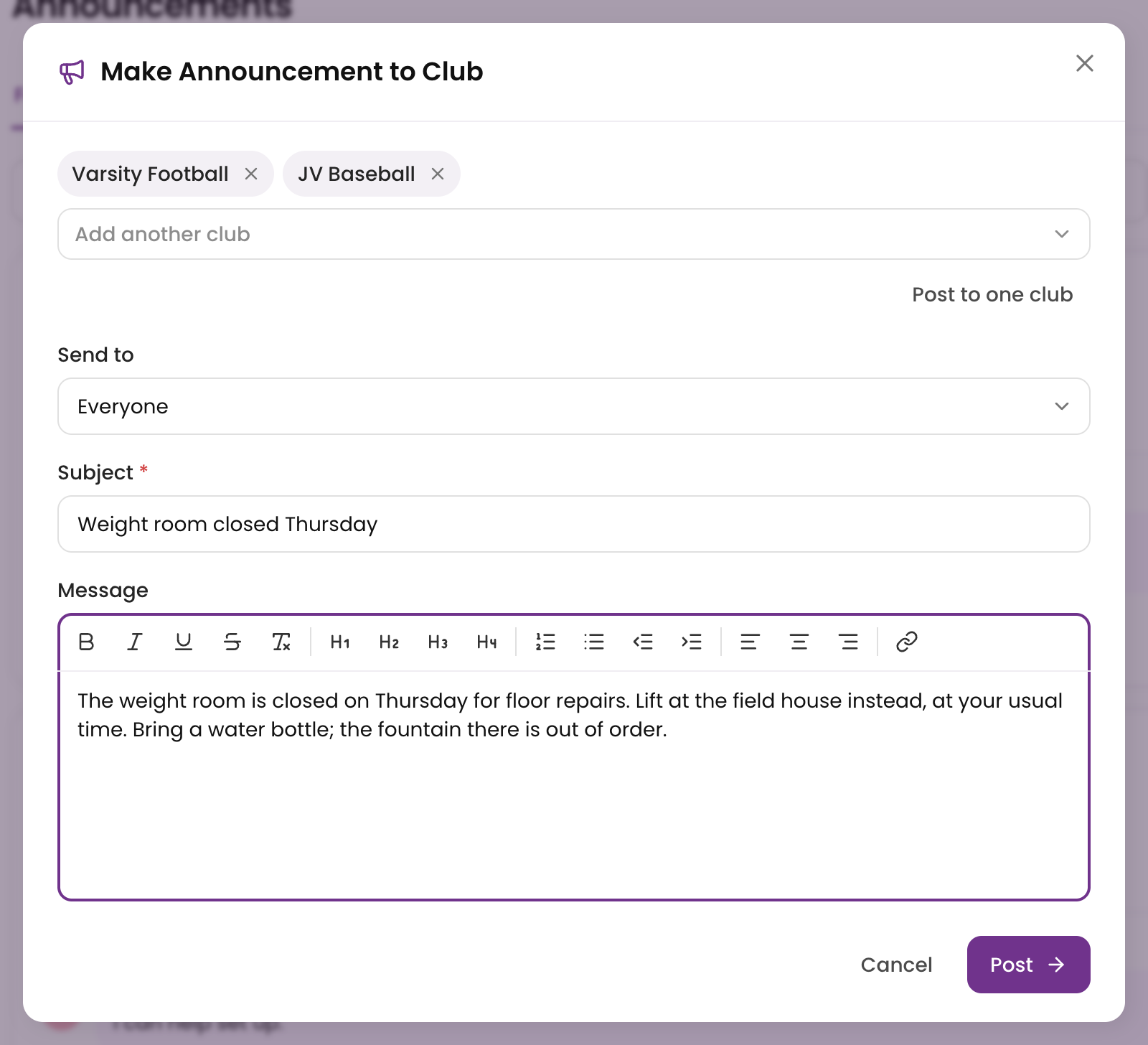
A coach of two or more teams, or an administrator, can post one announcement to several teams at once. Each team gets its own copy, on its Announcements tab and by email, as if you had posted to each one.
- Open Announcements and click New announcement. Administrators choose Club announcement first.
- Click Choose multiple clubs.
- Add each team under Add another club. Remove one with the x on its name.
- Under Send to, choose Everyone, or Club Leaders & Faculty Advisors only for just the captains and coaches.
- Write the Subject and Message, and click Post.
- A coach can choose any of the teams and clubs they coach or advise. An administrator can choose any at the school.
- Captains post to one team at a time.
- It goes out at once. A post to several teams has no attachments, scheduling, drafts, or parent copy. For any of those, post to each team on its own.
Announce to a Group of Clubs has the details.
Keeping parents in the loop
If your school turns on Allow faculty to notify parents in Settings → School settings, coaches and administrators can copy parents on a team's news:
- On an event: Would you like to notify parents of members about this event?
- On an announcement: Also send announcement to club member parents, or Only send announcement to club member parents.
Captains do not see these choices. Parent Notifications explains how parent addresses are collected.
Frequently asked questions
Why don't I see the Athletics tab?
Athletics is off at your school. An administrator turns it on under Settings → School settings → Enable athletic clubs.
Do we need Club Hub to turn it on?
No. Any administrator at your school can turn it on or off in Settings.
Can a team hold tryouts before athletes join?
Yes. Set Member join settings to Club Leader Approval Required. A student who asks to join is an Interested member until a coach, captain, or administrator approves them.
Are teams kept apart from clubs?
Yes. Teams are listed on Athletics and clubs on Clubs. The Calendar and the Admin dashboard can show either one or both.
Can we turn an existing club into a team?
Yes. Anyone who runs the club opens its three dot menu, chooses Edit Settings, and changes Club type to Athletics. Its members, events, and history stay with it.
Does Athletics replace our athletics website?
No. Many schools keep their public athletics website for scores and public schedules. Club Hub is for the team itself: rosters, practices, attendance, and messages to athletes.
What happens if we turn Athletics off?
The Athletics tab disappears from the menu. No team is deleted, and turning the setting back on brings every team back.
Quick summary
- Turn it on yourself: Settings → School settings → Enable athletic clubs.
- Teams work like clubs, with Coach, Captain, and Athlete.
- Students and faculty create teams under your club rules, and administrators approve them as they approve clubs.
- Import a season from a CSV with Import on a team's Events tab. Nobody is notified.
- Coaches with two or more teams send one announcement to all of them with Choose multiple clubs.
- Ask athletes to install the Club Hub app and allow notifications, so a moved practice reaches them.