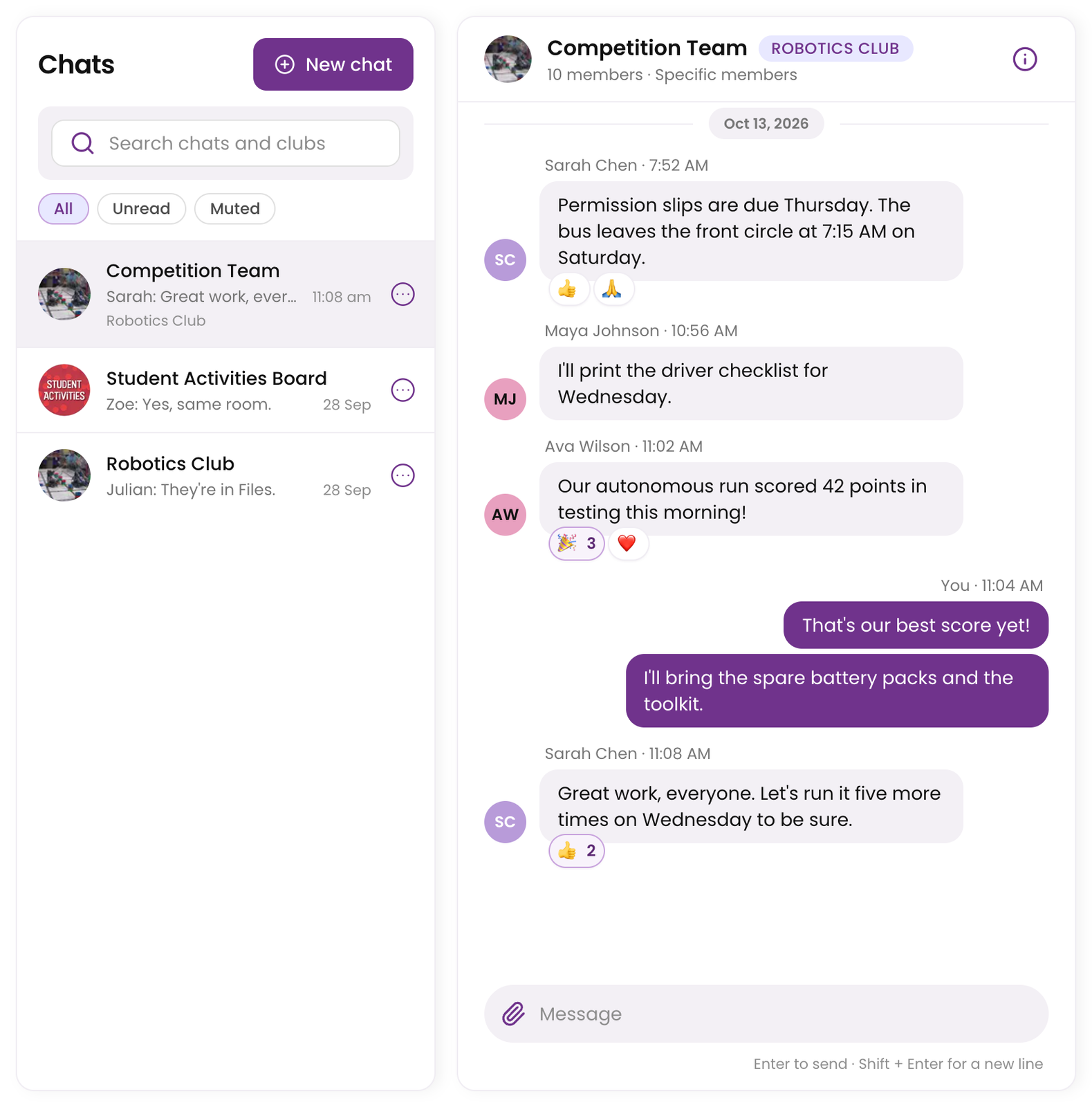
Group Chat brings club conversation into Club Hub, where the club's faculty advisors are part of the conversation and administrators can read everything. Instead of clubs organizing themselves in personal text threads, WhatsApp groups, and social media accounts your school cannot see, the conversation happens in the same place as the roster, the calendar, and the club page.
Group Chat is off by default. An administrator turns it on for the whole school.
The problem this solves
Most clubs already have a group chat. It is just not one the school can see.
Club leaders create a text thread or a WhatsApp group at the start of the year, add whoever they can reach, and run the club from there. That creates three problems for a school:
- No adult is in the room. Faculty advisors are rarely added to a student text thread, and often should not be added to a personal messaging app at all. The school has no idea what is being shared in the group carrying its name.
- The roster drifts immediately. Every time a student joins or leaves the club, someone has to remember to add or remove them by hand. New members are missed for weeks. Students who left the club stay in the chat.
- Students drown in threads. A student in six clubs is in six separate chats, in three different apps, none of which are connected to the club they belong to.
Group Chat fixes all three. The club's main chat follows the roster and updates itself, every chat keeps at least one of the club's faculty advisors in it, and every club a student belongs to appears in one list inside the app they already use.
What students get
Group Chat is built to feel like the messaging apps students already use rather than like school software.
- A familiar conversation view with message bubbles, grouped messages, and date separators
- Mobile push notifications through the Club Hub app, so it is as immediate as a text
- Every chat they are in, across all their clubs, in one list with unread counts
- Search, pinned chats, and per chat muting so the clubs that matter stay on top
- File, photo, and document sharing inside the conversation
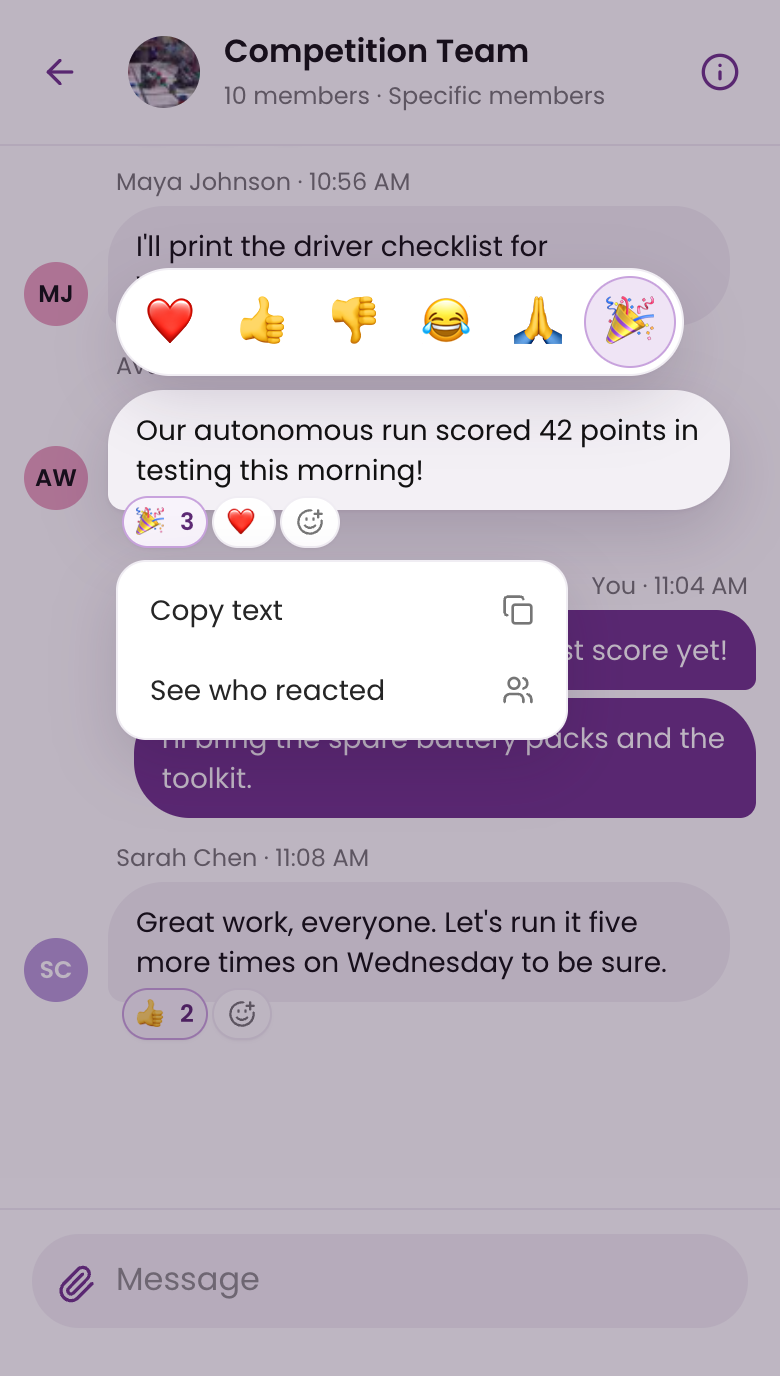
- Six quick reactions on any message
Because a chat is attached to the club, nobody has to be invited and nobody has to maintain a contact list. A student who joins the Debate Team is in the Debate Team's all-members chat.
How moderation works
This is the part that makes Group Chat different from anything a club can set up on its own.
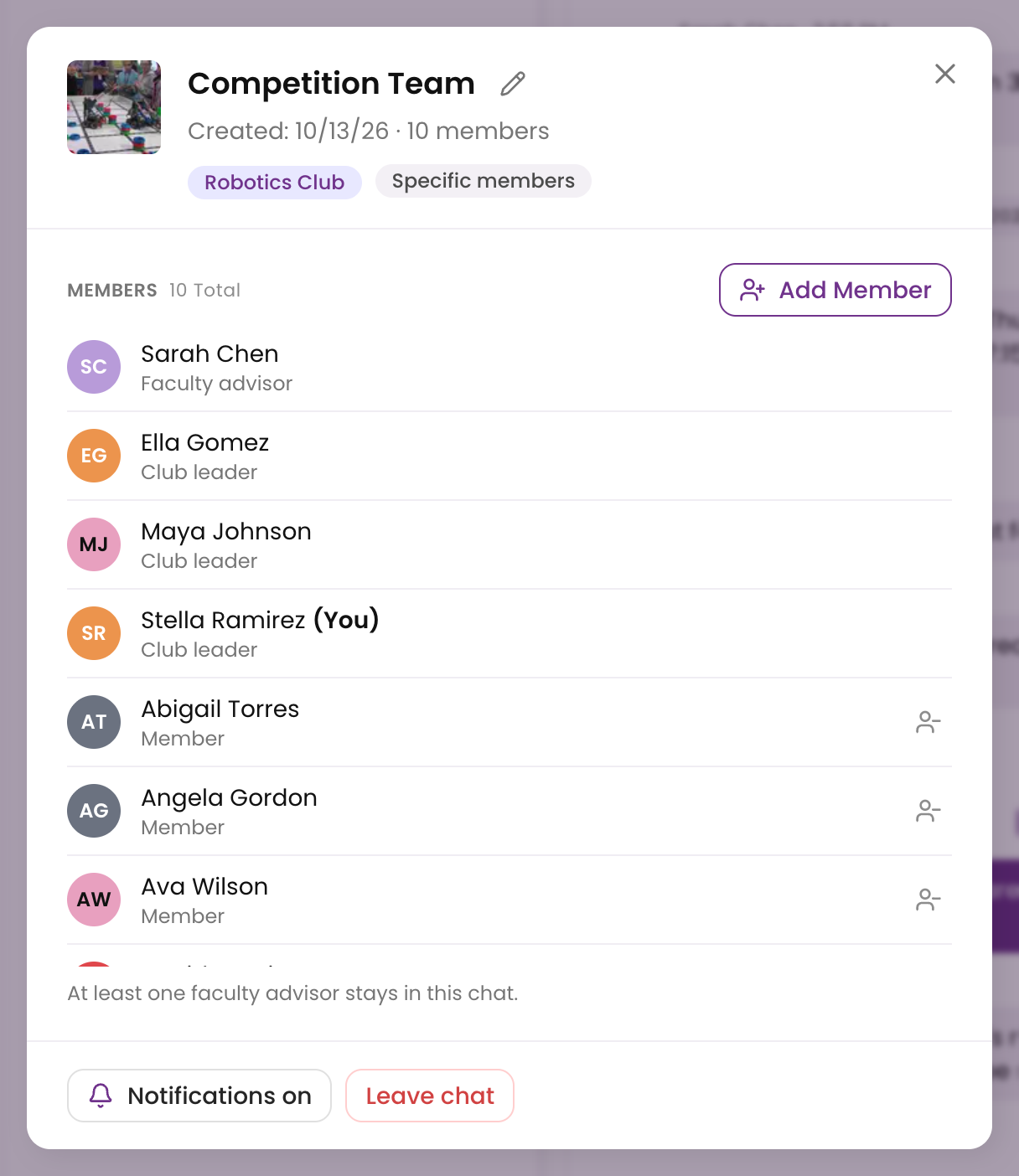
A faculty advisor is in every chat, as long as the club has one. A club's all-members chat includes all of its faculty advisors. A chat for specific members includes the advisors its creator chose, at least one. The last advisor in a chat cannot leave or be removed, and if that advisor leaves the club, the club's other advisors are added automatically.
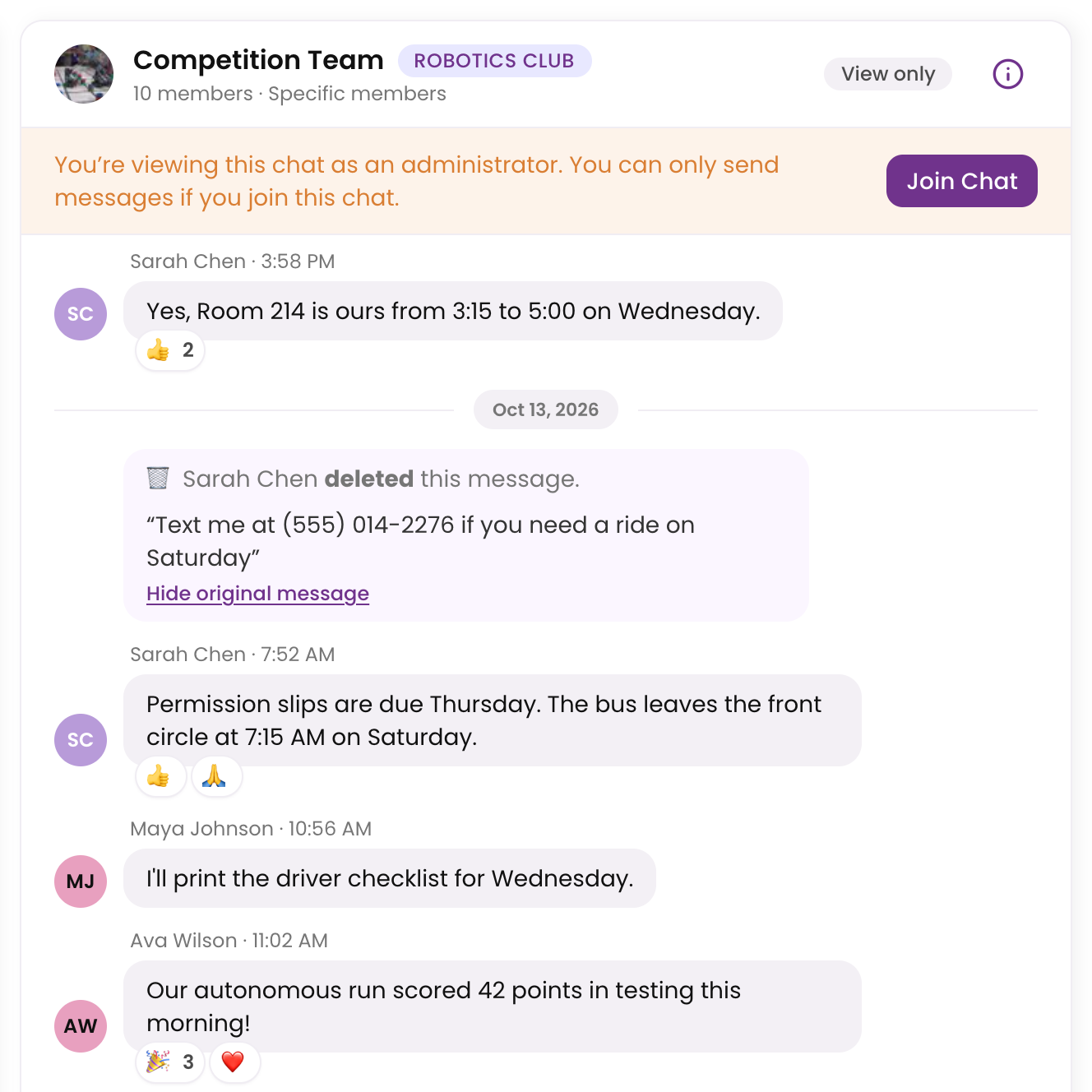
Advisors and administrators see deleted messages. A faculty advisor can delete any message in their club's chats, and an administrator any message at the school. Everyone else, club leaders included, deletes only their own. A deleted message disappears for everyone else, while advisors and administrators see who deleted it and can open Show original message. Deleting does not erase the record.
Administrators can read any chat at the school. Every chat at your school is in your Chats list, and the ones you are not part of are marked View only. You do not need to be a member and you do not need to ask. Reading is silent: nobody is told.
Joining to post is visible. In a chat you are not part of, you can read but not send. Clicking Join Chat adds you, and everyone in the chat sees you in its member list. To step out again, open the chat's details and click Leave chat.
You can delete a whole chat. Click the chat's name to open its details, then click Delete chat. Members and advisors no longer see it and nobody can post in it, but every message is kept. To bring it back, choose the Deleted filter in your Chats list, open the chat's details, and click Restore chat.
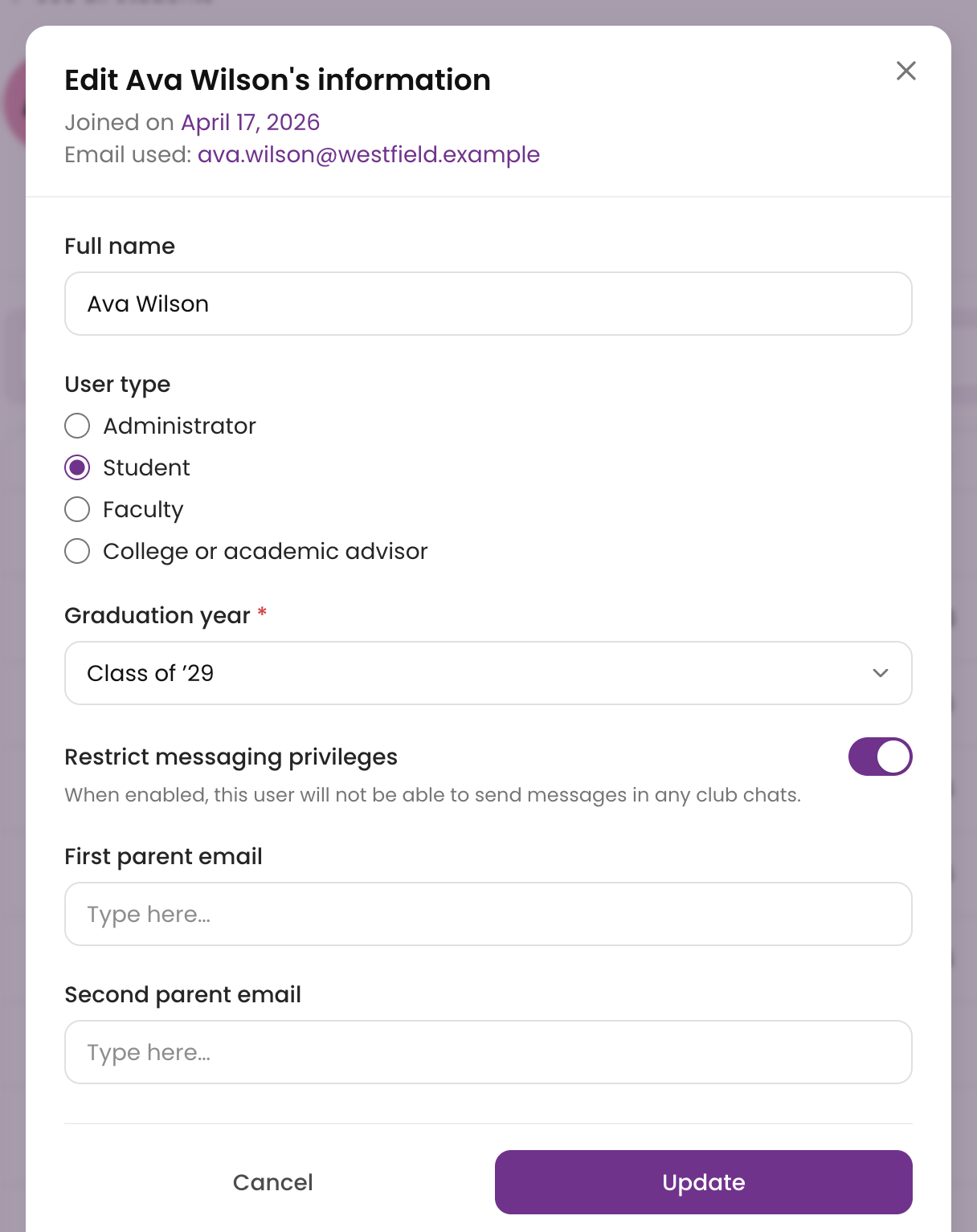
You can restrict one student without switching anything off. Open Users, select the student, click Edit user, switch on Restrict messaging privileges, then click Update. They can still read their chats but cannot post, react, or start a chat, and they see a notice that their school administrator restricted them. Every other chat in the school carries on as normal.
Turn on Group Chat for your school
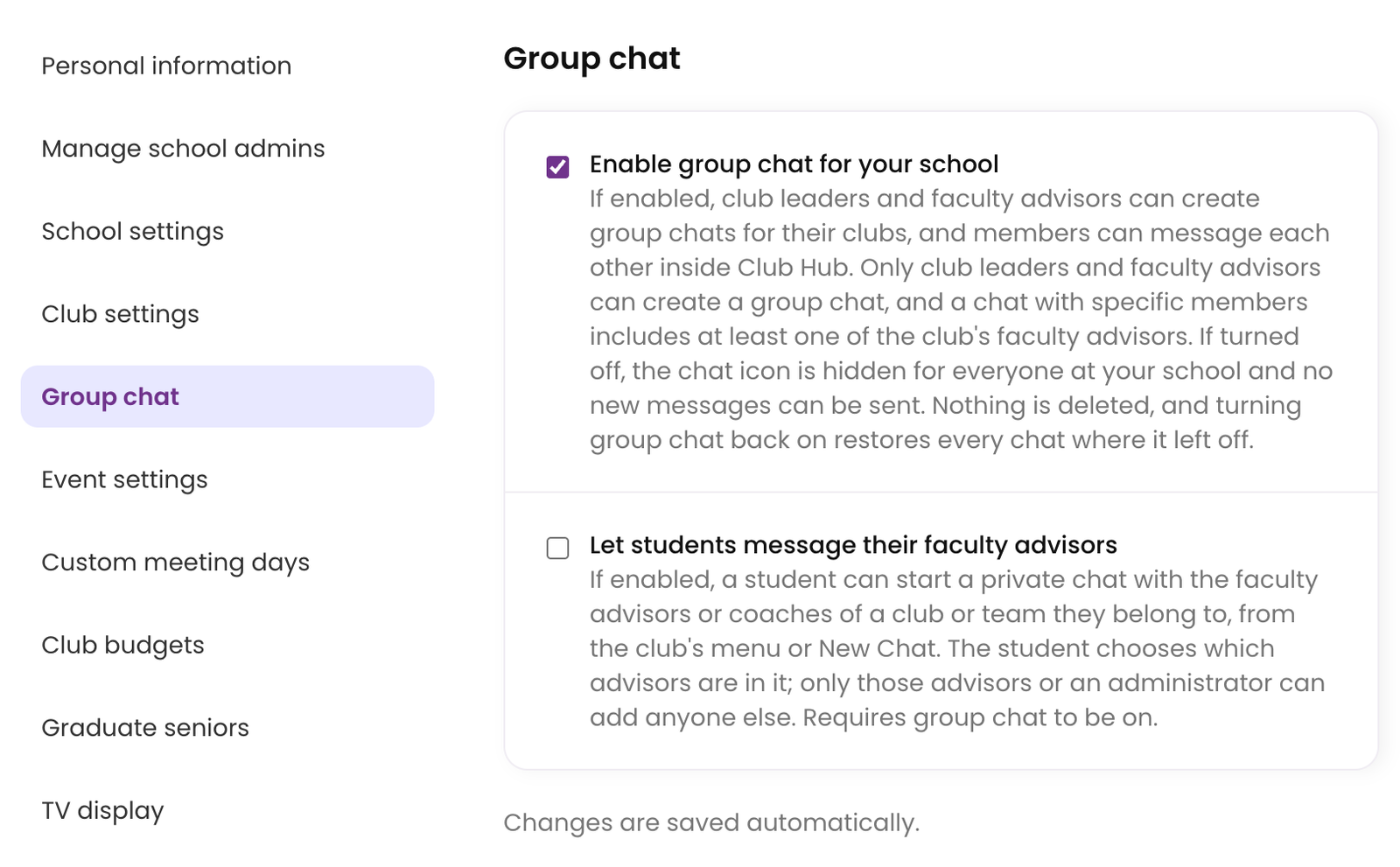
- Open Settings (on a phone, the gear at the top of the screen).
- Select Group chat.
- Tick Enable group chat for your school. It saves as soon as you tick it.
A Chat item appears in the desktop sidebar and Chats in the mobile bottom bar. Until you enable it, that item is hidden for everyone at your school.
The next time an existing user opens Club Hub, they see a one time Group Chat is Here! notice pointing them to the chat icon. Accounts less than six months old do not see it.
Assign your faculty advisors first. An advisor is in the club's all-members chat as soon as they are assigned. A club with no advisor can still have chats, with no staff member in them unless an administrator joins. Confirm advisors are in place before you announce Group Chat to your school.
Who creates chats
Chats are created from Chats → New chat, for an approved club.
- Club leaders and faculty advisors create chats for the clubs they lead or advise. On a team, that is captains and coaches.
- Administrators can create a chat for any club, and can read and join any chat.
- Students can start only a private chat with their own club's advisors, and only when you allow it (below).
The two kinds of chat
When a chat is created, the creator names it and chooses who can participate.
All club members
Membership follows the club roster and updates itself as students join and leave. Nobody is added or removed by hand, and members cannot leave while they are in the club. This is the club's main channel, and each club can have one.
Specific members
A hand picked group from the roster. Tick at least one of the club's faculty advisors (an advisor making the chat counts), then tick the members, with a search by name and a Select all shortcut. This is how a club runs a smaller conversation without starting something outside Club Hub.
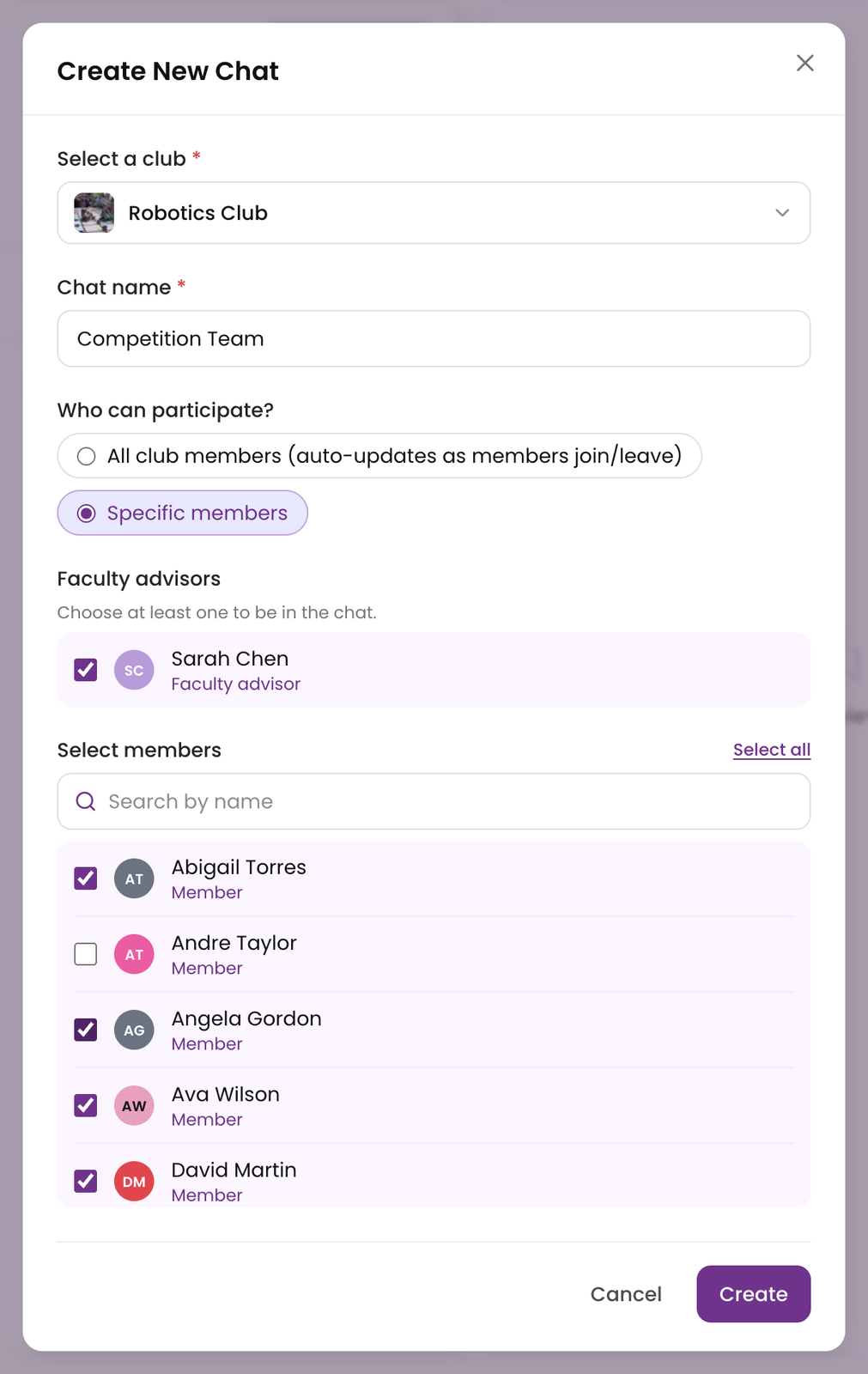
Afterwards, club leaders, advisors in the chat, and administrators add people with Add Member in the chat's details, and rename the chat with the pencil beside its name. Anyone can leave with Leave chat, except the last advisor.
Let students message their faculty advisors
Students sometimes need to reach an advisor privately: a question about a trip, a missed meeting, something they would rather not say in front of the club. This setting gives them a safe way to do it without opening chats between students.
- Open Settings and select Group chat.
- Tick Let students message their faculty advisors. Group chat must be on too.
A student then chooses Message a Faculty Advisor (Message a Coach on a team) from the club's menu, or starts from Chats → New chat.
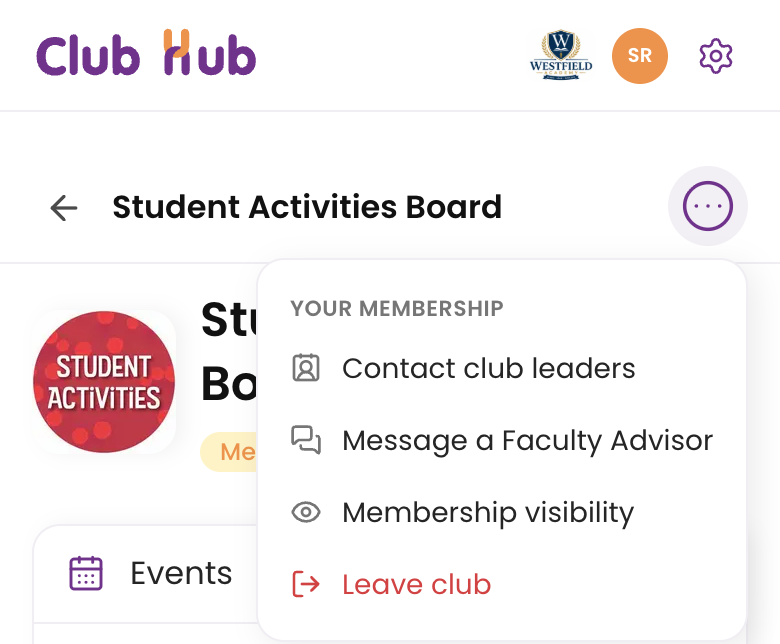
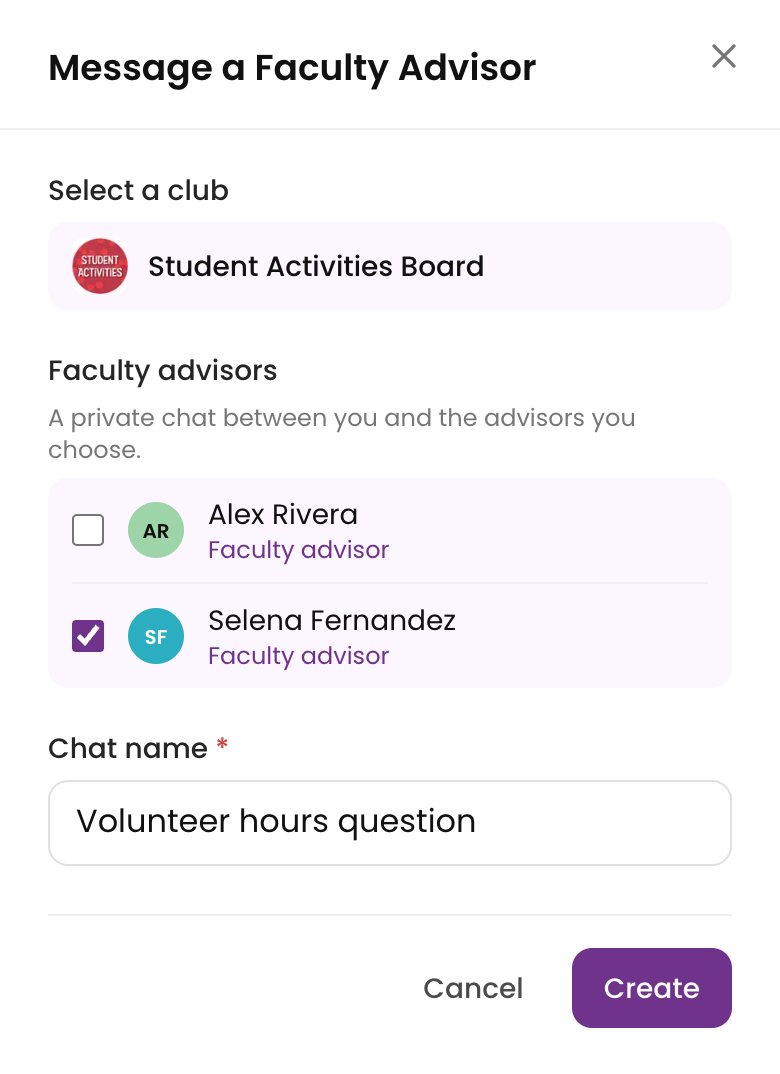
- The student chooses which of the club's advisors are in the chat. Nobody else can be chosen, so a student cannot start a chat with other students.
- Asking again for the same advisors reopens the same chat.
- Only the advisors in that chat, or an administrator, can add anyone else.
Use cases
Clubs that benefit most from chats for specific members:
- Trip and travel groups. The twelve students going to the conference, plus the advisor, without the other forty members.
- Event preparation. A committee getting ready for the club fair, a performance, or a fundraiser.
- Officers. Club leaders coordinating between meetings, with their advisor.
- Competition teams. The students actually competing at the tournament.
- Grade or project groups. Long term group work within a larger club.
Every one of these is a conversation that would otherwise have happened in a private text thread with no advisor in it.
How Group Chat and Announcements work together
Both reach a club audience, so the difference is direction and delivery.
| Group Chat | Announcements | |
|---|---|---|
| Shape | Ongoing two way conversation | One way post, with comments |
| Who can post | Anyone in the chat, including students | Club: leaders, advisors, administrators. School: administrators |
| Audience | The people in that chat | Club announcement: the club's members, or some of them. School announcement: the group you select |
| Never sends email | Sends email, and club announcements can include parents | |
| Mobile notification | Yes | Yes |
| Scheduling | Sends immediately | Can be scheduled or saved as a draft |
Use an announcement when you need something on the record and delivered by email. Use a chat when the club needs to talk something through. Most schools use both.
Day to day features
- Attachments. Up to ten images, PDFs, Word documents, or other common files in a message, each up to 15 MB and renamable before sending.
- Reactions. ❤️ 👍 👎 😂 🙏 🎉, one per person per message. Hover over a message and click the smiley on a computer, or press and hold it on a phone. Reactions never send a notification.
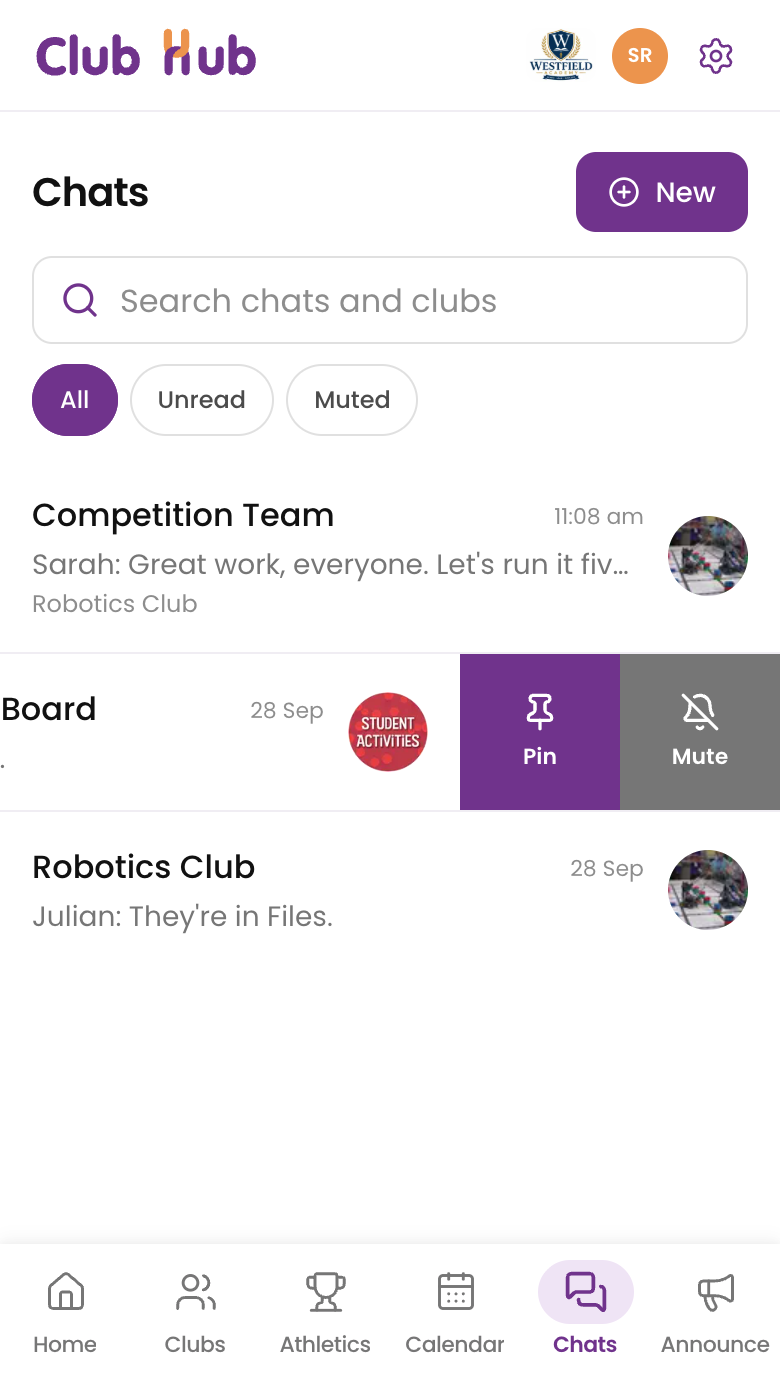
- Pin up to three chats to the top of the list.
- Mute a single chat. On a phone, swipe a row left for Pin and Mute. On a computer, use the three dot menu on the row.
- Search by chat or club name, and filter by All, Unread, or Muted.
- Delete your own message at any time: the trash icon on a computer, or press and hold on a phone.
- Unread state is tracked per person, so opening a chat only marks it read for you.
Notifications
New messages send a mobile push notification titled with the sender and the chat name, and show an unread mark on Chat in the navigation. Group Chat never sends email.
Anyone can mute a single chat, or turn chat notifications off entirely in Settings → Personal information → Notifications: under Chats, untick App beside New messages in your chats.
Tell students and advisors to install the Club Hub mobile app and turn on push notifications. Group Chat is only as immediate as a text message if the notifications are on.
Pausing Group Chat
Untick Enable group chat for your school. The chat area is hidden for everyone and no new messages can be sent.
Nothing is deleted. Turning it back on restores every chat, message, attachment, and reaction exactly where it left off, along with each person's pins, mutes, and messaging restrictions. That makes this a safe way to pause chat over a break or during an investigation, rather than a decision you cannot undo.
Common questions
Can students create chats without an advisor knowing?
No. A chat a club leader starts includes at least one of the club's advisors, and a chat a student starts holds only the advisors they chose, and only where you allow it. Confirm every club has an advisor before you roll this out.
Can we turn Group Chat on for only some clubs?
The setting is school wide. Control at the club level comes from whether a chat is created at all, which is up to that club's leaders and advisors.
Can an administrator read a chat without joining it?
Yes. Reading is silent. Posting requires clicking Join Chat, which is visible to everyone in the chat.
What happens when a student leaves the club?
They are removed from that club's chats. If they rejoin, they are back in its all-members chat automatically, but a leader or advisor needs to add them to any chat for specific members again.
Why can't someone post in a chat?
- An administrator restricted their messaging privileges.
- They hid their membership in the club (Club Leaders Only or Nobody), so they can read the all-members chat but not post there. Setting their membership visibility to Everyone on the club page lets them take part.
- The chat has no faculty advisor in it while the club has one. Nobody can post until a club leader, advisor, or administrator adds one.
- An administrator deleted the chat, or the club is paused.
- They are an administrator who has not joined the chat yet.
Does Enter send a message?
On a computer, Enter sends and Shift plus Enter adds a new line. On a phone, Enter adds a new line and you send with the send button.
Quick summary
- Turn Group Chat on in Settings → Group chat, and assign faculty advisors to every club first.
- Club leaders and faculty advisors create chats for their own clubs, and administrators for any club.
- All-members chats follow the roster. Chats for specific members cover trips, events, officers, and committees, and keep at least one advisor.
- Administrators read any chat silently, join visibly to post, and can delete and restore chats.
- Advisors and administrators can delete any message and still read what was deleted.
- Restrict messaging privileges handles one student without affecting anyone else.
- Let students message their faculty advisors gives students a private line to their advisors and nobody else.
- Notifications are push only. Turning Group Chat off hides everything and deletes nothing.
Group Chat gives students the messaging experience they have been asking for, and gives your school something a WhatsApp group never could: an adult in every conversation and a complete record.