Club renewals ask every club to renew for the coming school year. Each club's leaders fill in a short form: who will lead the club, how this year went, and the club's details for next year. You review each form in Club Hub and renew the club, and its page updates to match. Any administrator turns renewals on under Settings → Club settings.
Watch the video
A short video shows every step: the club renewals tutorial. It opens without signing in, so you can send it to anyone who helps run renewals. You can also watch it in Club Hub: click Watch how it works under Settings → Club settings → Club renewals.
Turn on renewals
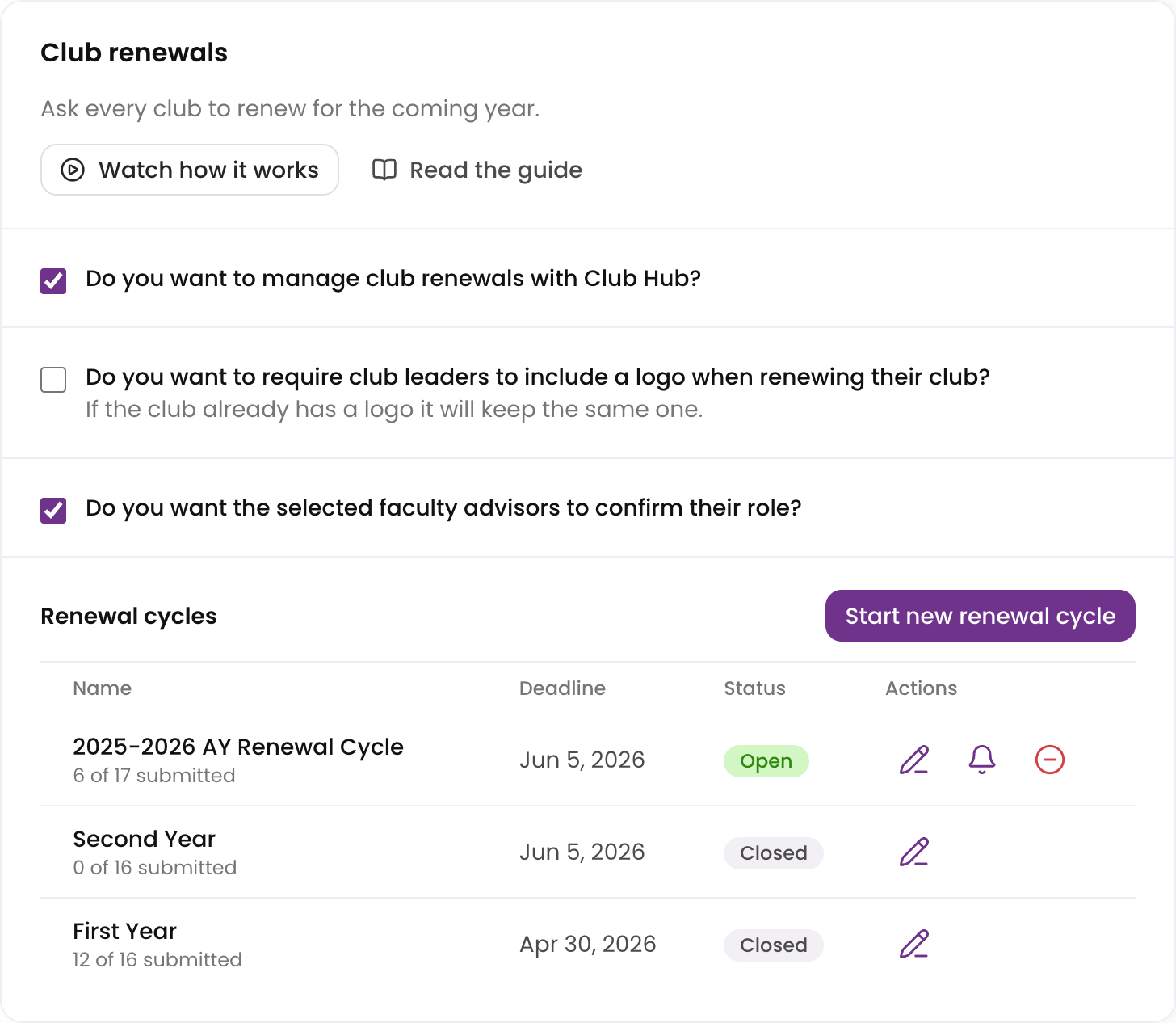
- Go to Settings → Club settings and scroll down to Club renewals.
- Select Do you want to manage club renewals with Club Hub? It saves by itself, and Renewals appears in your left menu.
Two more options, both optional:
- Require a logo. Select Do you want to require club leaders to include a logo when renewing their club? to ask every club without a logo to add one.
- Ask faculty advisors to confirm. Select Do you want the selected faculty advisors to confirm their role? to ask each club's faculty advisor for next year to confirm they'll advise it.
Start a renewal cycle
A renewal cycle asks every club at once. Start one each spring, or whenever your school renews its clubs.
- Under Club renewals, click Start new renewal cycle.
- Check the name and pick a Deadline. The deadline shows in the emails to club leaders.
- Under Exempt clubs (optional), add any club that doesn't need to renew, such as a team that runs every year.
- Click Create Cycle and Email Leaders.
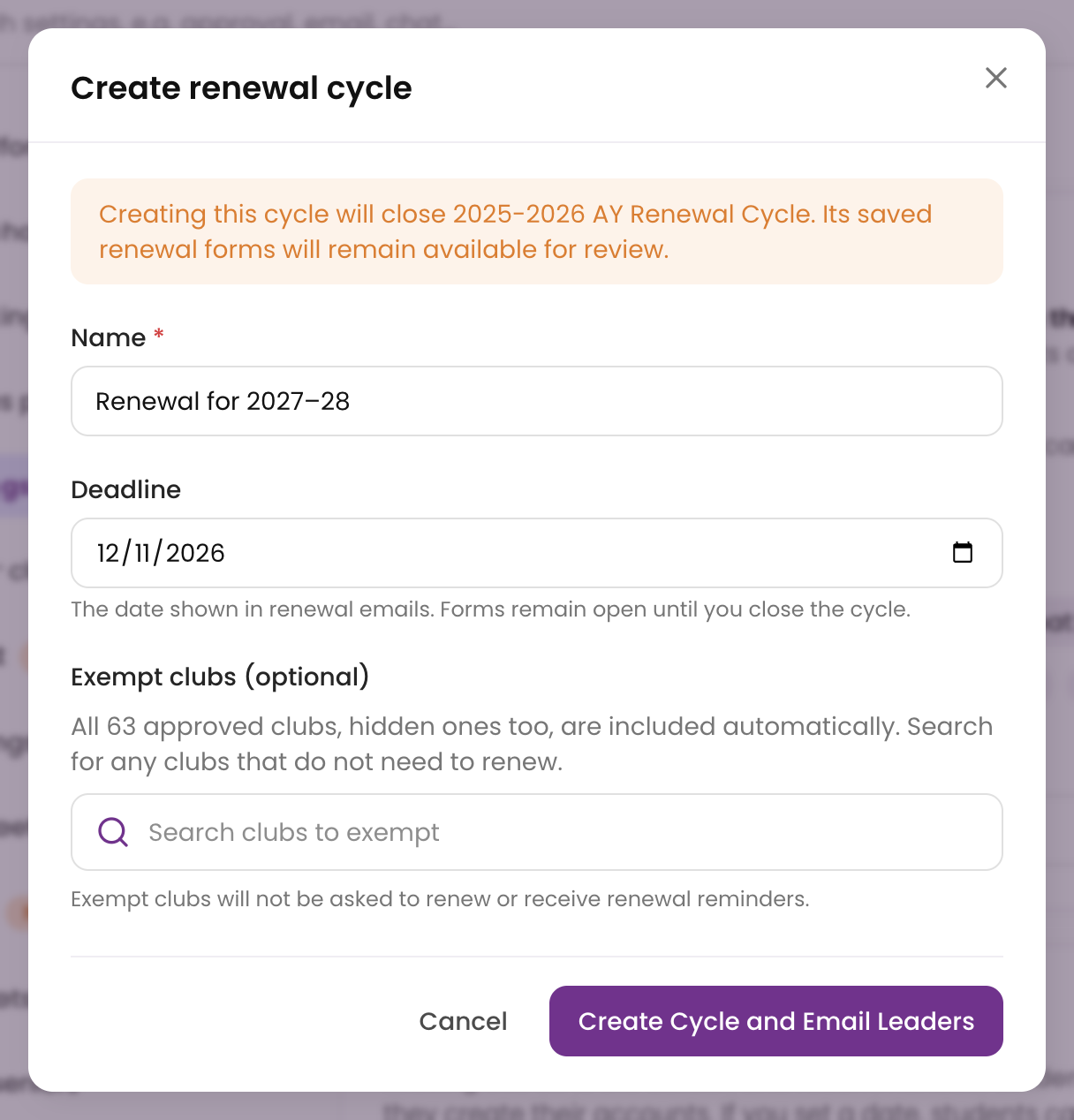
Each club's leaders and faculty advisor get an email with a link to their form. Club Hub reminds every club that hasn't sent its form as the deadline gets close, and again once it passes, so you don't have to.
What club leaders do
Leaders see Club renewal due at the top of their club's page, and the email links straight to the form. The form has three parts:
- Club leadership. Who will lead the club next year, and whether its faculty advisor stays the same.
- Renewal questions. How this year went, and the club's goals for next year.
- General club settings. The club's pitch, categories, description, usual meeting day, time, and location, how new members join, and its logo. These start filled in with the club's details today, so leaders only change what's new.
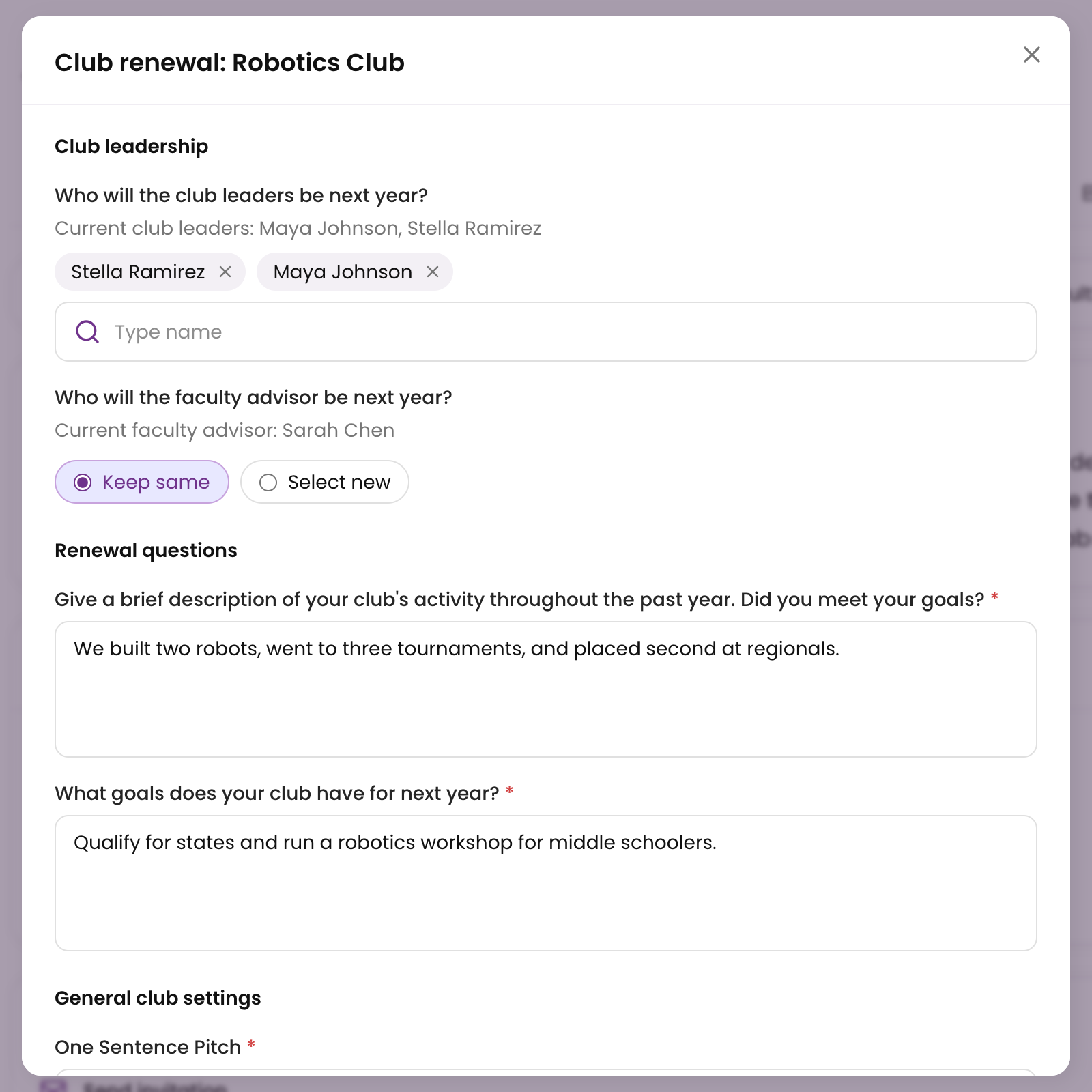
Leaders can click Save draft and come back later. Once they click Submit, they can still change their answers and submit again until you renew the club or close the cycle.
Faculty advisors confirm
If you asked faculty advisors to confirm, the faculty advisor a club names for next year gets an email once its form is submitted. They click Confirm or Decline, from the email or from the club's page.
On the form, you see who confirmed under Accepted by, who hasn't answered yet under Awaiting response, and who said no under Declined by.
Review and renew each club
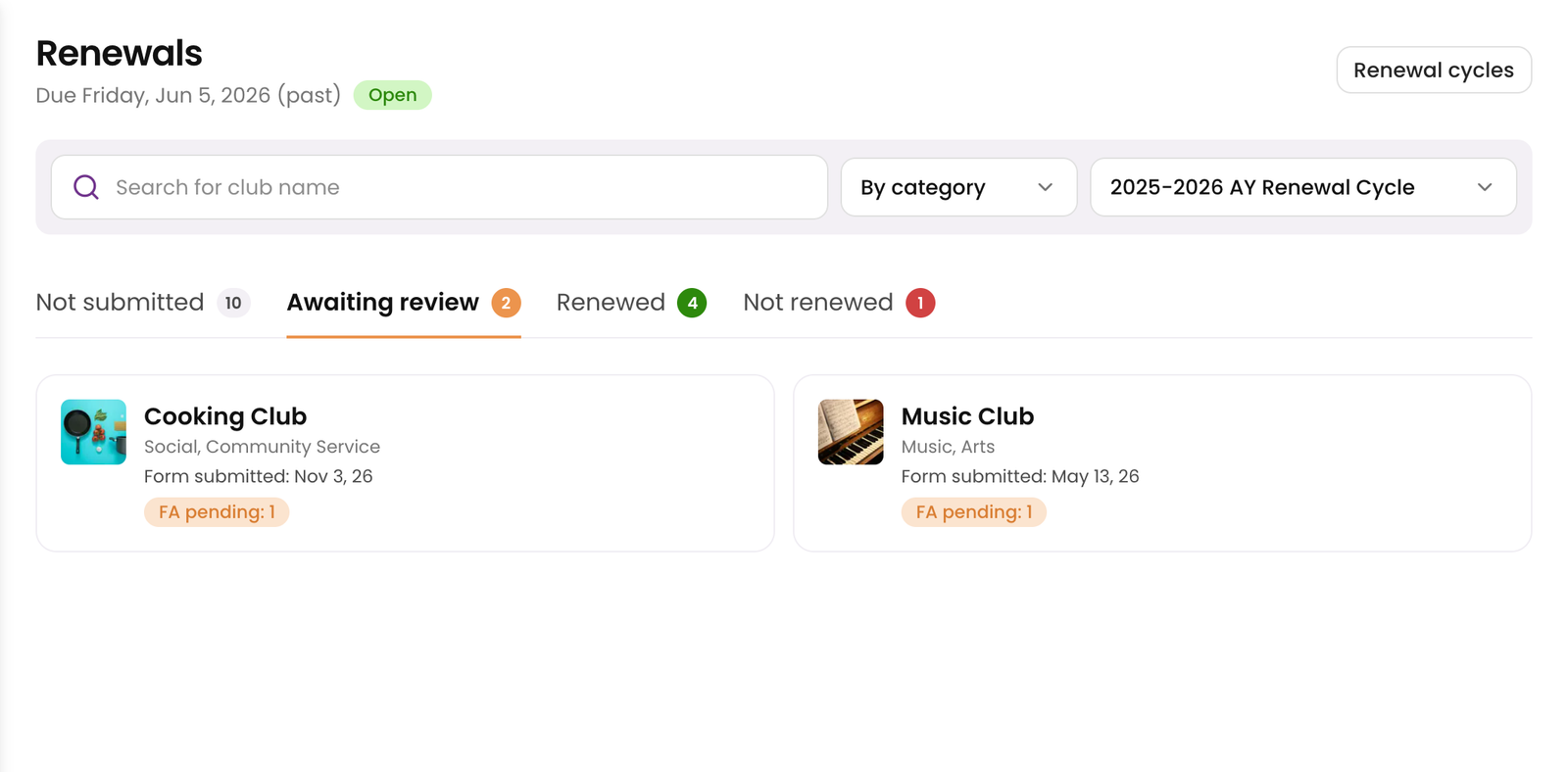
- Click Renewals in the left menu. Every club in the cycle is on one of four tabs: Not submitted, Awaiting review, Renewed, and Not renewed.
- Open Awaiting review and click a club. You see how active it was this year: its events, attendance, members, and messages.
- Click View form to read the answers. Under next year's leaders, you see when each one joined the club and how many meetings they came to.
- Change anything that needs it, then click Renew, then Yes.
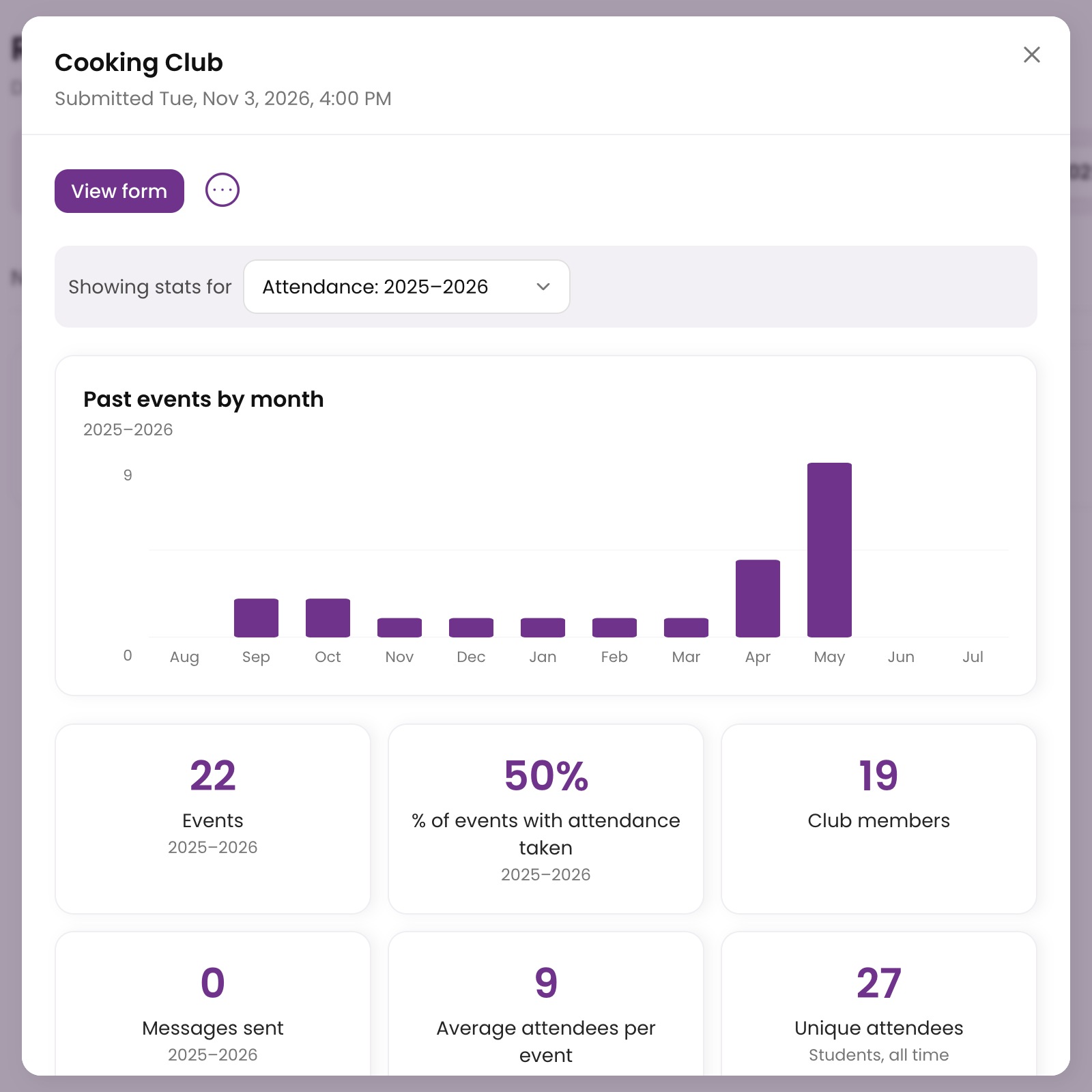
The club's page updates to match the form: its leaders, faculty advisor, description, and meeting details. Its leaders get an email that the club is renewed, and the club moves to Renewed.
To nudge every club that hasn't sent its form yet, open Not submitted and click Remind all.
Clubs that don't renew
Open a club under Not submitted and click the three dots:
- Contact leadership to write to its leaders and faculty advisor.
- Fill out renewal form to fill it in for the club yourself.
- Exempt from this round if the club doesn't need to renew after all.
- Pause club if it isn't coming back. It moves to Not renewed.
Close the cycle
When every club is done, go to Settings → Club settings → Club renewals, click the red minus beside the cycle, and confirm. Leaders can no longer send their forms.
The forms stay on the Renewals page. To look back at an earlier cycle, click its name at the top of the page and pick another.
Frequently asked questions
What happens when the deadline passes?
Nothing closes by itself. The forms stay open until you close the cycle, so a late club can still send its form.
Can I change the deadline after I start?
Yes. Click the pencil beside the cycle under Settings → Club settings → Club renewals, change the deadline or the exempt clubs, and click Save Changes.
A paused club sent its form. How do I bring it back?
Open its form and click Unpause and renew. The club is active again, updated to match its form.
Can two cycles be open at once?
No. Starting a new cycle closes the one that's open, and its forms stay on the Renewals page.