Every event in Club Hub has its own attendance QR code. Members scan it with their phone and check in with one tap, or you mark them present by hand. Either way the check-ins stay on the event, so every meeting's attendance is in one place.
Club leaders, faculty advisors, and administrators can take attendance for a club's events.
Open Take Attendance
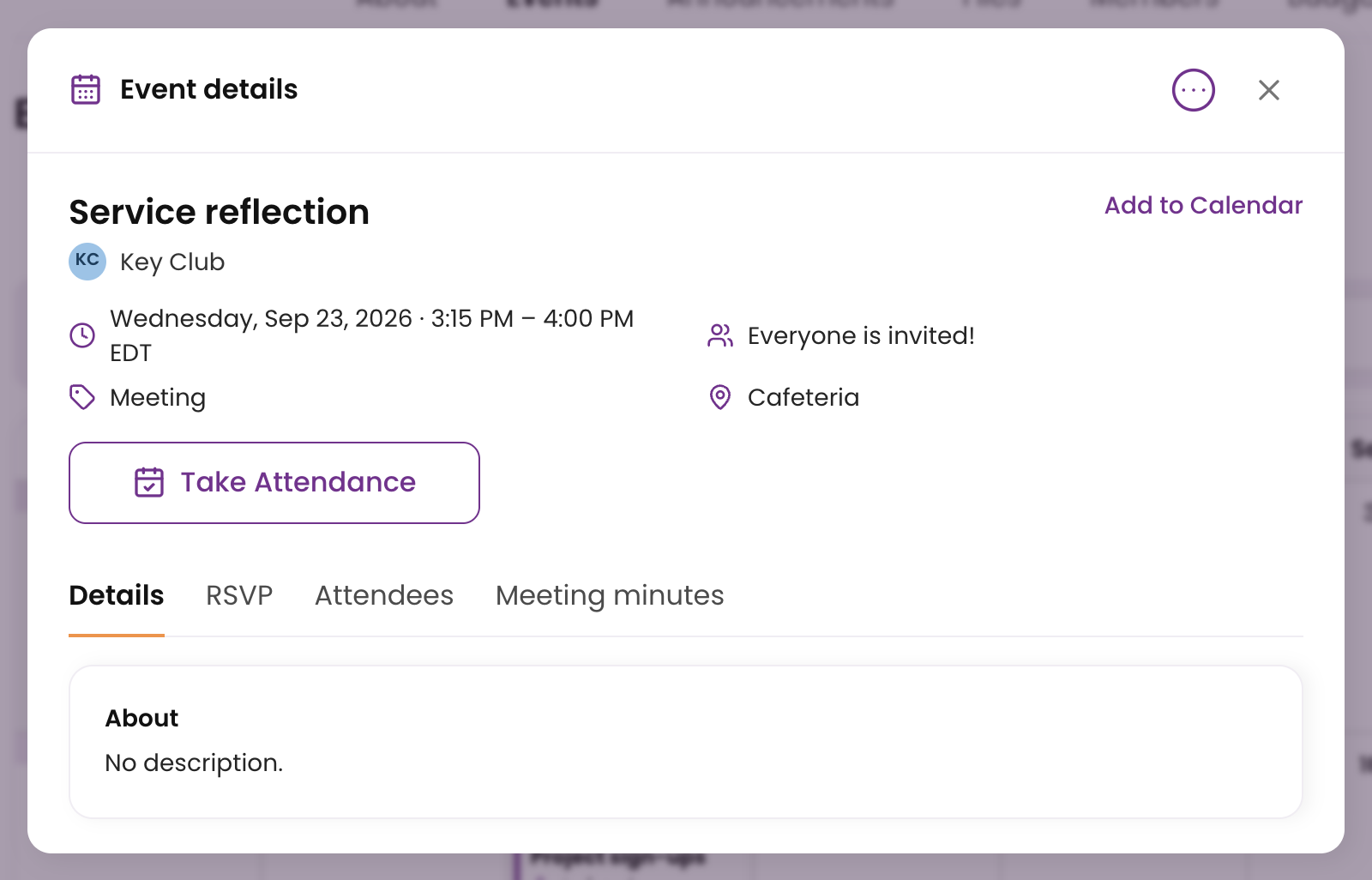
- Click the event on the club's Events tab or on the Calendar.
- Click Take Attendance. It is also under the event's three dots.
The pop-up opens on the event's QR code, with the event's name and date at the top. QR code and Manual switch between the two ways of taking attendance.
Take attendance with the QR code
Show the code on a screen or a projector at the meeting. Members scan it with their phone's camera.
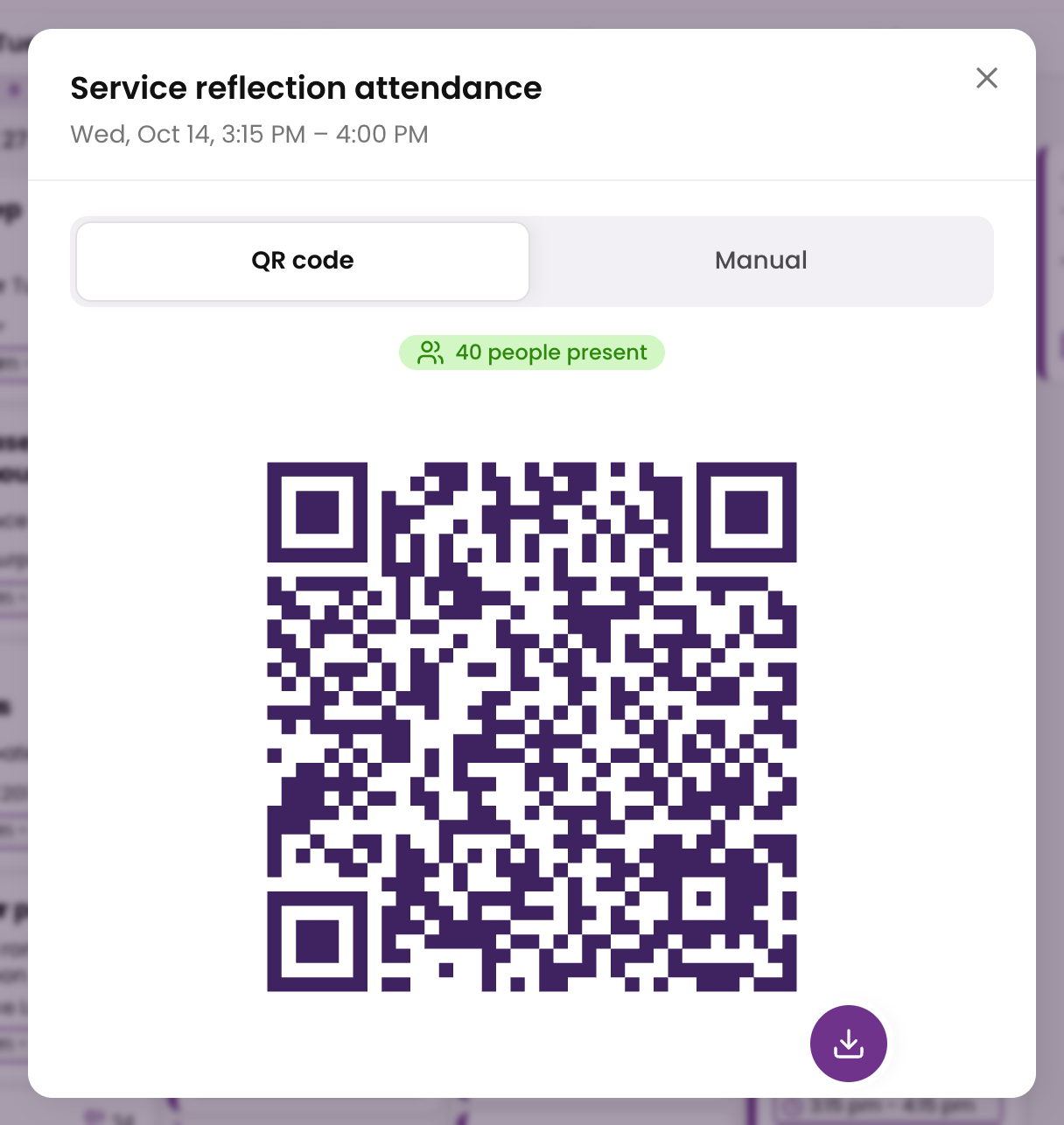
- The count is live. The green badge shows how many people have checked in so far.
- Print it. The download button beside the code saves it as a PDF poster for the door.
- Anyone at your school can check in. Someone who is not a member appears on the list with everyone else.
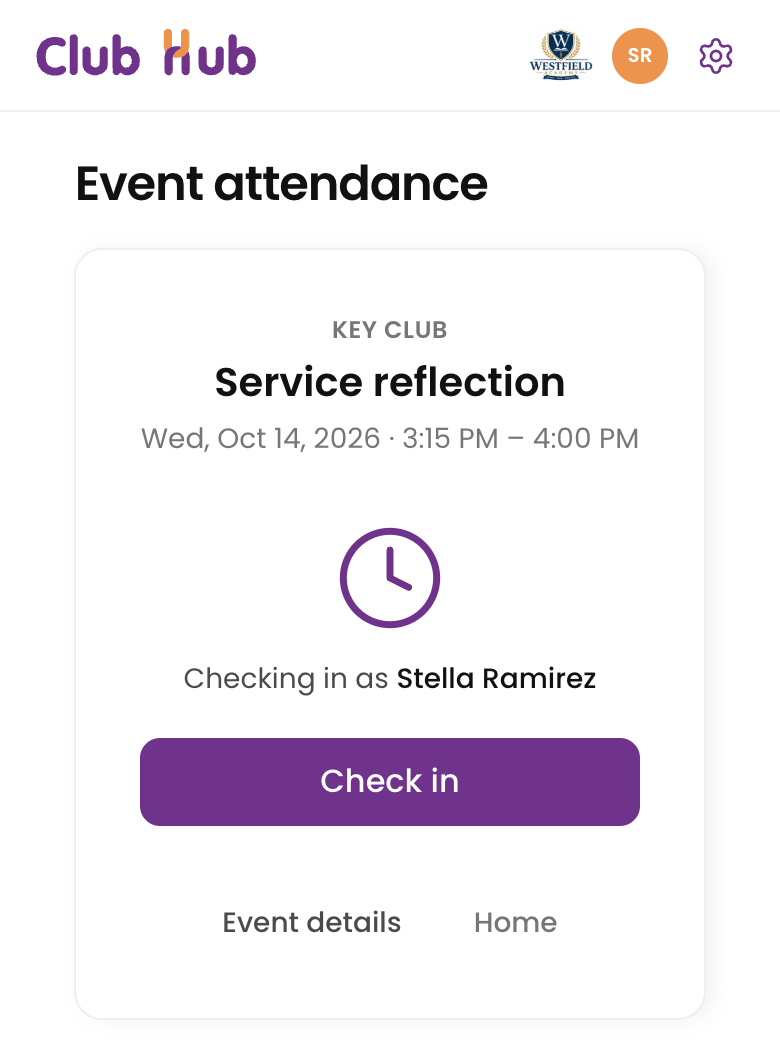
Scanning opens the event in Club Hub, after signing in if needed, with the member's name and a Check in button. One tap records them. They then see Attendance confirmed and can rate the event from one to five stars if they like.
Take attendance by hand
Click Manual at the top of the pop-up. It lists the club's members with a box beside each name.
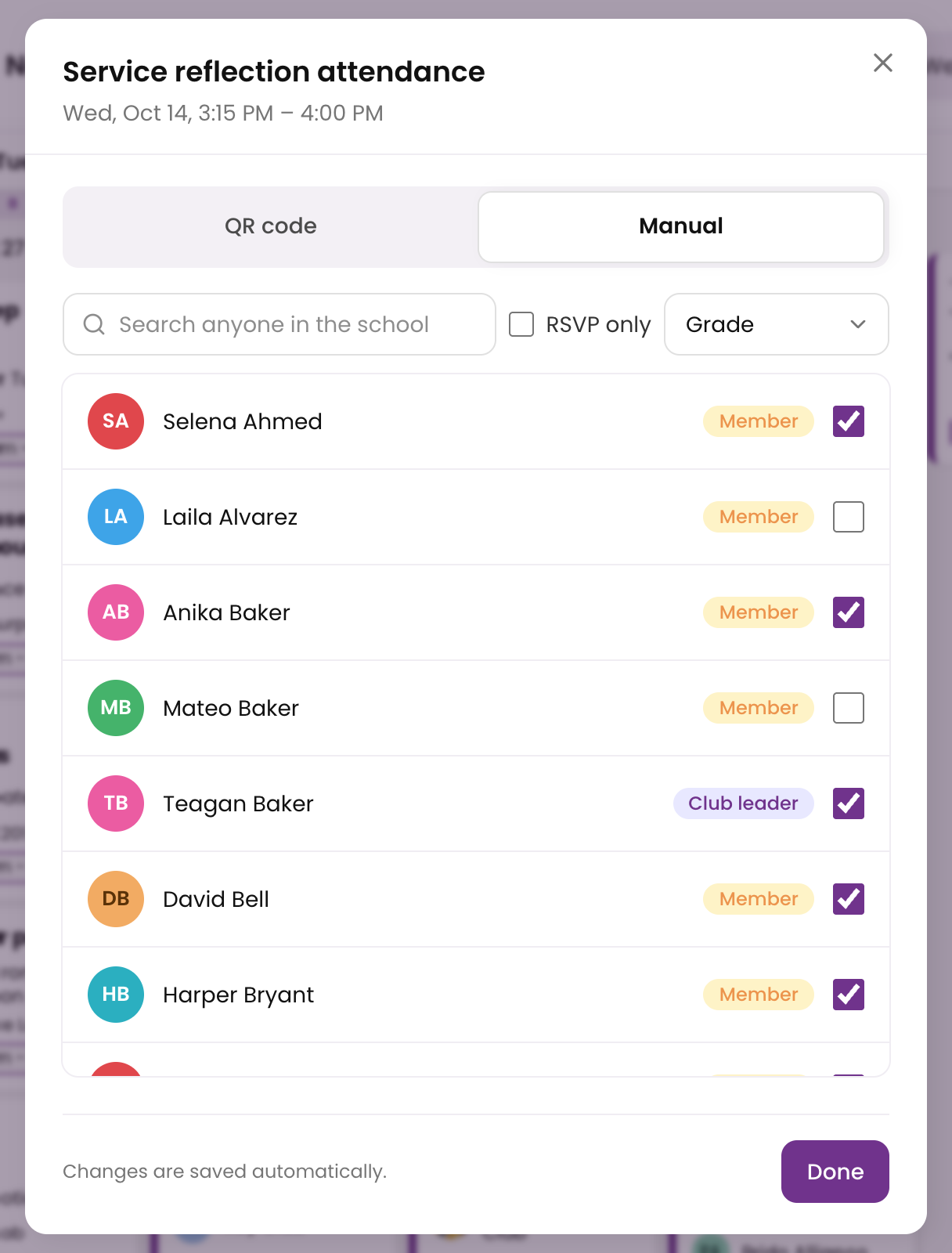
- Select each member who came. Each one saves as you select it. Done closes the list.
- Mark someone who is not a member by typing their name in Search anyone in the school.
- Shorten a long list with RSVP only, Grade, or Group when your club has groups.
- Use both ways at once. QR check-ins appear selected in the list within a few seconds, so you can mark the members without a phone.
Marking by hand has no time limit, so you can take attendance for a meeting days later.
See who came and when
Open the event and click the Attendees tab. Everyone who checked in is listed under Attended Event.
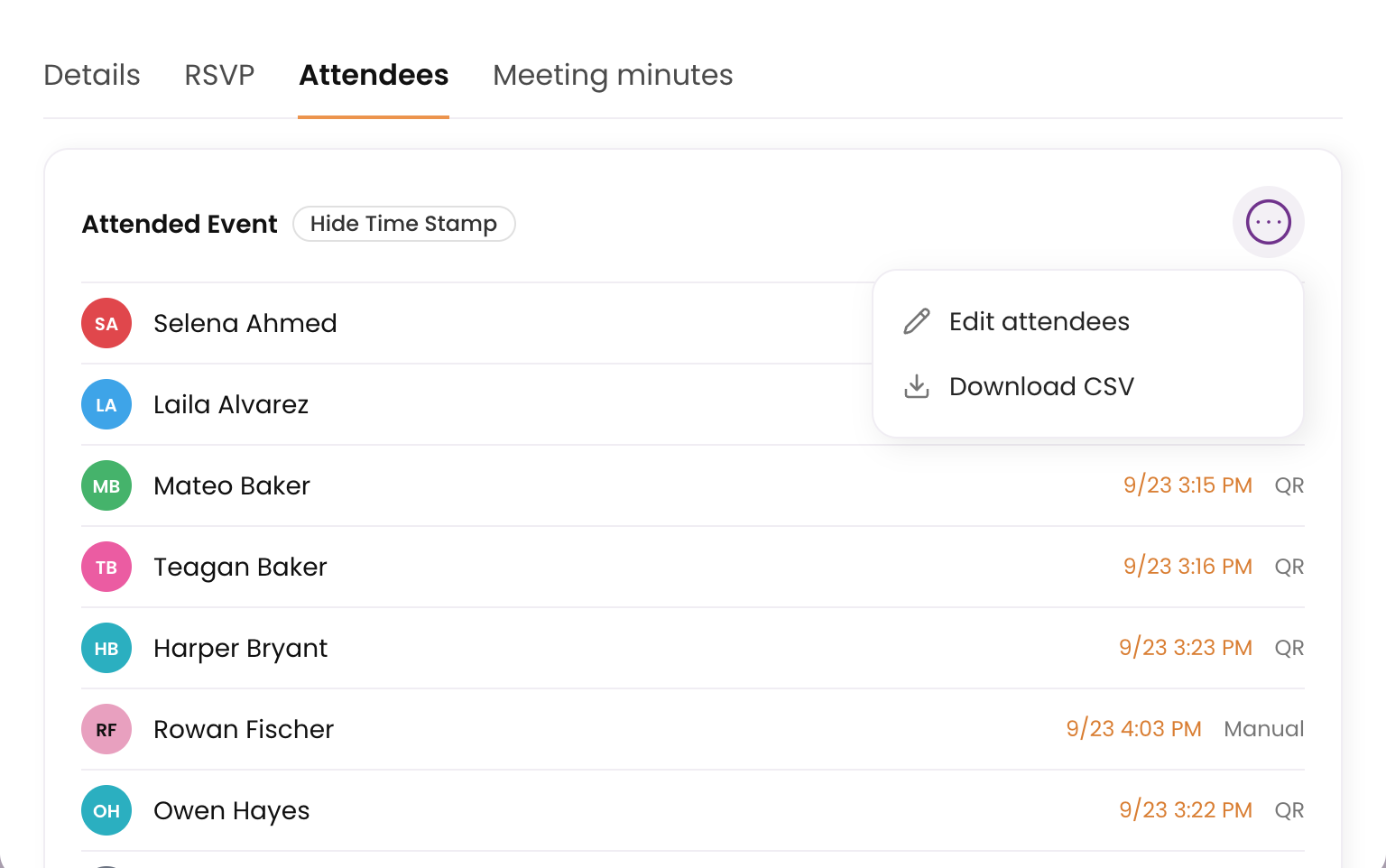
- Show Time Stamp adds the date and time of each check-in and how it was made: by QR code, by hand (Manual), or at the kiosk.
- Click the three dots, then Download CSV, to save the list as a spreadsheet with each person's grade, check-in time, and method.
Remove a check-in
If someone checked in who was not there:
- On the Attendees tab, click the three dots, then Edit attendees.
- Click Remove beside their name and confirm.
- Click Save.
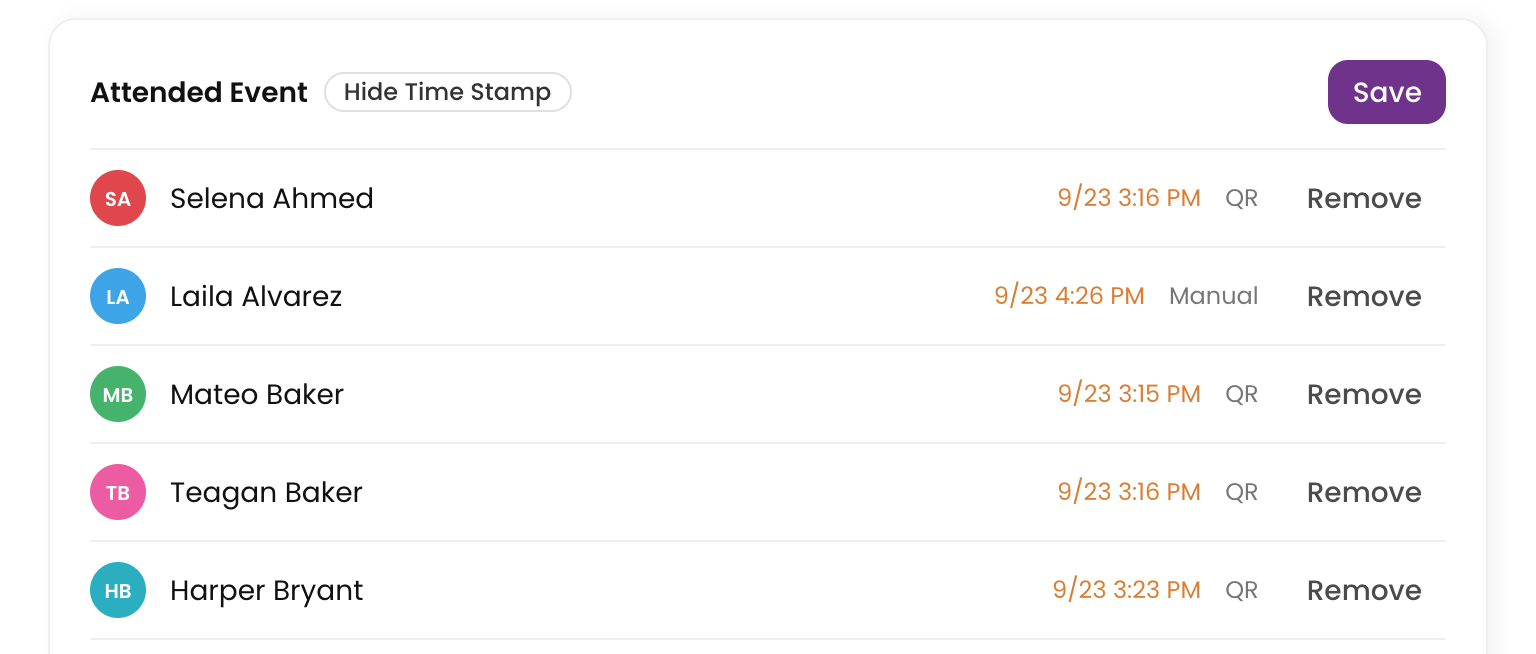
Unselecting them under Manual does the same, however they checked in.
If your school uses the check-in kiosk
Some schools replace the QR code with a kiosk, where members type their school email on a laptop or tablet at the door. An administrator turns it on with Replace attendance QR code with check-in kiosk in Settings → School settings. Take Attendance then opens the list for marking by hand, with an Open Kiosk Mode button.
Using Kiosk Mode for Attendance explains the kiosk.
Reminders to take attendance
An administrator can turn on two reminders in Settings → School settings:
- Require club leaders to take attendance emails a club's leaders and faculty advisors the day after a meeting where nobody was checked in.
- Send attendance reminder emails at the start of club meetings emails a club's leaders as each meeting starts.
A club an administrator marks Exempt from the attendance rule, in the club's Edit Settings, gets neither email.
Frequently asked questions
Can I take attendance after the meeting?
Yes. Marking by hand works at any time, and you can open Take Attendance from the event long after it ended.
Who sees the attendance list?
The club's leaders and faculty advisors, administrators, and academic advisors. A member sees only their own check-in, as You checked in on the event, and You Attended this Event once it has ended.
Do members earn points for coming?
Where your school tracks points, each event can carry Points for attending, and a member earns them by checking in. See Point Tracking.
How do I see who missed a meeting?
Turn on missed-meeting tracking for your club. Advanced Attendance Tracking shows how.
Quick summary
- Click the event, then Take Attendance, and show the QR code. Members scan it and tap Check in.
- Manual marks members present by hand, at any time, and finds anyone at your school by name.
- The Attendees tab lists who came. Show Time Stamp adds when and how, and Download CSV exports it.
- To remove a check-in, use Edit attendees → Remove.
- Schools that use the kiosk see Open Kiosk Mode in place of the QR code.