Every club meeting in Club Hub is an event. When you create your meetings ahead of time, they show on your members' calendars, members can RSVP, and each meeting has its own QR code for taking attendance.
Club leaders and faculty advisors create their club's events. Administrators can create events for any club.
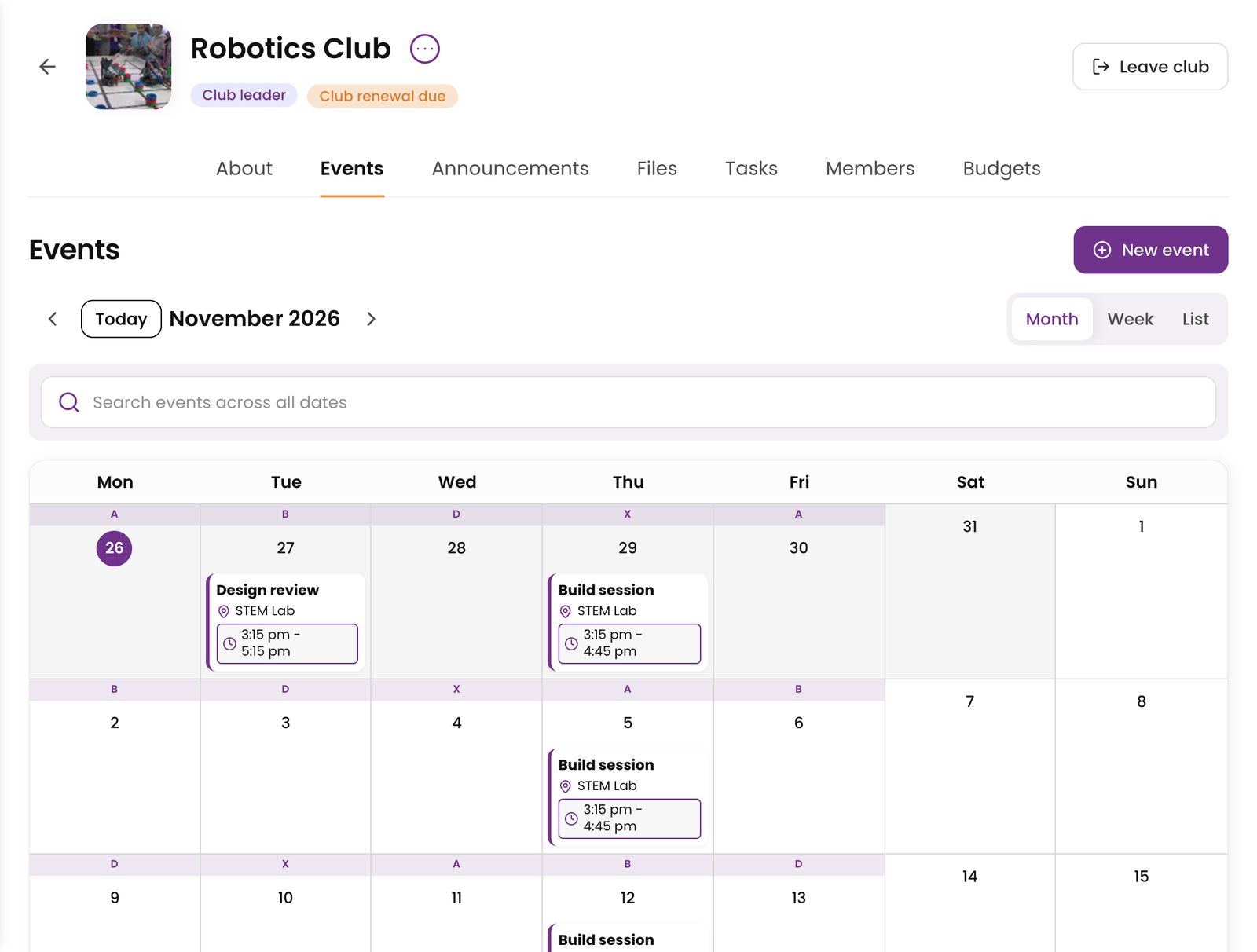
Create an event
- Open your club and click the Events tab.
- Click New event.
You can also click New event on the Calendar and choose the club there.
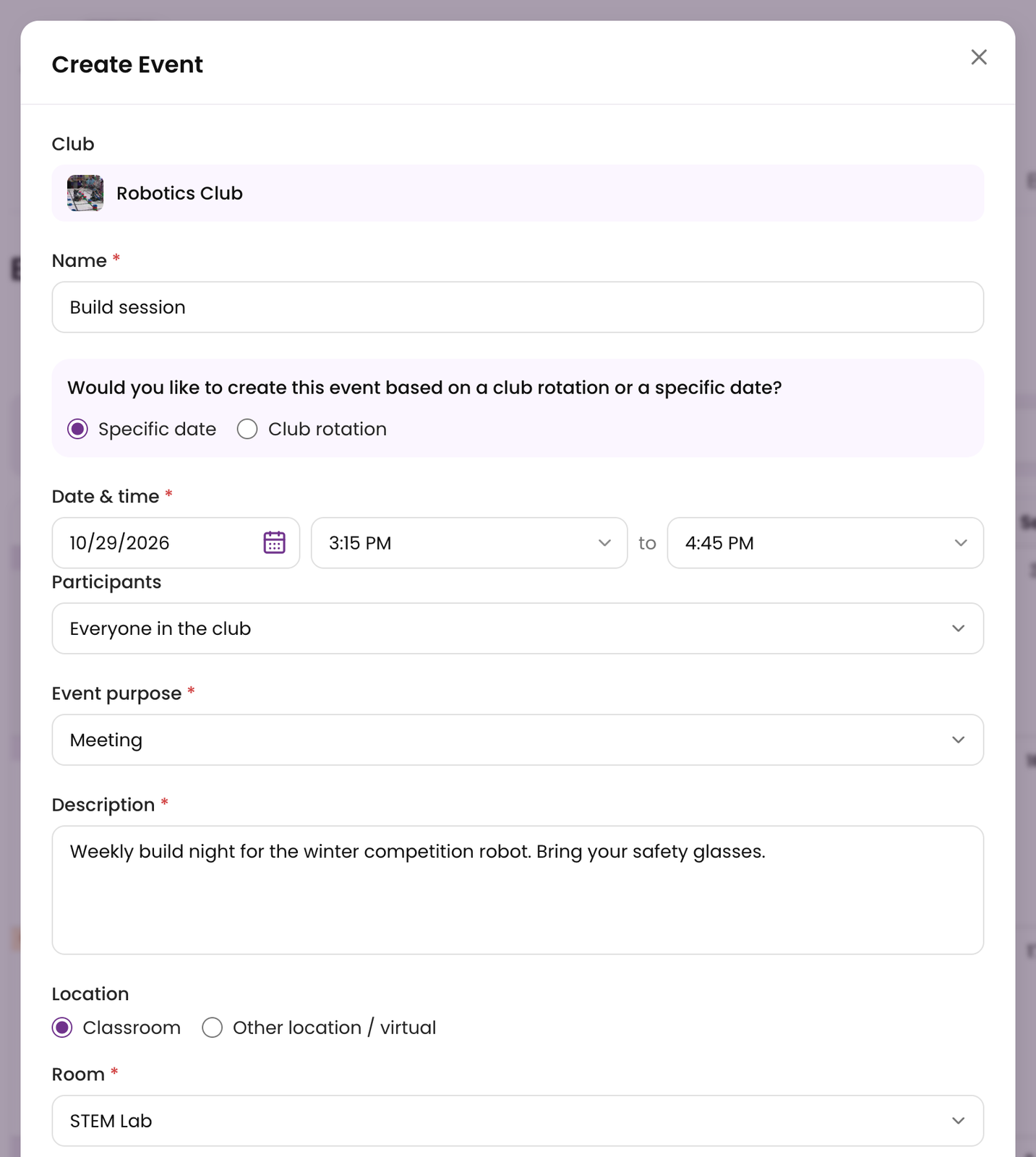
- Name. What members see, such as "Weekly meeting".
- Date & time. The day, the start time, and the end time.
- Participants. Who the event is for: Everyone in the club, Members and leaders, Interested members, or Leaders and advisors only.
- Event purpose. The kind of event, such as Meeting.
- Description. What the meeting is about and anything members should bring.
- Location. A Classroom from your school's list, or Other location / virtual for anywhere else, including an online link.
The RSVP questions below the location are optional. Leave them as they are and members can RSVP.
At a school that uses rotation days, the form first asks whether the event is on a Specific date or a Club rotation. Choose Specific date to pick a date as above, or see Create Club Events on a Rotation Day.
Create every meeting at once
If your club meets on a regular schedule, create the whole term in one go.
- Set Date & time to the first meeting.
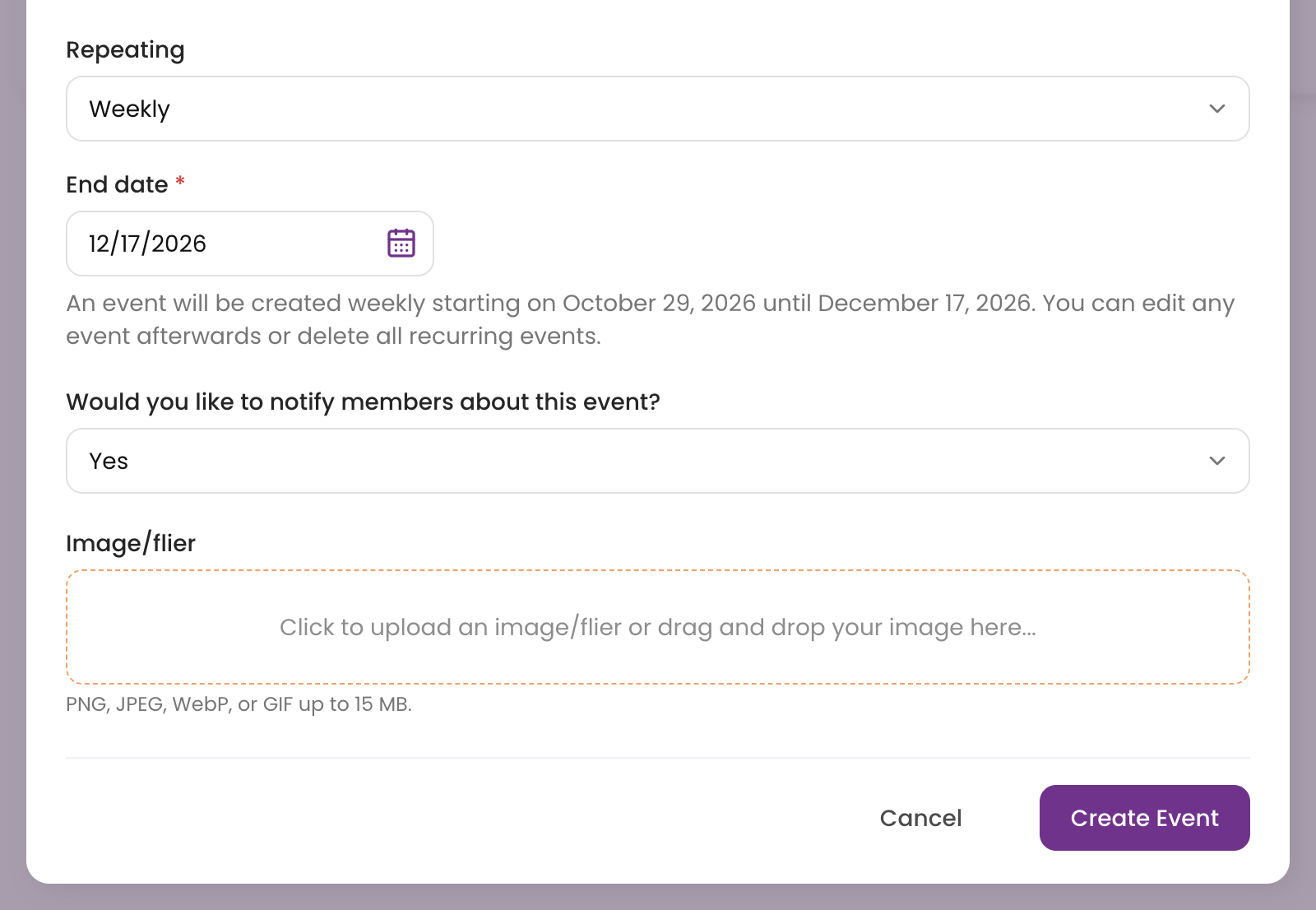
- Under Repeating, choose how often the club meets: Weekly, Every other week, Monthly, Daily, or Daily weekdays only.
- Set the End date to the day of the last meeting.
Under the end date, Club Hub says how the series will repeat. It creates one event for each meeting, and you can change any of them later.
Tell members about it
The last question is Would you like to notify members about this event?
- Yes emails the event's participants and sends a notification on the Club Hub app. The email has an I will attend button to RSVP.
- No adds the event without telling anyone.
Click Create Event. The event is on the Events tab and on your members' Calendar right away.
Change, copy, or cancel an event
Click the event on the Events tab or the Calendar, then click the three dots.
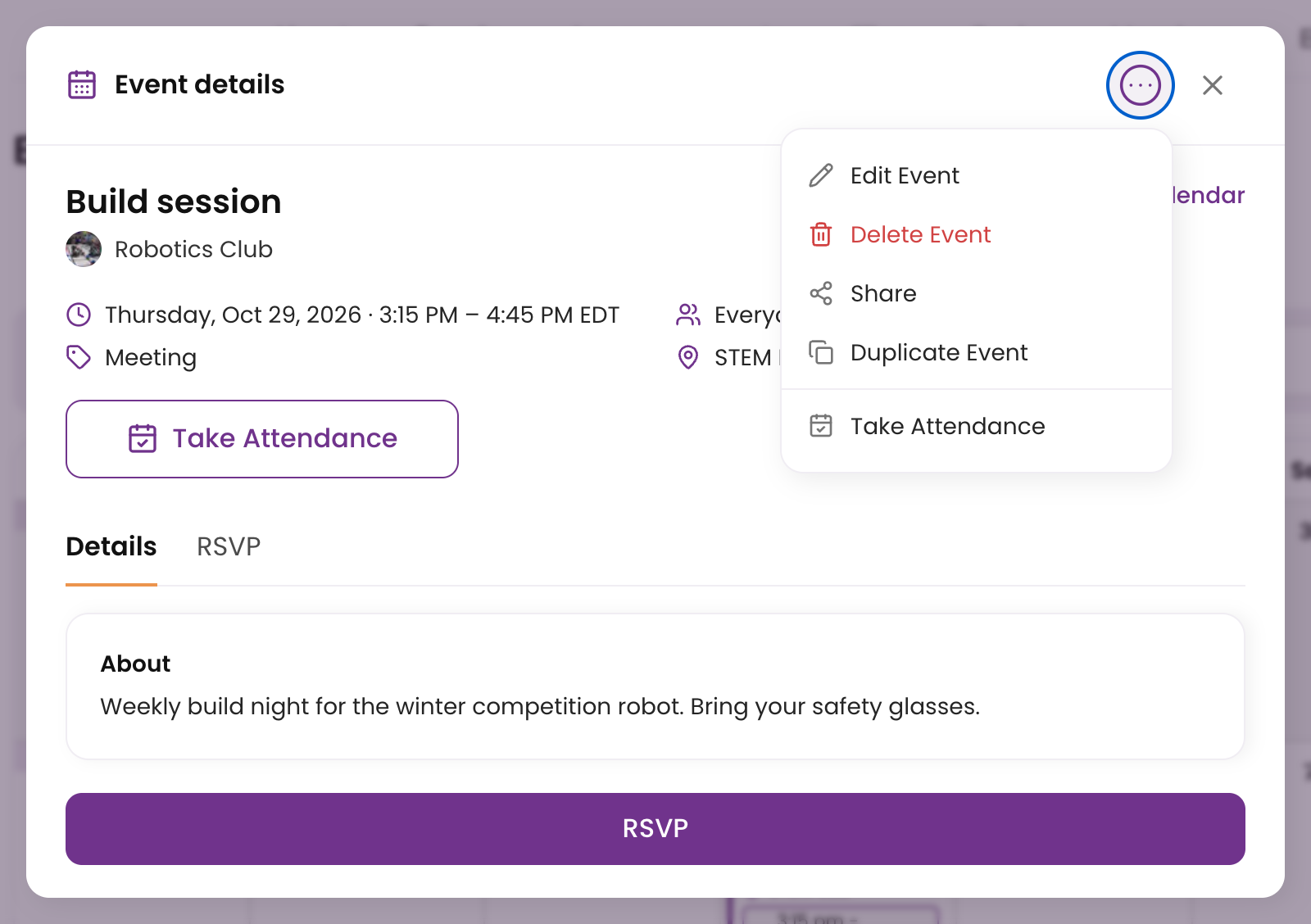
- Edit Event changes the name, time, place, or anything else on the form.
- Duplicate Event opens a new event filled in from this one.
- Delete Event cancels it. Members who were told about the event get an email that it was canceled.
- Take Attendance opens attendance for the meeting.
For an event in a series, Edit Event and Delete Event ask whether the change is for This event, This and following events, or All events.
Take attendance at the meeting
When the meeting starts, click the event, then Take Attendance. Show the QR code for members to scan, or mark them present by hand. How to take attendance shows both.
Frequently asked questions
Can members create events?
No. Club leaders, faculty advisors, and administrators create a club's events.
A meeting happened that is not in Club Hub. What do I do?
Only an administrator can create an event on a date that has passed. Ask an administrator to add it, then take attendance for it by hand.
Can I move just one meeting in a series?
Yes. Click that meeting, click the three dots, then Edit Event, and choose This event.
How do I end a repeating event early?
Click the first meeting you want to drop, click the three dots, then Delete Event, and choose This and following events.
Quick summary
- On your club's Events tab, click New event, fill in the form, and click Create Event.
- Use Repeating and an End date to create every meeting of the term at once.
- Would you like to notify members about this event? sends members an email and an app notification.
- The three dots on an event hold Edit Event, Duplicate Event, Delete Event, and Take Attendance.