A hidden club stays off your school's Clubs page and your public clubs page, so only the people you bring in can find it and open it. Schools use hidden clubs for advisory groups and other invitation-only groups.
An administrator turns hidden clubs on for the school, then hides each club.
Turn on hidden clubs
Hide club appears in a club's menu only once this is on.
- Open Settings (on a phone, the gear at the top of the screen).
- Select School settings.
- Near the end of the page, select Hidden clubs (advisory groups). It saves as soon as you select it.

Hide a club
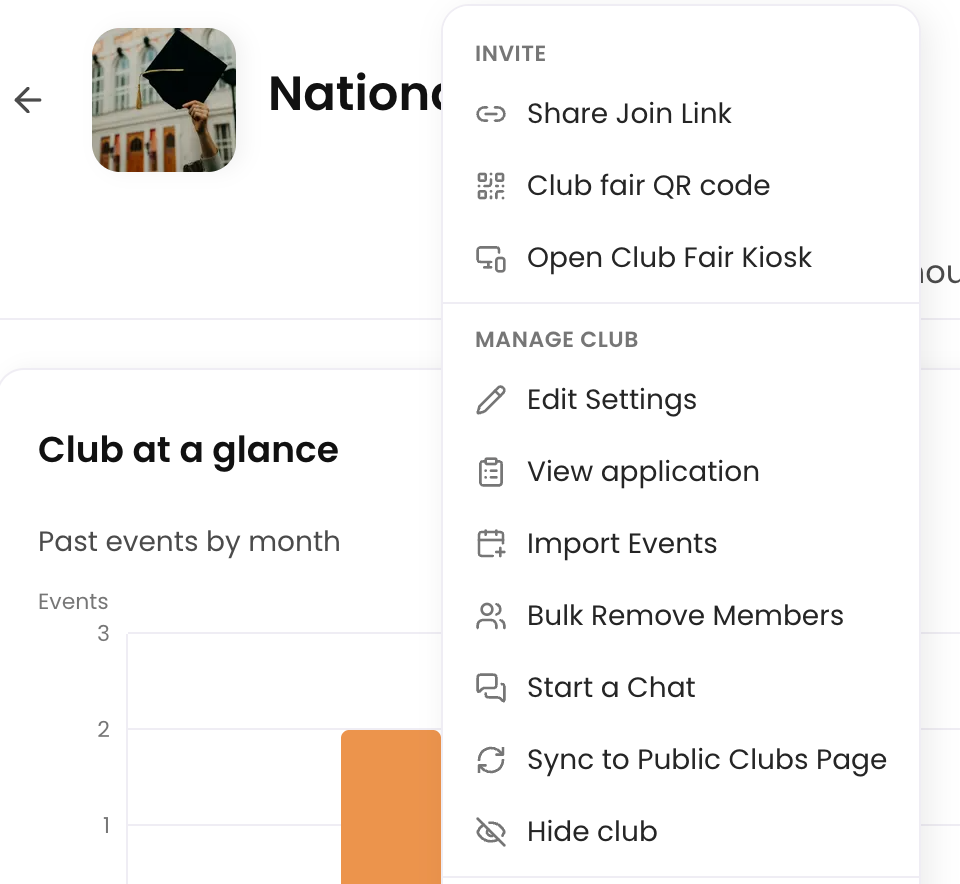
- Open the club and click the three dots beside its name.
- Under Manage club, choose Hide club.
- Click Yes.
The club leaves the Clubs page and your public clubs page right away, and a Hidden label shows under its name. Everything inside the club works as before for its members.
You can also hide a club from its settings: click the three dots, choose Edit Settings, select Administrator, select Hidden from the directory, then click Save changes.
Who can open a hidden club
| On the Clubs page | Can open it | |
|---|---|---|
| Administrators | Under Hidden | Yes |
| The club's leaders, faculty advisors, and members | Under My Clubs | Yes |
| People invited to the club | Under My Clubs | Yes |
| College or academic advisors | No | Yes, from a student's profile |
| Everyone else | No | No |
Anyone else who opens the club's link, including faculty who don't advise it, lands on their Dashboard with the message You don't have access to that page.
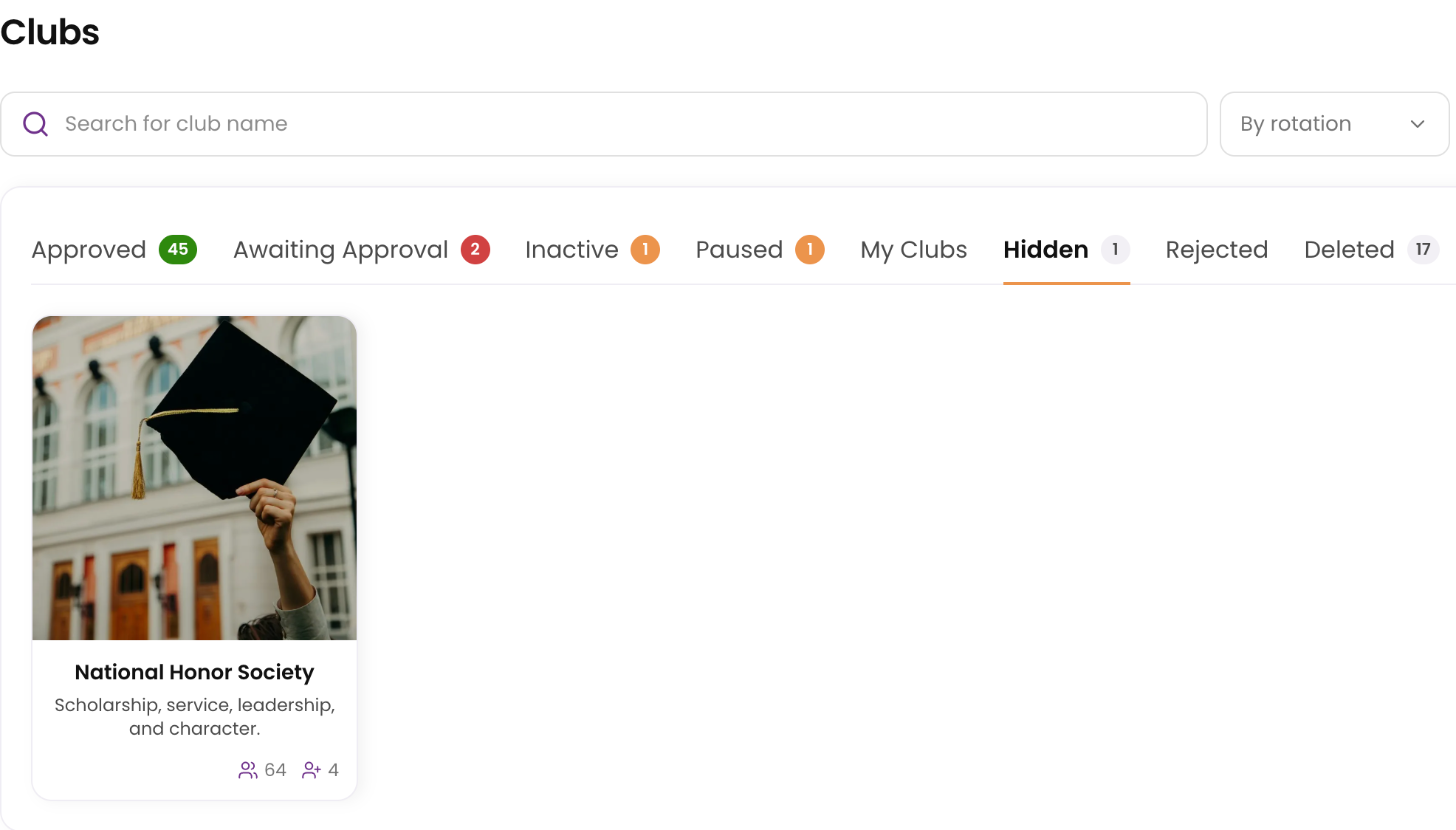
To see every hidden club at your school, open Clubs and select the Hidden tab. Only administrators see it.
Bring people into a hidden club
Students can't find a hidden club, so its leaders, faculty advisors, or an administrator bring them in.
- Open the club's Members tab and click Invite.
- Choose Send invitation.
- Pick the people, then click Invite people.
For every way to invite, see Invite Club Members.
A hidden club has no join link or QR code. People join only when you invite them, so the Invite pop-up and the club's three dots offer Send invitation instead.
Frequently asked questions
Why does an old link to our club say "You don't have access to that page"?
The club is hidden. It opens only for its members and the people you invited, so anyone else who opens a link or QR code shared before you hid it lands on their Dashboard with that message. Either invite them from the club's Members tab, or show the club so anyone at your school can find it and join.
How do I show a hidden club again?
Open the club, click the three dots beside its name, choose Show club, then click Yes. The club is back on the Clubs page and your public clubs page.
What happens if I turn hidden clubs off?
Every hidden club is shown again. Club Hub asks you to confirm first and says how many clubs that is.
Can club leaders or faculty advisors hide a club?
No. Only administrators can hide or show a club. Club leaders and faculty advisors can still invite people into it.
Is this the same as hiding who is in a club?
No. A hidden club is off the Clubs page altogether. To keep a club on the Clubs page but hide its member list, see Hiding Club Memberships (Affinity Groups).