Some clubs are personal. A student may not want the whole school to know they belong to an affinity group or a support group. Club Hub lets you decide who sees a club's member list, and lets each member decide who sees that they belong.
There are three settings, and they work together. A club's leaders and faculty advisors set one for their club, an administrator can set one for the whole school, and each member sets one for themselves.
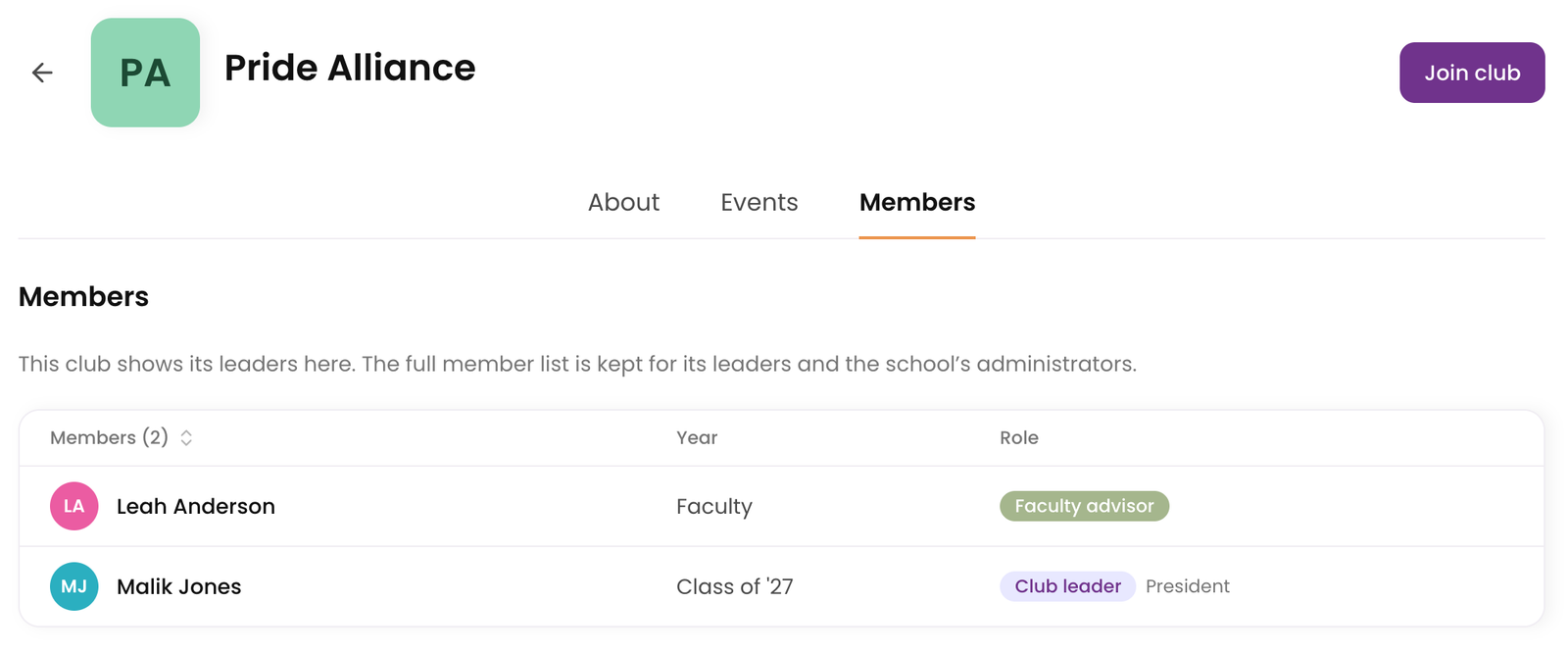
The three settings
- Who can see the member list, in each club's settings. The club's leaders, its faculty advisors, or an administrator choose whether everyone, only members, or only leaders see the full list.
- Restrict member list to club leaders only, in your school settings. An administrator turns on Leaders only for every club at once.
- Membership visibility, on the club page. A member chooses whether everyone, only the club's leaders, or nobody can see that they are in the club.
Some people always see everyone. Administrators and college or academic advisors see every club's full member list, including members who hid themselves. A club's own leaders and faculty advisors always see their club's full list, except members who chose Nobody. Club leaders and faculty advisors are always named and cannot hide.
Hide one club's member list
Use this for a sensitive club, such as an affinity group, while your other clubs stay open.
- Open the club and click the three dots beside its name.
- Choose Edit Settings.
- Select Membership.
- Under Who can see the member list, choose an option.
- Click Save changes.
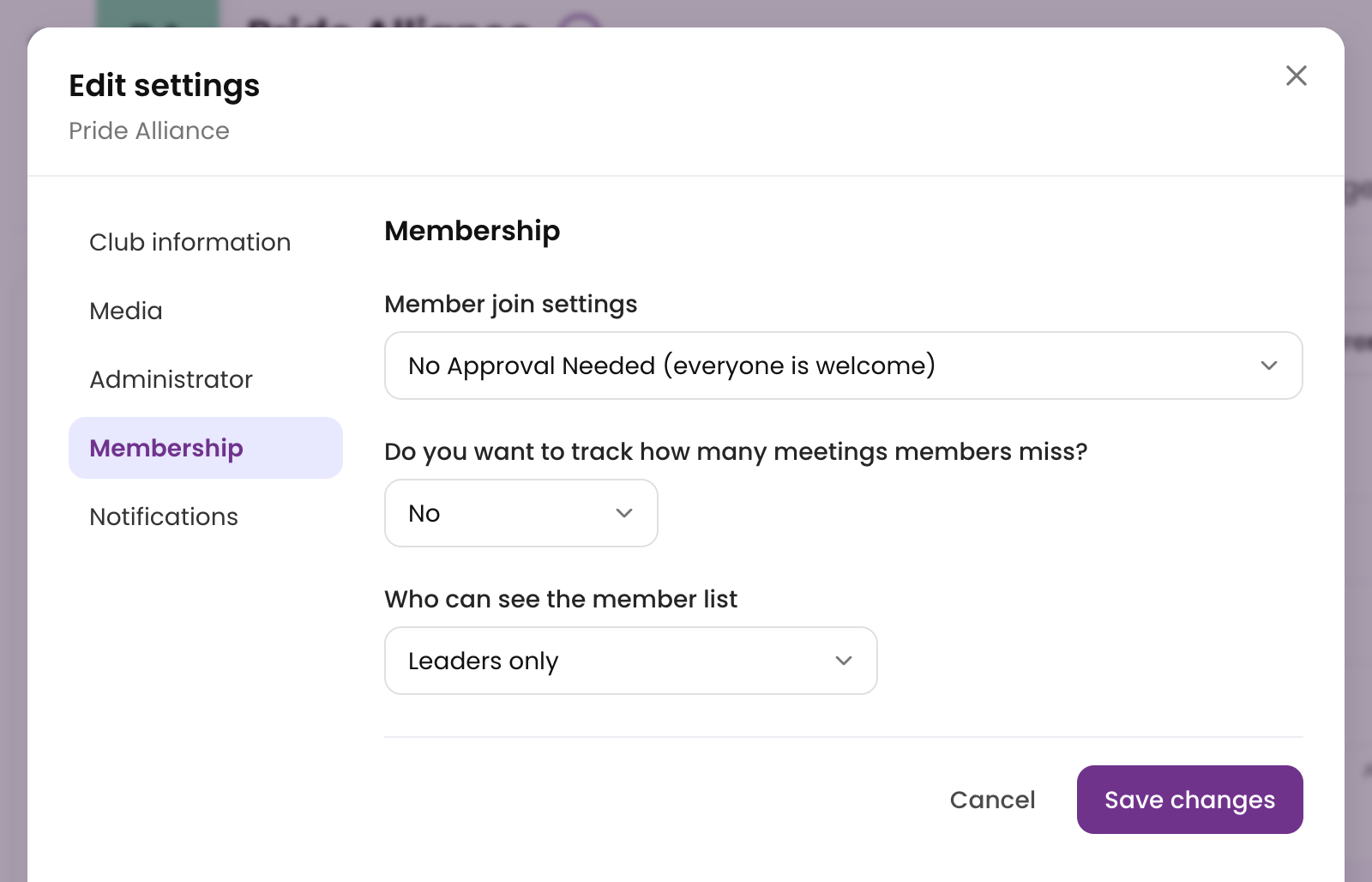
- Everyone at the school (the default). Anyone at your school who opens the club sees its members.
- Members and leaders. The club's members see the full list. Anyone outside the club sees only its leaders and faculty advisors, including a student who asked to join and is waiting for approval.
- Leaders only. Only the club's leaders and faculty advisors see the full list. Members and everyone else see only the leaders and faculty advisors.
Administrators and college or academic advisors see the full list whichever you choose. The club's leaders, its faculty advisors, and any administrator can change this setting.
Anyone who can't see the full list still sees the club's Members tab, with only its leaders and faculty advisors.
Hide member lists for every club
- Open Settings (on a phone, the gear at the top of the screen).
- Select School settings.
- Near the end of the page, select Restrict member list to club leaders only. It saves as soon as you select it.

Every club then works as if it were set to Leaders only. The club's leaders and faculty advisors, administrators, and college or academic advisors see the full list. Everyone else sees only the leaders and faculty advisors, including the club's members and faculty who don't advise the club.
While the switch is on, Who can see the member list is gone from every club's settings. Unselect it and each club goes back to the setting it had before.
Let students hide their own membership
Each member decides who can see that they are in a club. This works in any club, whatever its other settings.
- The student opens the club and clicks the three dots beside its name.
- They choose Membership visibility.
- They pick who can see they are part of the club, then click Save.
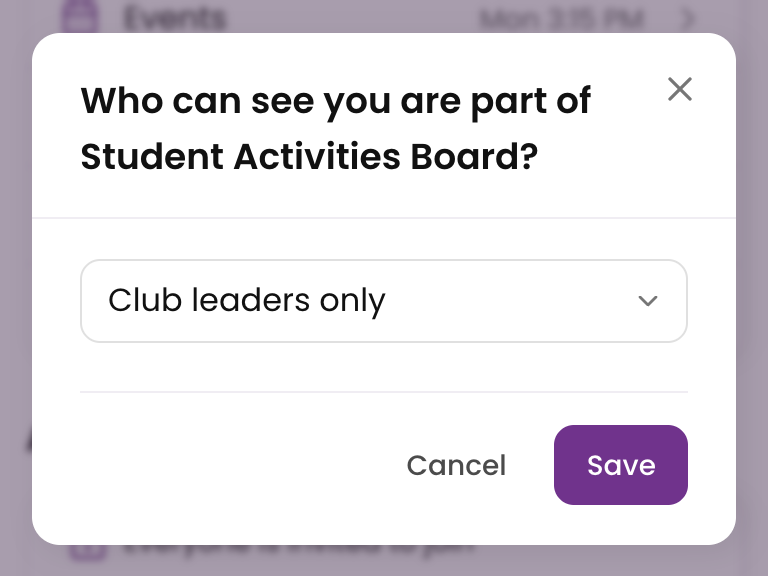
- Everyone at the school (the default). Their name shows to anyone who can see the club's list.
- Club leaders only. The club's leaders and faculty advisors, administrators, and college or academic advisors see their name. Everyone else sees Hidden Member, including the club's other members.
- Nobody. Only administrators and college or academic advisors see their name. The club's own leaders and faculty advisors see Hidden Member too.
Nobody is offered only in a club that anyone can join. Where new members need a leader's approval, the choice is Everyone at the school or Club leaders only, and the pop-up explains that the leaders must see who is in the club.
Only members have this choice. Club leaders and faculty advisors are always named.
A member who hid themselves sees a Visible to leaders only or Hidden membership badge under the club's name. Nobody else sees it, and clicking it opens the same choice.
What a hidden member looks like
| Seen by | Everyone at the school | Club leaders only | Nobody |
|---|---|---|---|
| Administrators | Name | Name | Name |
| College or academic advisors | Name | Name | Name |
| The club's leaders and faculty advisors | Name | Name | Hidden Member |
| Everyone else, other members included | Name | Hidden Member | Hidden Member |
When someone can still see a hidden member's name, a Leaders only or Hidden tag beside it shows what the member chose. A member always sees their own name.
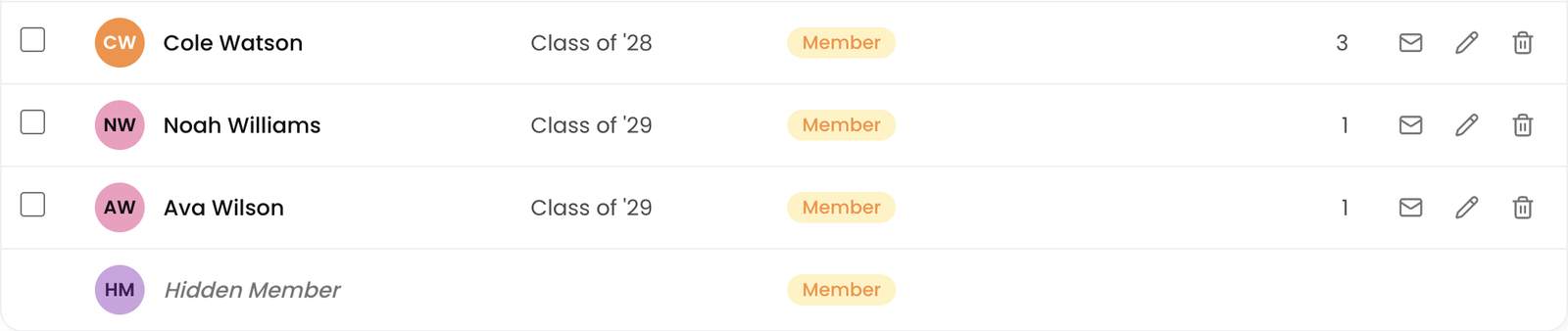
A Hidden Member row shows no name, picture, or grade, and cannot be opened.
The same rule applies wherever Club Hub lists or offers a club's people:
- The Members tab, and the member list downloaded from it
- An event's RSVP, attendance, and missed lists, and the RSVP and attendance downloads
- A task's assigned members
- The people in the club's all-members chat
- The people you can pick for a new chat, an announcement to specific members, or a task
What else changes for a hidden member
These apply to a member who chose Club leaders only or Nobody.
- Chat. They can read the club's all-members chat but cannot post or react in it, because a message would show their name to everyone there. See Group Chat.
- What they write. A comment they post on a club announcement or an event shows their name, as it does for anyone.
Frequently asked questions
Who can see which clubs a student belongs to?
Administrators and college or academic advisors can open a student's profile and see all of their clubs, with a tag on the hidden ones. Students cannot open another student's profile. See College & Academic Advisors on Club Hub.
Does the public clubs page show members?
No. The public clubs page never names a student, whatever these settings say.
Is this the same as hiding a club?
No. Hidden Clubs (Advisory Groups) takes the club itself off the Clubs page and the public clubs page. The settings here keep the club visible and hide who is in it.
Can a club leader hide that they lead a club?
No. Club leaders and faculty advisors are always named on the club's lists, whatever the settings.
Why does a club leader see Hidden Member in their own club?
That member chose Nobody, so only administrators and college or academic advisors see their name. The member can change it under Membership visibility on the club page.
Can I see who hid themselves?
Yes. Open the club's Members tab. Each hidden member has a Leaders only or Hidden tag beside their name.
Quick summary
- Each club chooses who sees its member list in Edit Settings → Membership: everyone at the school, members and leaders, or leaders only.
- Settings → School settings → Restrict member list to club leaders only applies leaders only to every club.
- Each member chooses under Membership visibility whether everyone, the club's leaders, or nobody sees them. Nobody is offered only in clubs anyone can join.
- Administrators and college or academic advisors always see everyone. A club's leaders and faculty advisors see everyone except members who chose Nobody.
- Club leaders and faculty advisors are always named.
- A hidden member shows as Hidden Member to anyone they are hidden from. They can read but not post in the all-members chat.