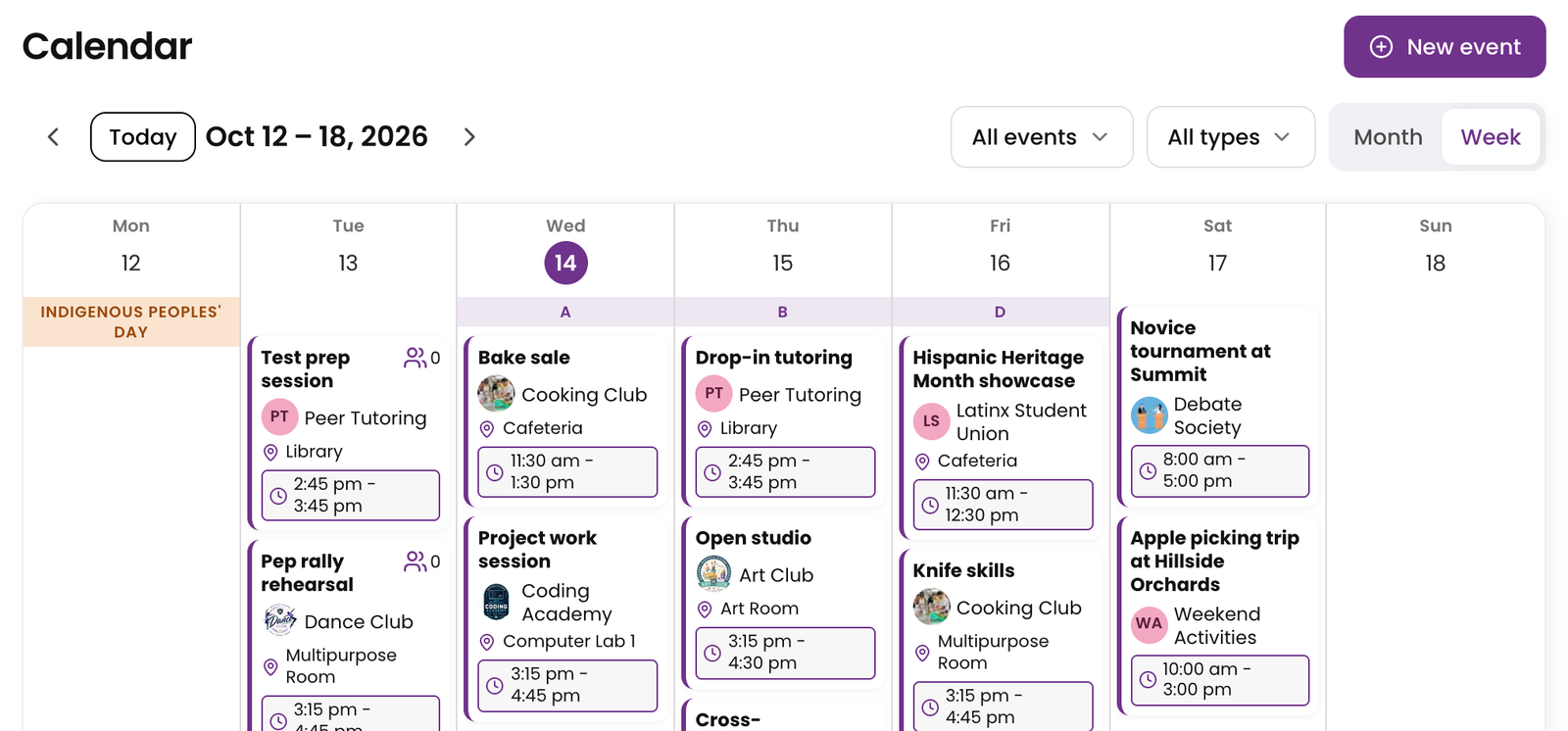
For schools on a rotating schedule (Day A and Day B, or Day 1 to 6), a club can meet on a rotation day instead of a weekday, and Club Hub puts its meetings on every date of that rotation. An administrator turns this on, names the rotation days, and keeps the rotation calendar. When you add or remove a rotation date, the club meetings on it follow.
How it fits together
- Rotation days are the names your school uses, such as Day A and Day B. They replace the weekdays a club picks as its usual meeting day.
- Rotation dates are your rotation calendar: which rotation day each school day is. Club Hub loads the year from your calendar, and you add or remove single dates yourself.
- Rotation meetings are club meetings set to repeat on a rotation day. Club Hub puts them on every upcoming date of that rotation day.
| Who | What they do |
|---|---|
| Administrators | Turn rotations on, name the rotation days, and keep the rotation dates |
| Club leaders and faculty advisors | Pick their club's usual meeting rotation and create meetings for a rotation |
| Everyone | Sees each date's rotation on the calendar |
Step 1: Turn on custom rotations
- Open Settings (on a phone, the gear at the top of the screen).
- Select School settings.
- Tick Use a custom rotation for club meetings. It saves as soon as you tick it.
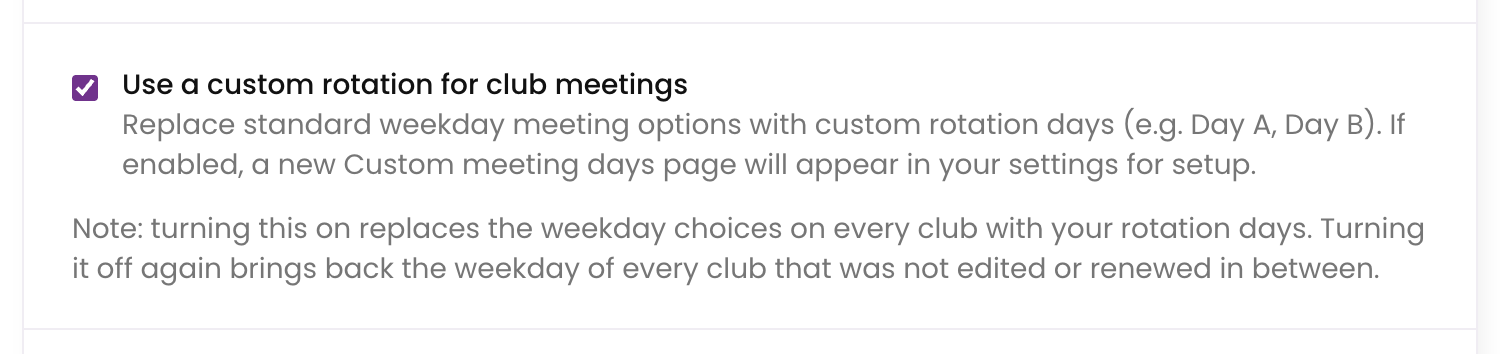
Custom meeting days appears in your Settings list.
Every club now picks its usual meeting day from your rotation days instead of the weekdays. The club form and a club's Edit Settings ask for a Usual meeting rotation, club pages show it, and the Clubs page filters By rotation.
Step 2: Name your rotation days
- Open Settings → Custom meeting days.
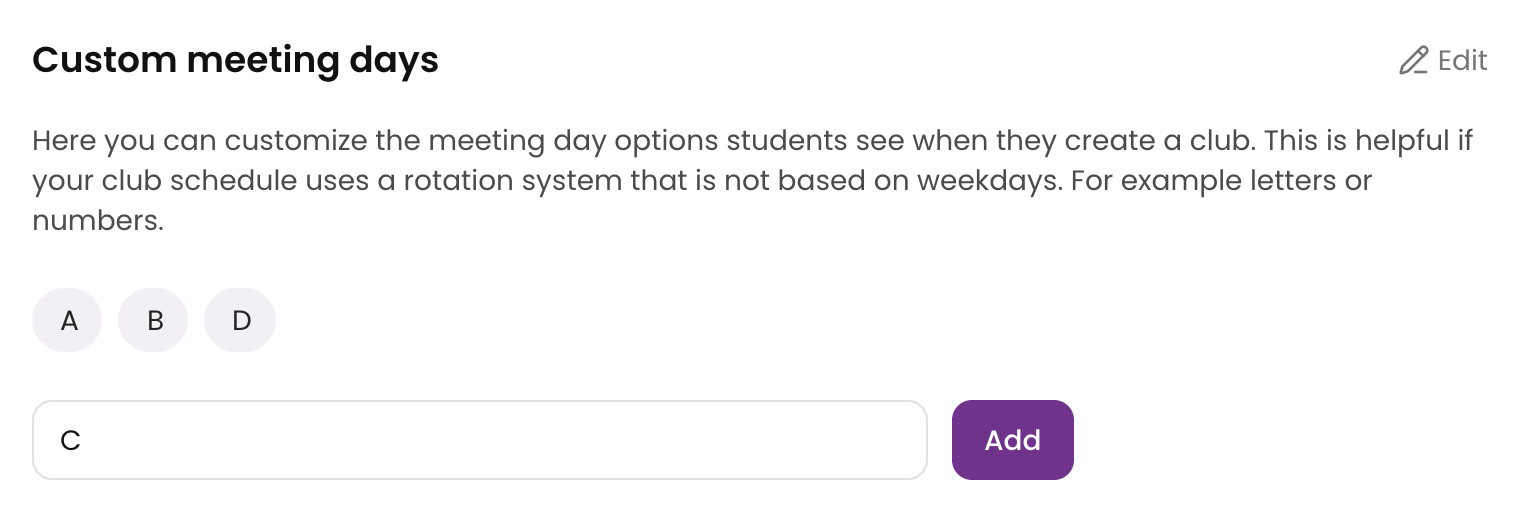
- Type a name in Type rotation here...
- Click Add.
Repeat for each day of your cycle, with the names your school uses: Day A and Day B, Day 1 to Day 6, or Blue and Gold. A name already on the list is refused.
Remove a rotation day
- Click Edit at the top right of the page.
- Click the × on the rotation day.
- Read the Remove a rotation pop-up, then click Remove.
- Click Done to leave edit mode.
The × shows only on a rotation day no approved club has picked as its usual meeting rotation.
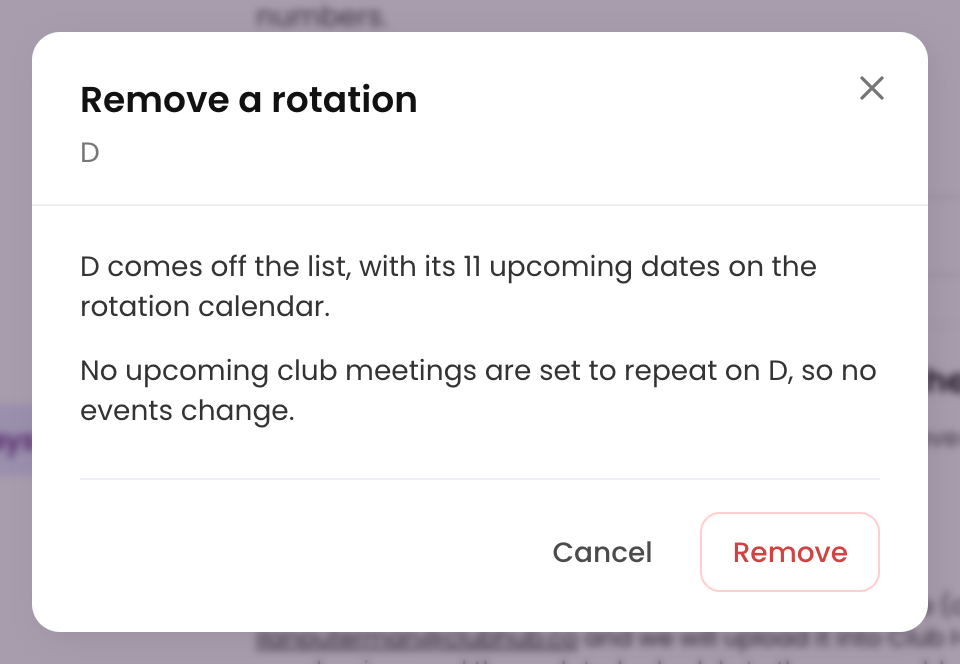
The pop-up counts the rotation day's upcoming dates and the club meetings set to repeat on it. Removing it takes those dates off your rotation calendar and cancels those meetings. Members are not emailed.
Step 3: Choose whether Club Hub creates the meetings
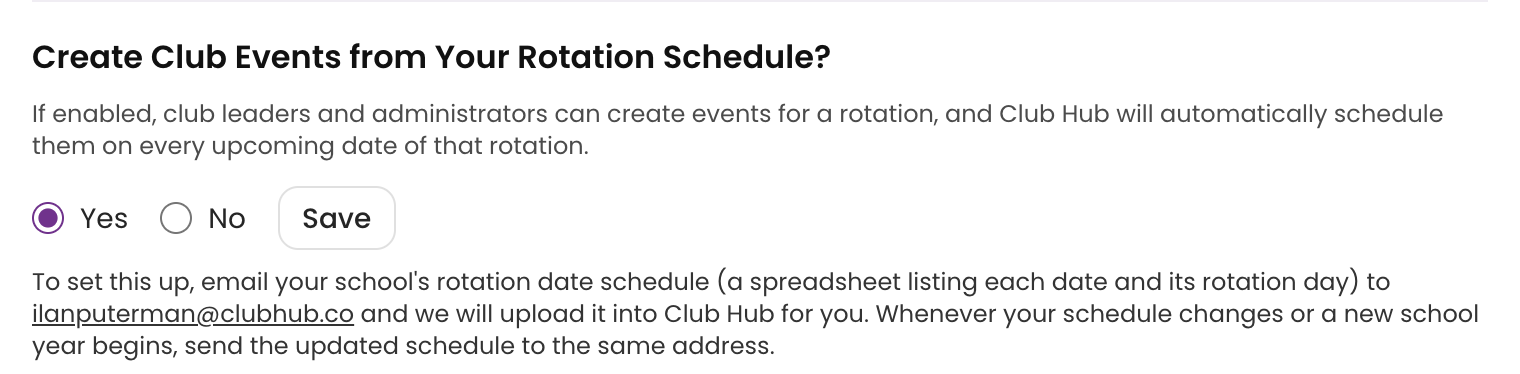
Under your rotation days is Create Club Events from Your Rotation Schedule? Pick an answer and click Save.
- Yes: club leaders, faculty advisors, and administrators can create a meeting for a rotation, and Club Hub schedules it on every upcoming date of that rotation. Calendars show each date's rotation.
- No: rotation days are only a club's usual meeting rotation, shown on its page. Events are created for a date, as at any school.
Step 4: Fill in your rotation dates
Send us your rotation calendar and we'll load the year for you. A spreadsheet listing each school date and its rotation day is all we need. Email it to ilanputerman@clubhub.co, and send it again when your calendar changes or a new school year begins.
Once your school has a rotation day, the Rotation dates card at the bottom of Custom meeting days lists every date ahead with its rotation. Show past adds the dates before today.
Add a date
- Under Rotation dates, choose the day in Add a date and the rotation day in Rotation.
- Click Add.
- The Add a rotation date pop-up lists each club that gets a meeting on that date. Click Add date.
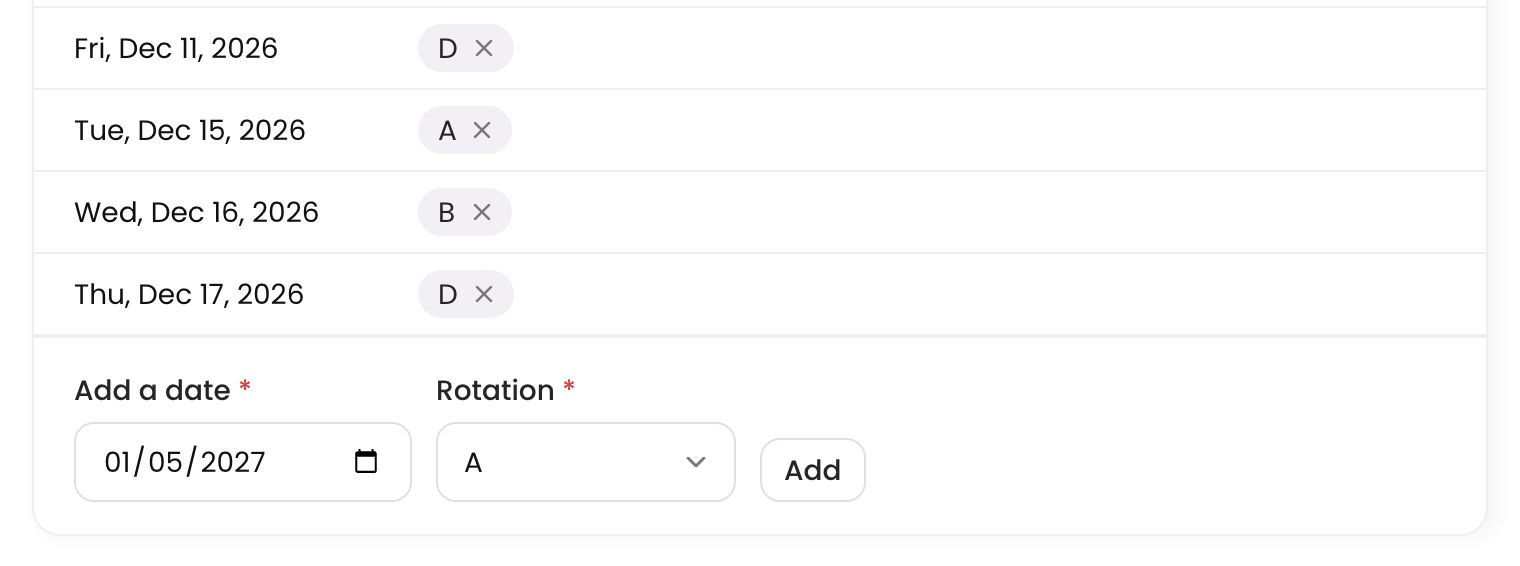
A date can carry more than one rotation day. Adding one to a date that already has another keeps both.
Remove a date
- Click the × beside the rotation on that date.
- The Remove a rotation date pop-up lists the club meetings that come off with it. Click Remove.
How meetings follow your rotation dates
- A date added gives every meeting series set to repeat on that rotation day a meeting on the date, at the times of its other meetings. It keeps its room when the room is free then.
- A date removed cancels the upcoming meetings set to repeat on that rotation day on that date.
- Nothing is added on a holiday or break listed under Settings → Event settings → Block meeting days, on a date that has passed, or for a club that is pending or paused.
- Never changed: an event a club created for a specific date, and a meeting that repeats weekly, every other week, or monthly.
- No email. Members are not emailed when a date is added or removed. The pop-up tells you which meetings change before you confirm.
What club leaders and faculty advisors see
With Create Club Events from Your Rotation Schedule? set to Yes, a new event starts with Would you like to create this event based on a club rotation or a specific date? Choosing Club rotation shows the rotation days under Rotation. A leader ticks one or more, and the form says how many meetings it will create and between which dates.
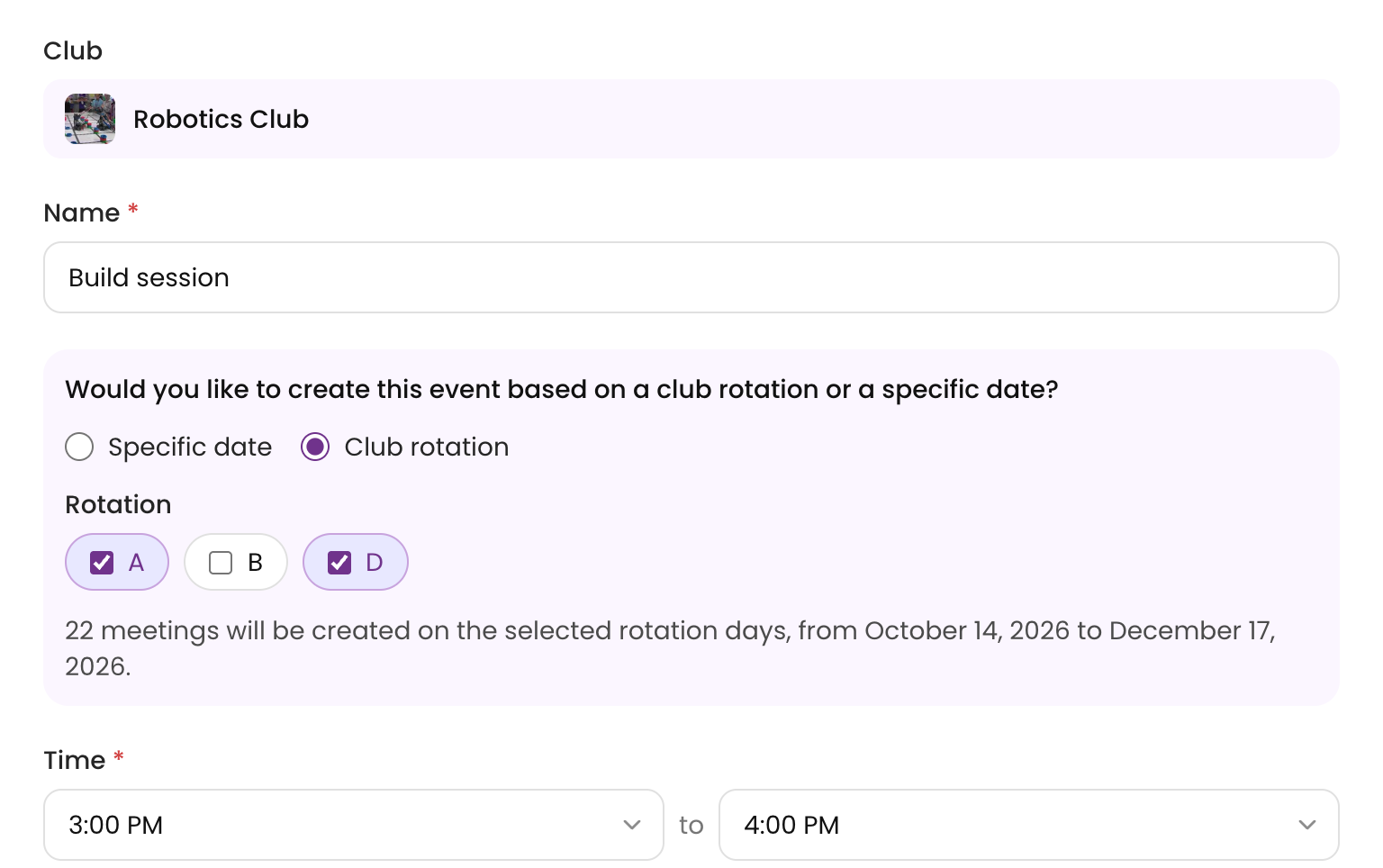
- Only rotation days with dates in the year ahead are offered.
- For leaders and advisors, holidays and dates outside your school's meeting times are skipped. Administrators can include those dates, with a warning.
- Each meeting can be edited or canceled afterwards, alone or with the rest of its series.
Club leaders have their own guide: Create Club Events on a Rotation Day.
What everyone sees
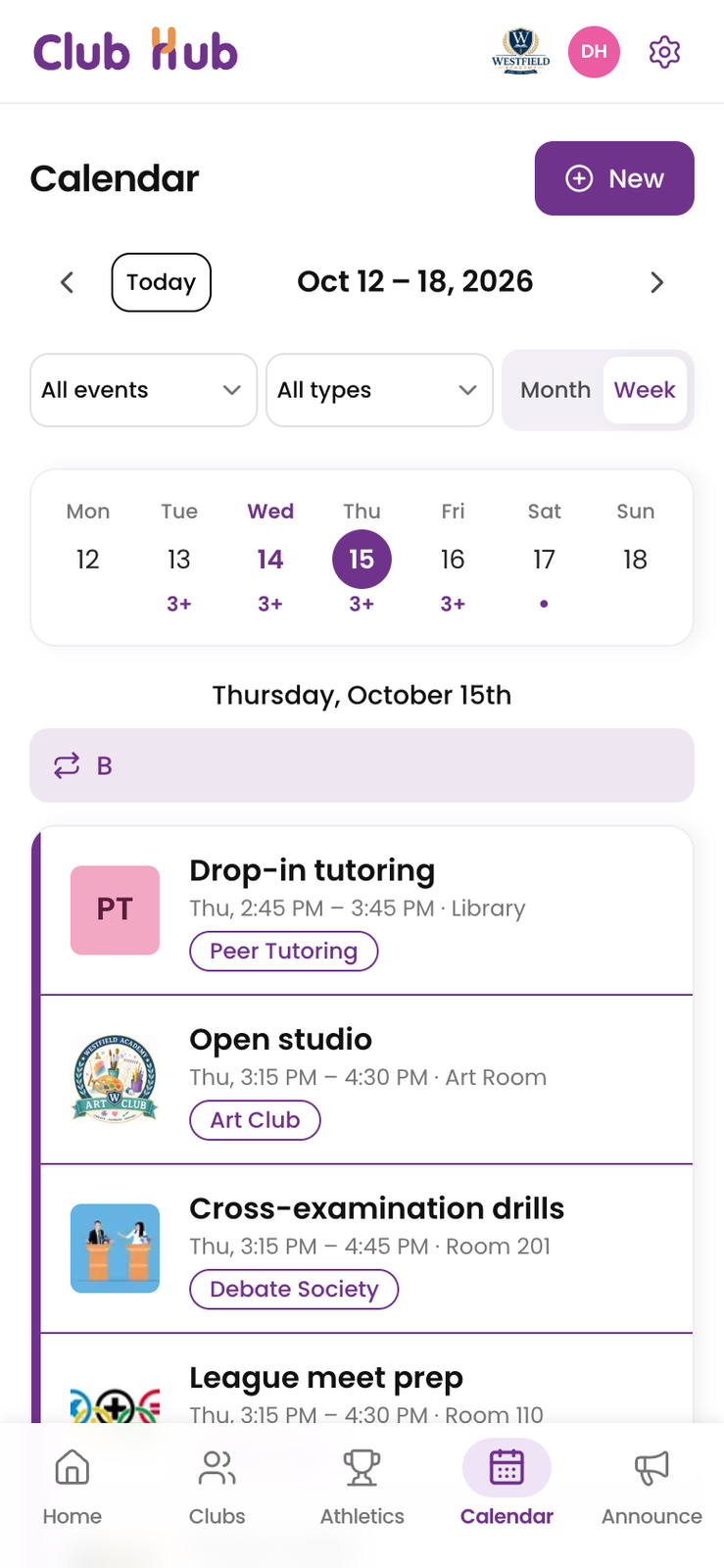
The school calendar and each club's Events calendar show every date's rotation above its events, next to your holidays and breaks. On a phone, the rotation is on its own line under the day you pick.
Turning it off
- Stop creating meetings from the rotation: set Create Club Events from Your Rotation Schedule? to No and click Save. The rotation question leaves the event form and the rotation names leave the calendars. Meetings already created stay as they are.
- Go back to weekdays: untick Use a custom rotation for club meetings in School settings. Clubs get their weekday back, unless the club was edited or renewed while rotations were on.
Custom meeting days leaves your Settings list once both are off. Your rotation days and dates are kept.
Frequently asked questions
Who can change these settings?
Administrators only. Club leaders and faculty advisors don't see Custom meeting days.
Why isn't a rotation day offered on the event form?
It has no dates in the year ahead. Add its dates under Rotation dates, or send us your calendar.
Can we load a whole year ourselves?
You add and remove one date at a time. For a term or a year, send us your rotation calendar and we load it for you.
Why is there no × on a rotation day in edit mode?
An approved club has picked it as its usual meeting rotation. Change that club's Usual meeting rotation in its Edit Settings first.
Can I rename a rotation day?
No. A new name means a new rotation day with its own dates, and clubs and meetings moved to it, so name your rotation days the way your school calendar does.
Does adding or removing a date email anyone?
No. Members see the change on their calendar. The pop-up lists the meetings that change before you confirm.