Send one announcement to several clubs at once, instead of posting the same message to each club in turn. Each club gets its own copy, on its own page and by email to its own members.
Administrators can post to any clubs at the school. A faculty advisor who advises two or more clubs can post to those clubs.
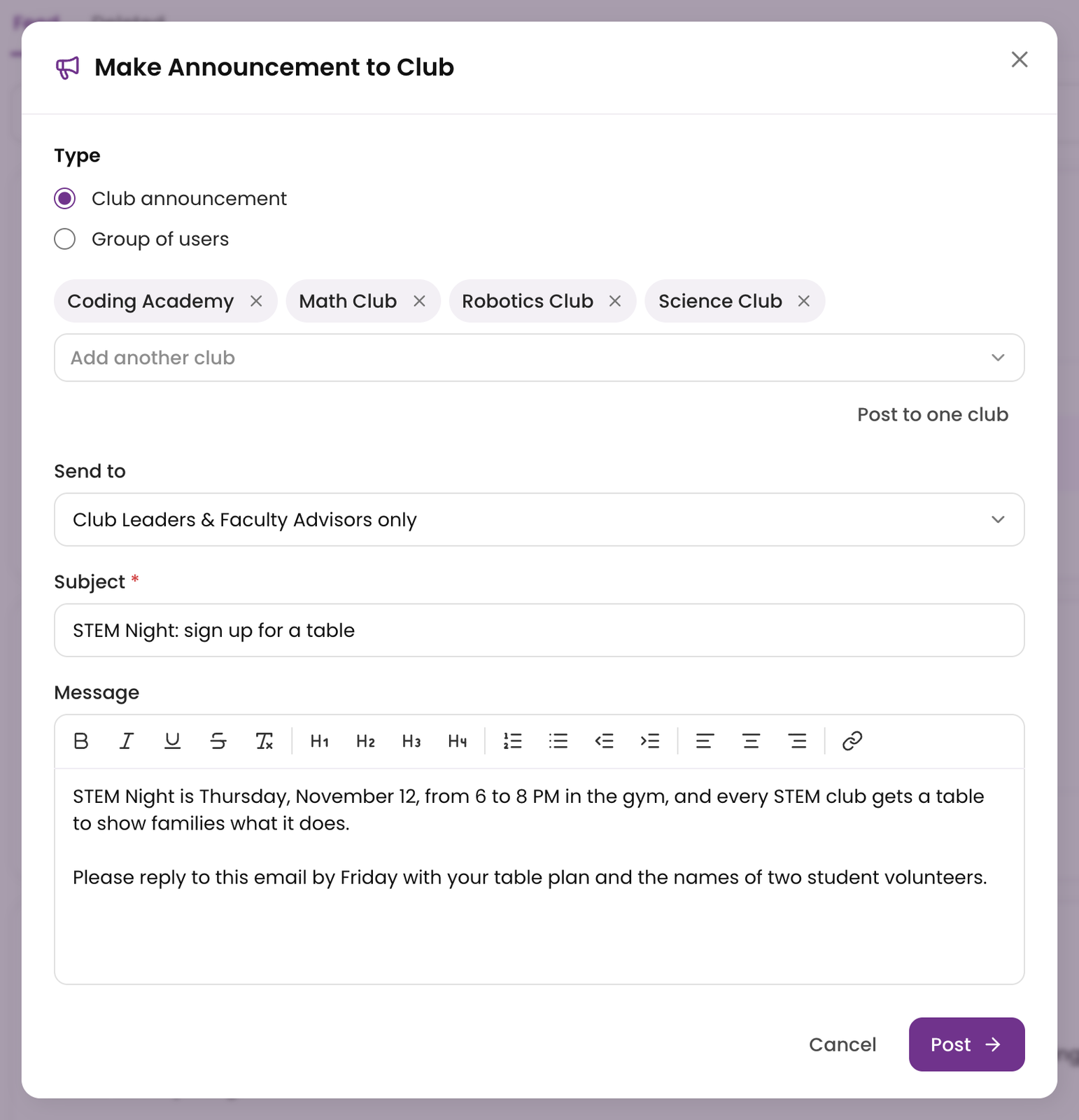
Send an announcement to several clubs
- Open Announcements and click New announcement (New on a phone).
- Under Type, choose Club announcement.
- Click Choose multiple clubs, under the club box.
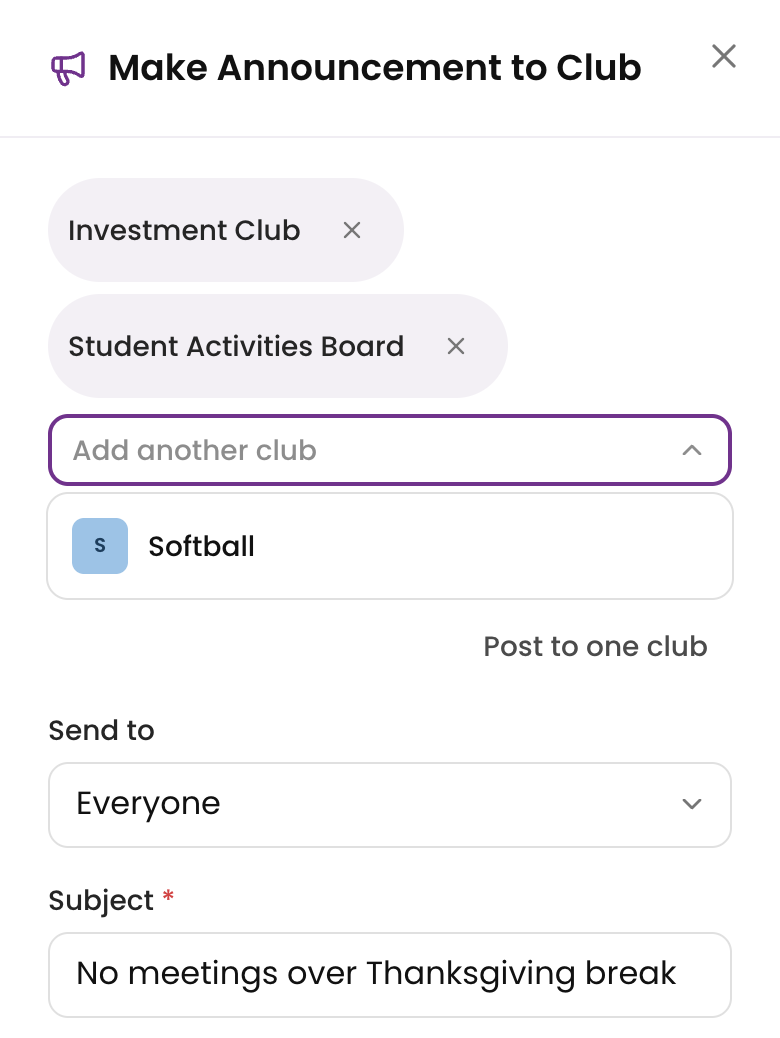
- Click Select clubs and pick a club. Add the next one from Add another club, and so on. With a long list, type a name in Search clubs.
- Under Send to, choose who receives it (below).
- Write a Subject and a Message.
- Click Post.
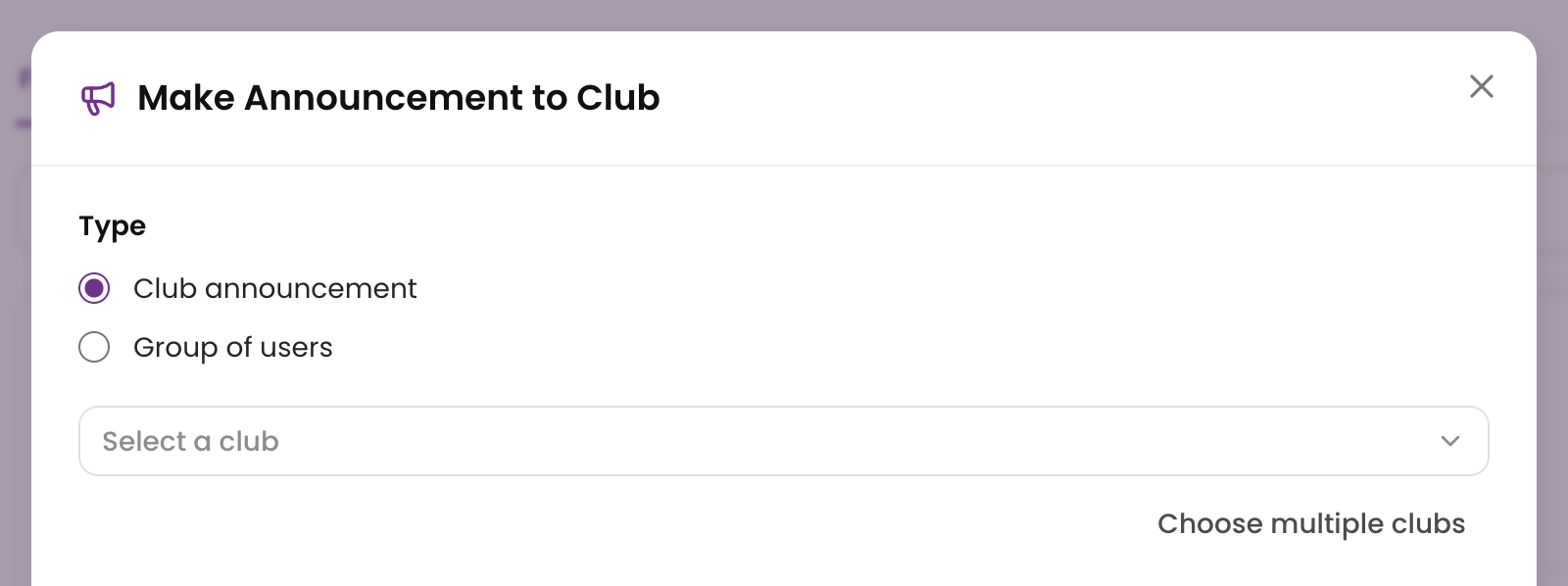
Each club you pick shows as a tag above the box. To take one out, click the × on its tag. If you picked a club before clicking Choose multiple clubs, it stays in the list.
Club Hub confirms how many clubs it posted to, for example "Announcement posted to 4 clubs". To go back to one club before you post, click Post to one club.
Choosing who receives it
- Everyone is the default. It goes to every member of each club you picked, its club leaders and faculty advisors, and students whose request to join is waiting for an answer.
- Club Leaders & Faculty Advisors only goes to each club's student leaders and faculty advisors. Members do not get it and do not see it in Club Hub. Use it for renewals, budgets, or a leaders' meeting.
On a team, the leaders are its captains and the faculty advisors its coaches.
What happens when you post
- Each club gets its own post. The announcement appears on each club's Announcements tab. In your own feed, you see one post per club.
- Email and notification. Everyone it reaches gets an email that names their club, and a push notification in the Club Hub app.
- Replies come to you. A reply to the email goes to your email address. Comments in Club Hub stay on each club's own post.
- One email per club. A student in two of the clubs you picked gets two emails, one for each club.
- Each post changes on its own. To fix or remove the announcement, use the ⋯ on each club's post. Deleting one leaves the others in place.
Who can post to several clubs
| Role | Choose multiple clubs | Which clubs |
|---|---|---|
| Administrator | Yes | Any approved club or team at the school |
| Faculty advisor or coach of two or more clubs | Yes | Only the approved clubs and teams they advise |
| Club leader or captain | No | One club at a time |
A faculty advisor who is not an administrator sees no Type question. They start at the club box, click Choose multiple clubs, and pick from the clubs they advise.
Choose multiple clubs is on the Announcements page. A club's own Announcements tab posts to that club alone.
Frequently asked questions
Can I schedule it, save it as a draft, or attach a file?
Not when it goes to several clubs. Schedule for Later, Save as Draft, and Attach file are on an announcement to one club. To schedule the same message for several clubs, schedule it for each club in turn. See Schedule Announcements.
Can I send it only to the members I pick by name?
Only within one club. Pick one club, choose Specific members under Send to, and tick the people. An announcement to several clubs goes to everyone in each club, or only to each club's leaders and faculty advisors.
Can it go to parents too?
Not to several clubs at once. At a school that collects parent emails, Also send announcement to club member parents and Only send announcement to club member parents are on an announcement to one club.
How do I reach every club leader at the school?
Under Type, choose Group of users, then Club Leaders and Faculty Advisors under Send to. It reaches every club leader and faculty advisor at your school, without picking clubs. Group of users is for administrators. See School Announcements.
Can I reach the members of a whole category of clubs?
Yes. Under Type, choose Group of users, then Category under Send to, and tick the categories. Each member of an approved club in those categories gets one email, even if they are in several of the clubs. It sends no push notification, and it is a school announcement rather than a post on each club.
Why don't I see Choose multiple clubs?
- You are a club leader. Only administrators and faculty advisors of two or more clubs can post to several clubs.
- You advise only one approved club.
- You chose Group of users under Type.
- You started from a club's own Announcements tab. Start from the Announcements page instead.
I posted to a club by mistake. What do I do?
Find that club's post in your Announcements feed, click the ⋯ on it, and choose Delete announcement. The other clubs' posts stay as they are. Its email has already gone out and cannot be taken back.