Take attendance faster using a shared device like an iPad where students sign themselves in.
When to Use the Kiosk
• No-phone policies: Students can't use their phones to check in
• Large clubs: Speed up attendance for 50+ members
• Drop-in events: Open meetings where anyone can attend
• Club fairs: Quick sign-ups at recruitment events
For Administrators: Enable the Feature
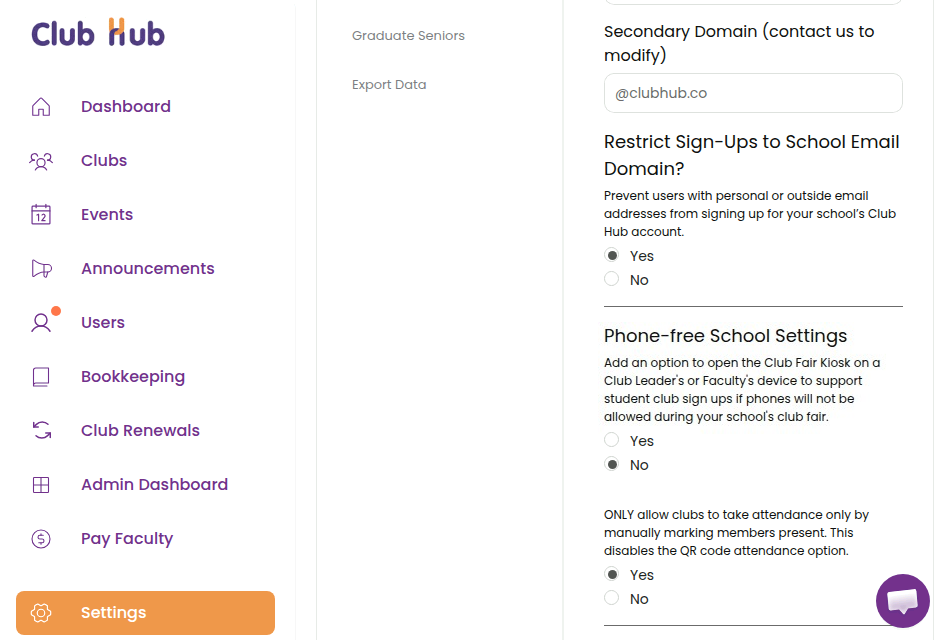
The kiosk option appears when your school uses manual attendance mode.
- Go to Admin → School Settings
- Find "Only allow clubs to take attendance by manually marking members present"
- Set to Yes
For Club Leaders: Open the Kiosk
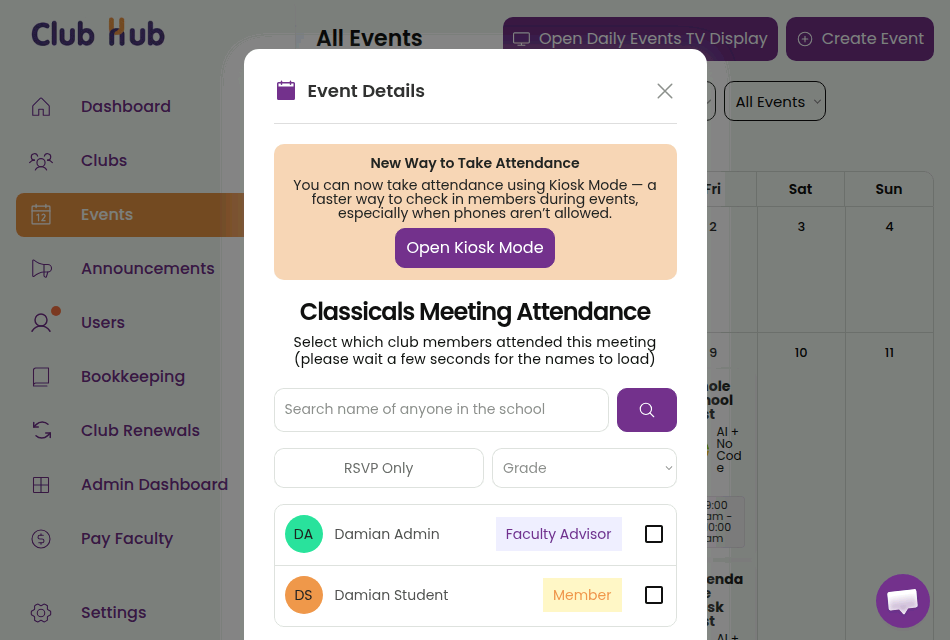
- Open your event's Take Attendance popup
- Click the purple Open Kiosk Mode button
How Students Check In
The kiosk opens in a new browser tab showing:
• Your school logo
• Club name and event details
• Email input field
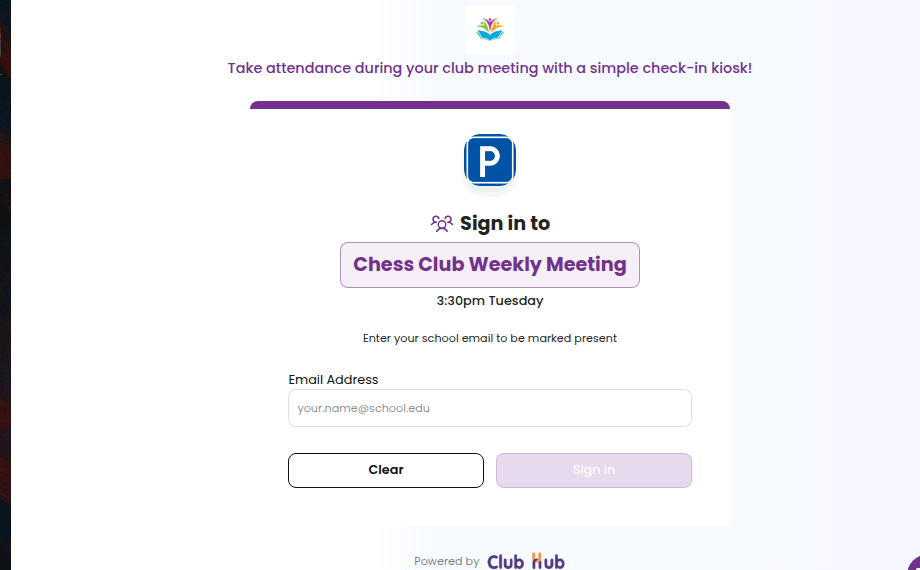
Students enter their school email and tap Sign in to mark themselves present.
Tips
• Set up an iPad at the entrance for easy access
• Keep your original tab open to monitor who's checking in
• Switch back anytime: Close the kiosk tab and use manual checkboxes instead