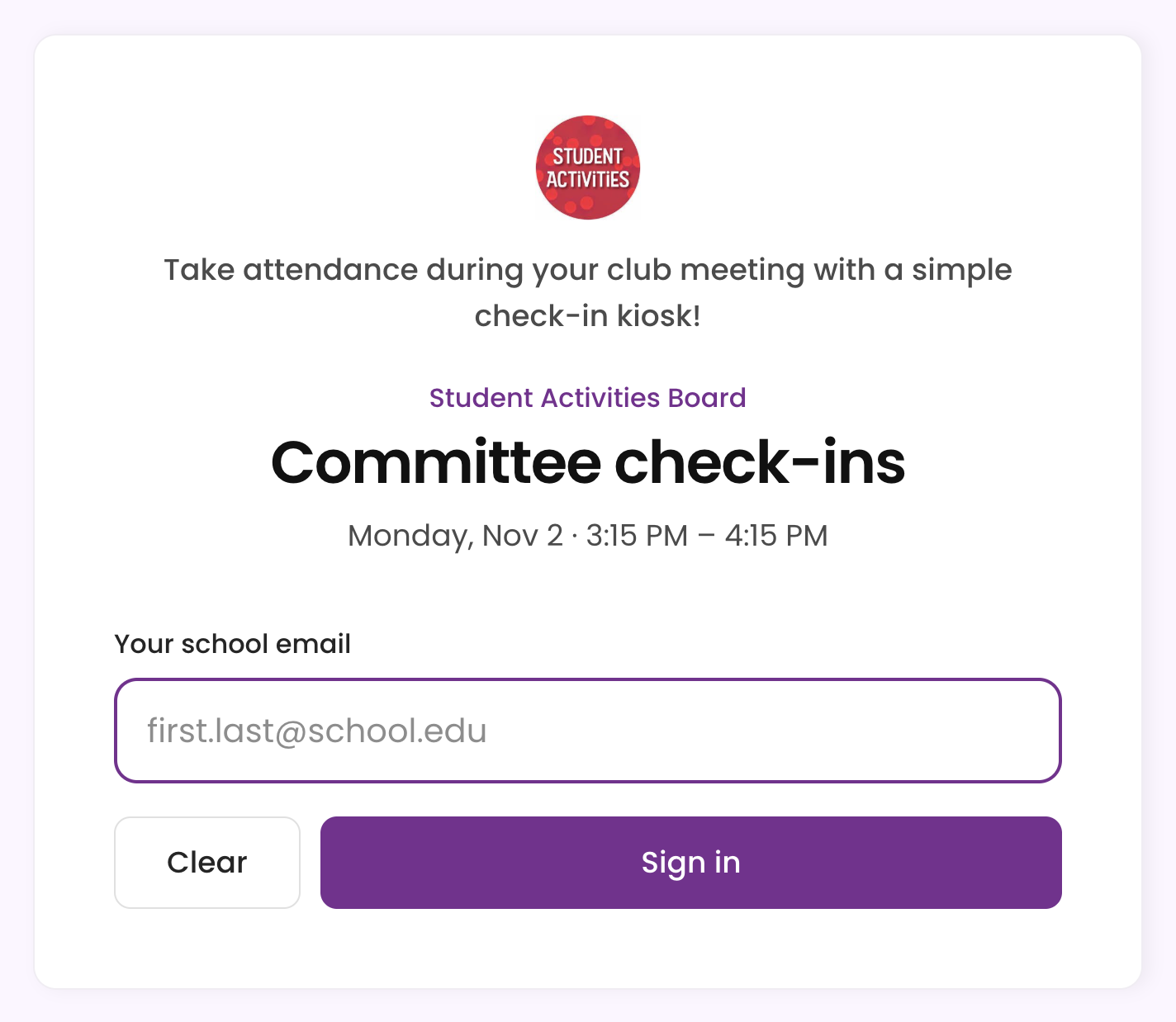
Kiosk Mode turns a laptop or tablet at the door into a check-in station. Members type their school email as they arrive and are marked present, with no phone and no QR code.
An administrator turns it on for the whole school. Club leaders, faculty advisors, and administrators can then open it for a club's events.
When to use it
- Phones aren't allowed. Members check in without one.
- Your club is large. Members check themselves in, so you don't have to find each name on a list.
- People arrive at different times. The kiosk stays open, so each member checks in on the way in.
Turn it on
An administrator does this once, for the whole school.
- Go to Settings → School settings.
- Select Replace attendance QR code with check-in kiosk. The change saves automatically.
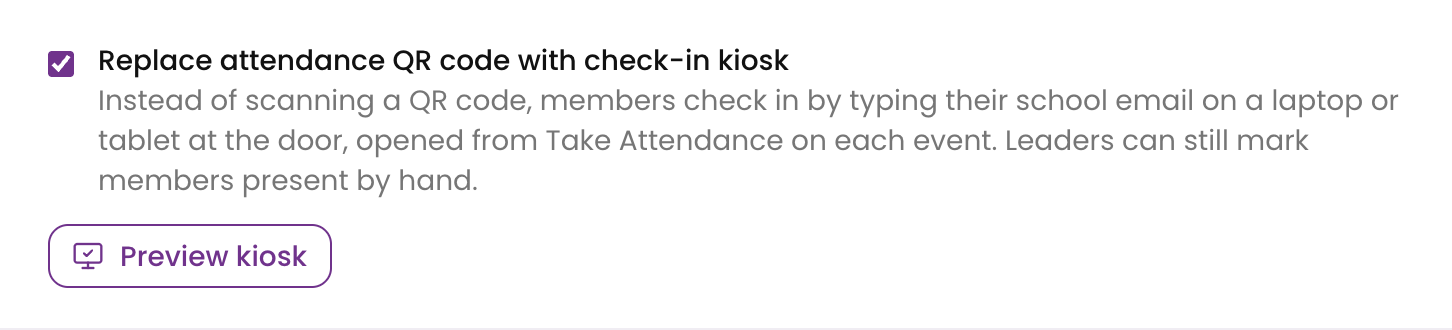
Members at every club then check in at the kiosk instead of scanning a QR code. Club leaders and faculty advisors can still mark members present by hand.
Preview kiosk shows the kiosk with a sample meeting, so you can see it before you turn it on.
Open the kiosk
- Click the event on the club's Events tab or on the Calendar.
- Click Take Attendance.
- Click Open Kiosk Mode.
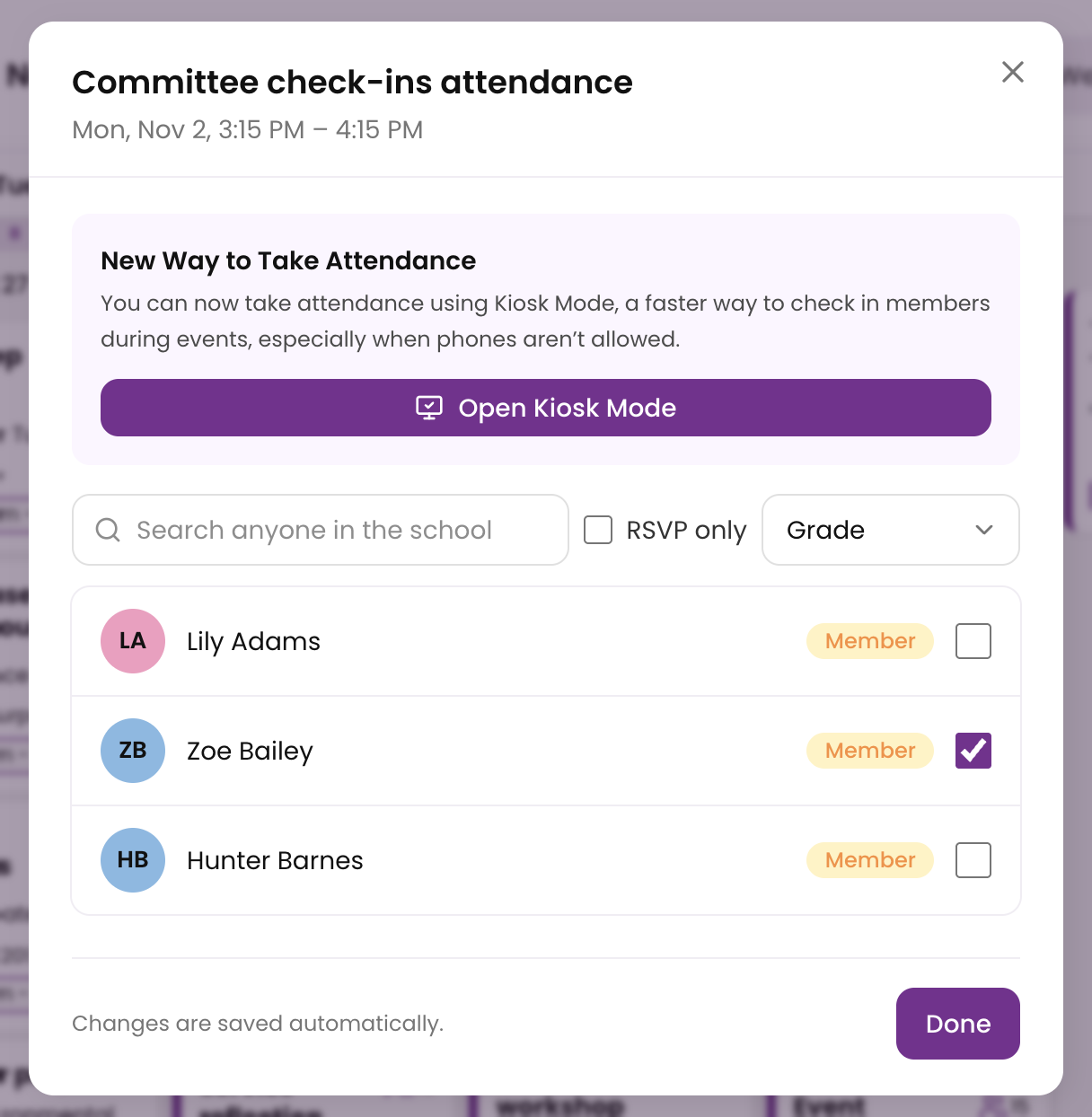
The kiosk opens in a new tab. Leave it open on the laptop or tablet at the door.
- Stay signed in as yourself. The kiosk runs on your account, so it only opens on a device signed in as a club leader, faculty advisor, or administrator of the club.
- Each meeting has its own kiosk. It records attendance for that meeting only, so open it again from your next event.
Administrators can also open the kiosk for any meeting this week. Click Preview kiosk in Settings → School settings, then Kiosk links.
How members check in
Each member types their school email, the address they sign in to Club Hub with, and taps Sign in.
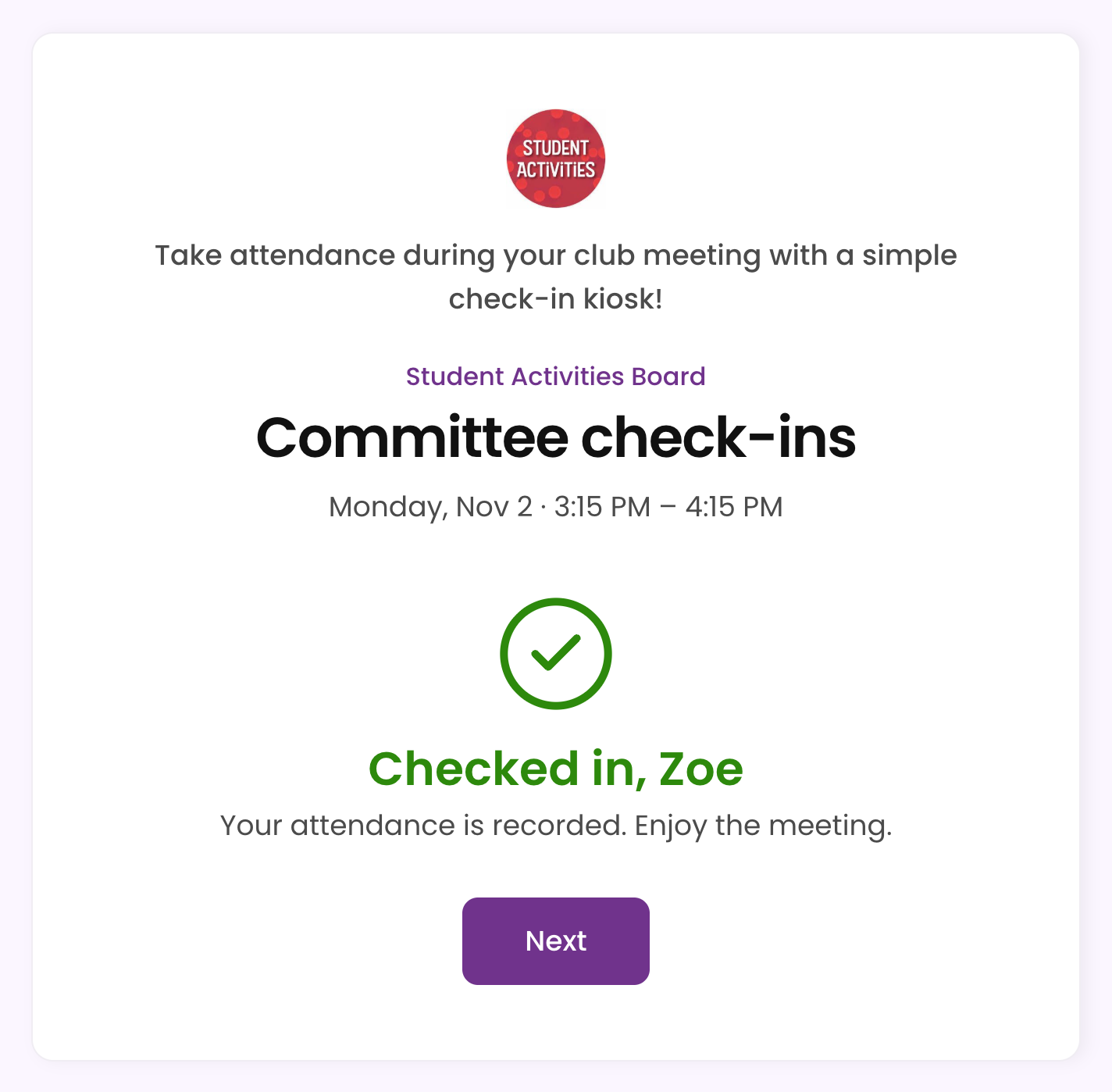
The kiosk shows their first name, then clears itself for the next person. Next clears it right away.
- A mistyped email. If the email doesn't match an account, the kiosk says Account Not Found! and keeps what they typed so they can fix it. Clear empties the box.
- Anyone at your school can check in. Someone who is not a member appears on the list with everyone else.
- Nobody else's name shows. The kiosk shows only the first name of the person checking in.
See who checked in
Keep Take Attendance open in your original tab. Kiosk check-ins show as present on the list within a few seconds, and you can mark anyone else by hand.
After the meeting, the event's Attendees tab lists everyone who came, with Kiosk beside each check-in made here. Show Time Stamp adds the date and time. How to take attendance covers the rest.
Frequently asked questions
I don't see Open Kiosk Mode
Your school still uses the QR code. Ask an administrator to select Replace attendance QR code with check-in kiosk in Settings → School settings.
What if a member has no Club Hub account?
The kiosk can't create one. It says Account Not Found! and asks them to create their account on clubhub.co, and they can check in once they have one.
Is this the club fair kiosk?
No. The club fair kiosk signs students up for clubs, and it has its own setting. See No Phone Club Fair Kiosk.