The TV display puts your school's club meetings on a TV or a digital signage screen: today's meetings, the next day's, and the week ahead, one after another. Any administrator sets it up under Settings → TV display, and nobody signs in on the screen.
Watch the video
A four-minute video shows every step: the TV display tutorial. It opens without signing in, so you can send it to whoever sets up your screens. You can also watch it in Club Hub: click Watch how it works under Settings → TV display.
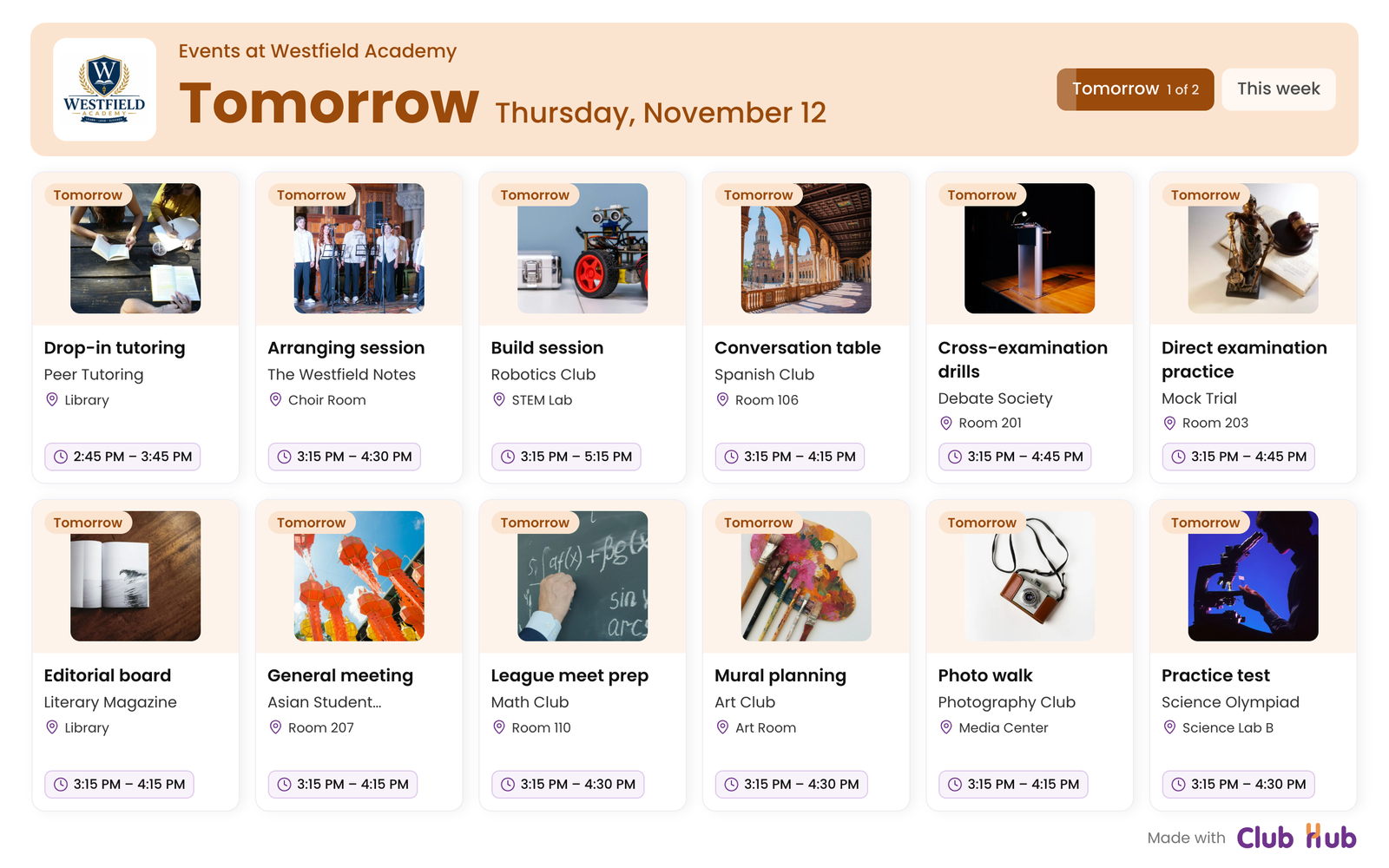
What the screen shows
- Today. The meetings still to come today, with the ones under way marked Now.
- The next day. From 5 PM, or once today's meetings are over, the next day's meetings join in.
- This week. The week ahead at a glance.
Each meeting shows its title, club, time, and room. The screen moves to the next slide on its own and picks up new meetings by itself, so once it's up, nobody has to touch it.
Click Preview on the Screens card to see exactly what your screens show.
Set up a TV with a code
Use this for a smart TV, a streaming stick, or any screen with a web browser.
- On the TV, open the web browser and go to clubhub.co/tv. A six-character code appears.
- On your computer, go to Settings → TV display and click Pair a screen.
- Type the code, give the screen a name such as "Main hallway TV", and click Pair screen.
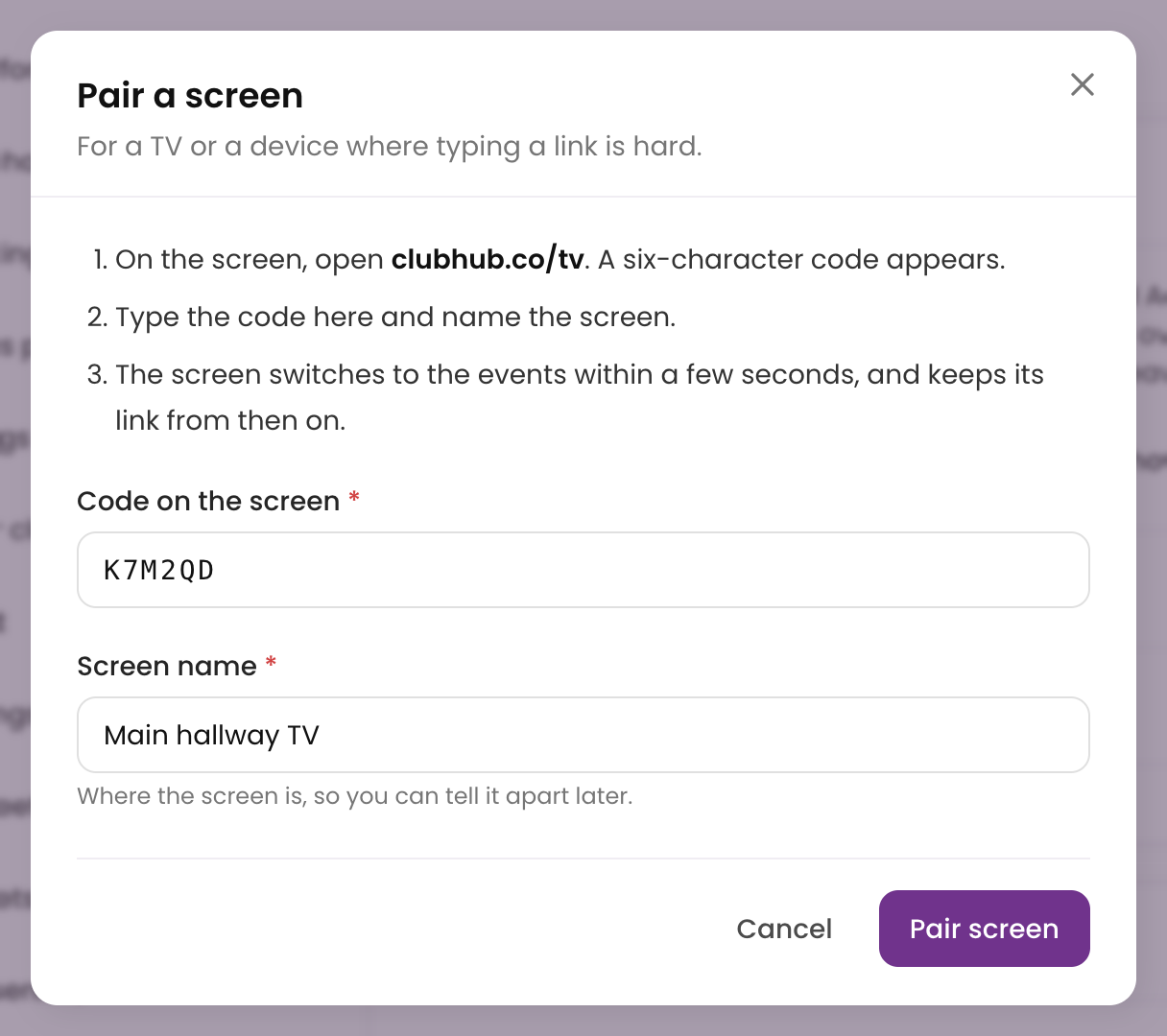
The TV switches to your meetings within a few seconds. It remembers its link, so it comes back after a restart.
Send a link to whoever runs your screens
Use this for digital signage (Rise Vision, OptiSigns, ScreenCloud, Yodeck, and others), or when someone else, such as your IT team, sets up the screens.
- Go to Settings → TV display and click Get a link.
- Name the screen and click Create link.
- Copy the link and add it to your signage as a web page. Or type the email address of whoever sets up the screen under Email the link to whoever sets up the screen, and click Send.
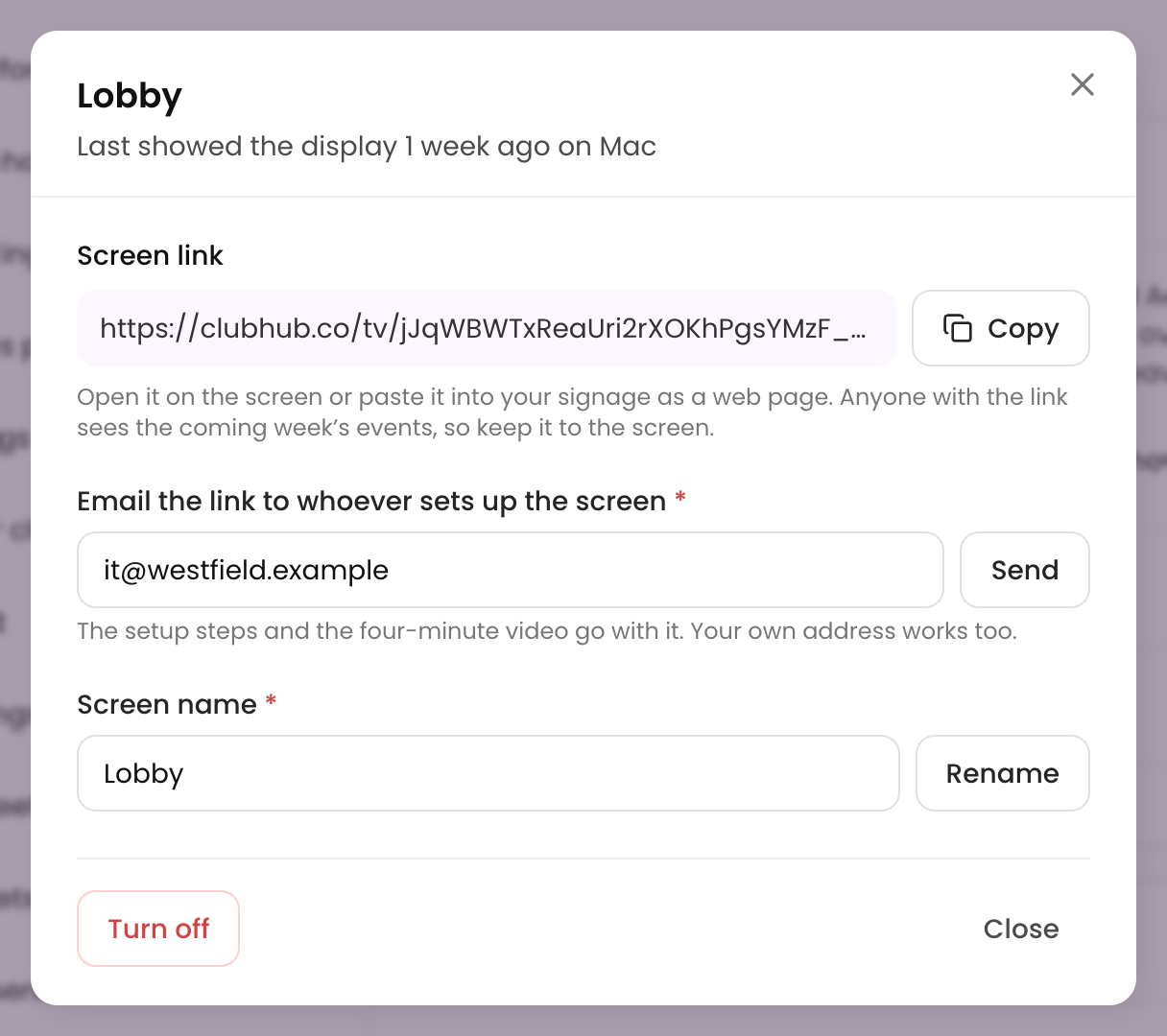
The email comes with the setup steps and the video, and you get a copy. They don't need a Club Hub account. To find a screen's link again later, click Manage beside it.
Keep the link to the screen. Anyone with it can see your school's meetings for the coming week. If it ever goes further, turn the screen off.
Check that it's working
The Screens card lists every screen with how it's doing:
- Showing now. The screen is showing the display.
- Not opened yet. Nobody has put its link on a screen so far.
Make it yours
Under Customize TV Display:
- What the screens show. Today and this week, or Today only.
- Display heading. In place of "Events at" and your school's name.
- Accent color and message. A color for the display, and a line under the heading for everyone walking by.
Changes save automatically and show on every screen.
Turn a screen off
Click Manage beside the screen, then Turn off, and confirm. Its link stops working right away and the screen shows a pairing code instead. Your other screens stay on.
Frequently asked questions
Does anyone sign in on the screen?
No. The screen's link shows your meetings and nothing else, so no account is left signed in on a TV in the hallway.
Which meetings does it show?
The meetings of every approved club that isn't hidden.
Can the display share a screen with other slides?
Yes. Each time its slide comes back, the display picks up where it left off. End the link with ?seconds=10 to give it a shorter turn, or with ?embed=yes to leave out the Made with Club Hub badge.