Keep school handbooks, planning guides, forms, and useful links together in Resources Board. Administrators choose who can see each resource.
1. Turn on Resources Board
Open Settings → School settings as a school administrator.
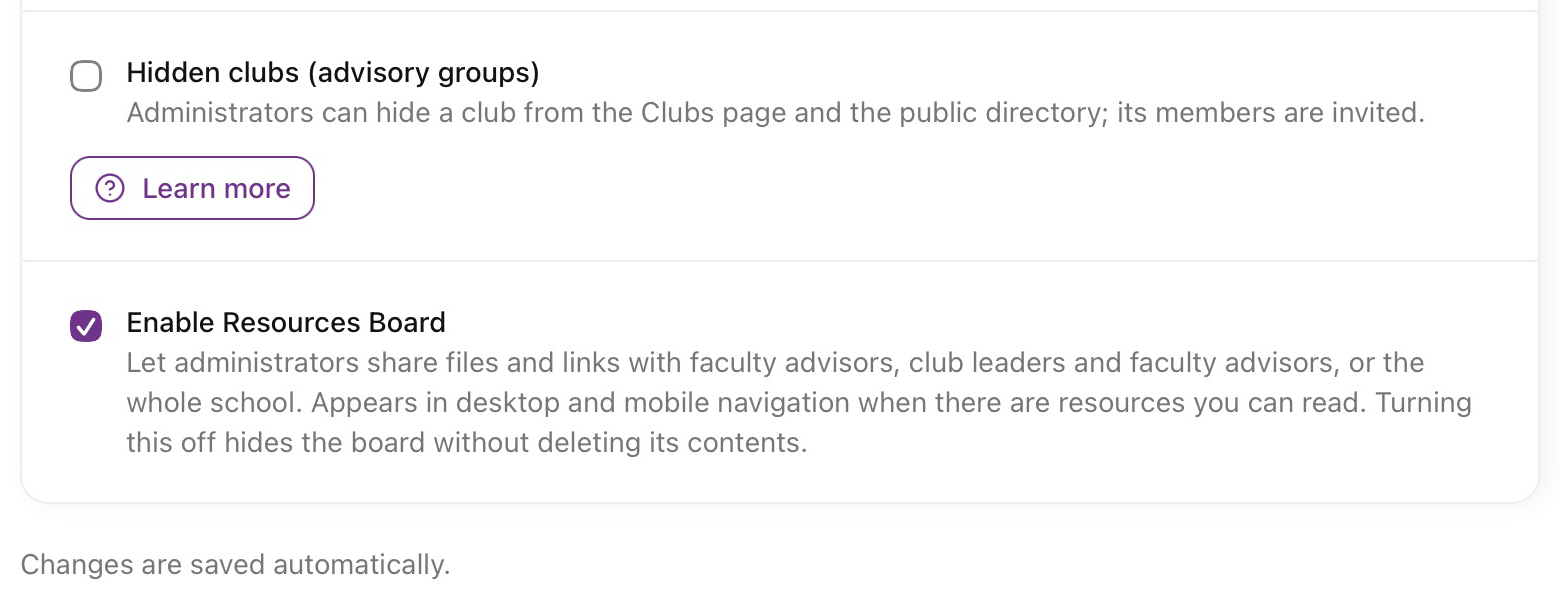
Scroll toward the bottom, below Hidden clubs (advisory groups), and turn on Enable Resources Board. Your change saves automatically.
2. Add a file or a link
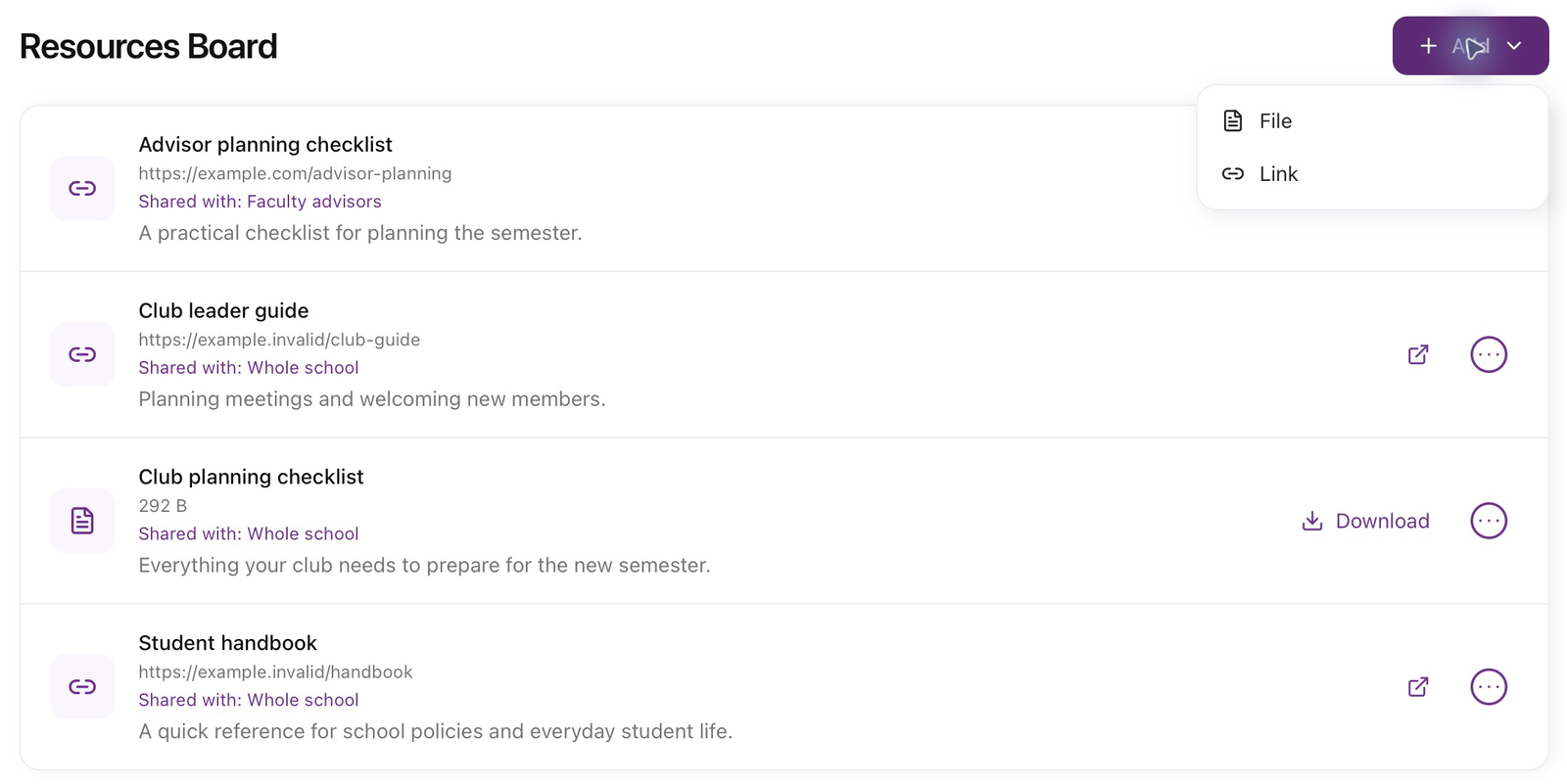
Open Resources Board from the desktop menu, then select Add.
Choose File to upload a document, or Link to share a website.
3. Choose who can see it
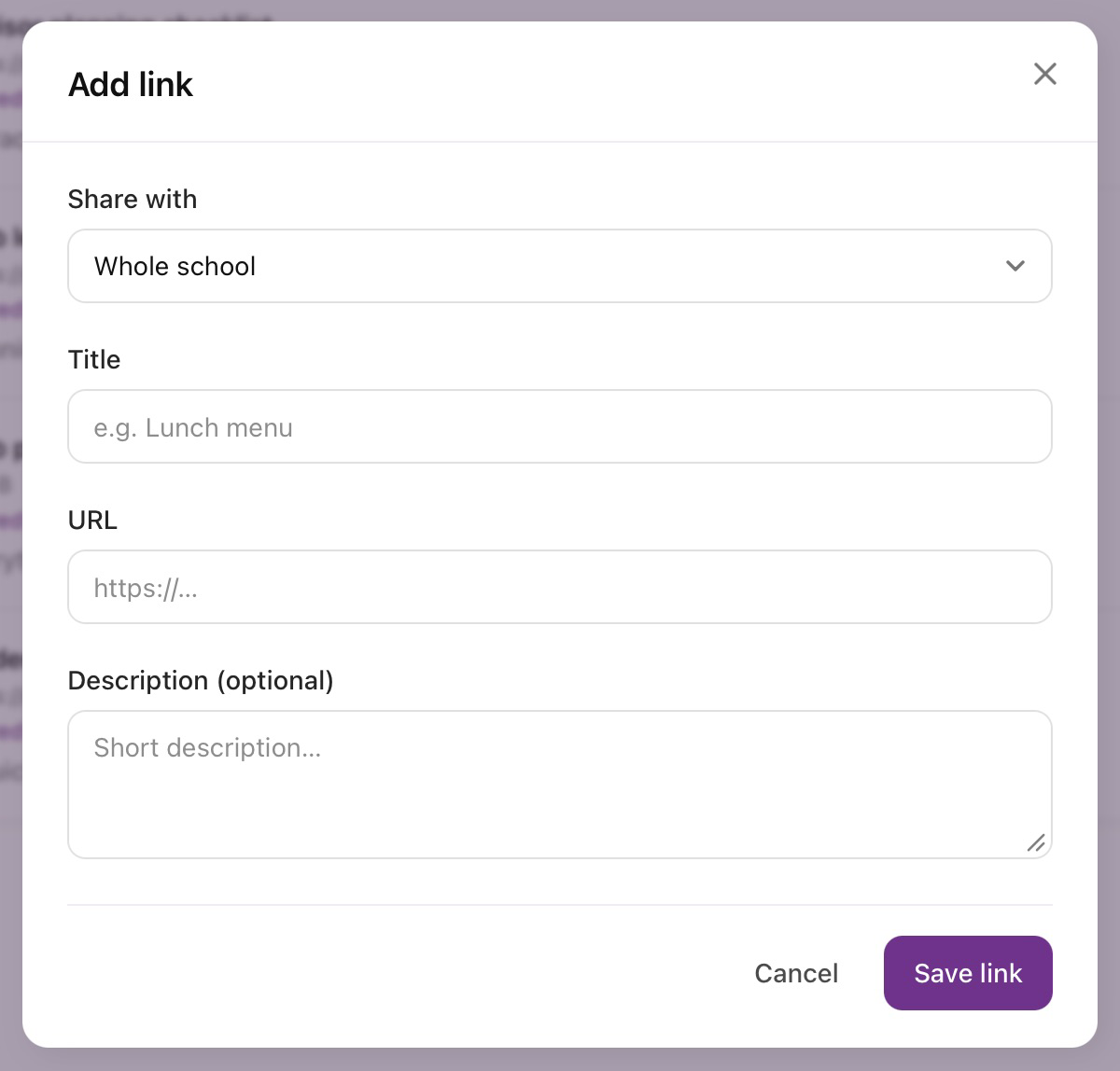
Use Share with at the top of the form:
- Faculty advisors — share with people who advise a club.
- Club leaders and faculty advisors — share with both groups.
- Whole school — share with all approved users at your school.
For a file: enter a name and choose a file up to 15 MB.
For a link: enter a title and the complete web address.
Add an optional description, then choose Save file or Save link. The newest resources appear first.
Who counts as an advisor or leader? These audiences use active, non-pending memberships. Club leaders qualify only through approved clubs; leaders of paused clubs do not qualify. Faculty advisors qualify through approved or paused clubs. A faculty account alone does not grant advisor access. Administrators can see and manage every resource.
4. Open resources on desktop or mobile
Files: click or tap anywhere on the row to download.
Links: click or tap the row to open the website.
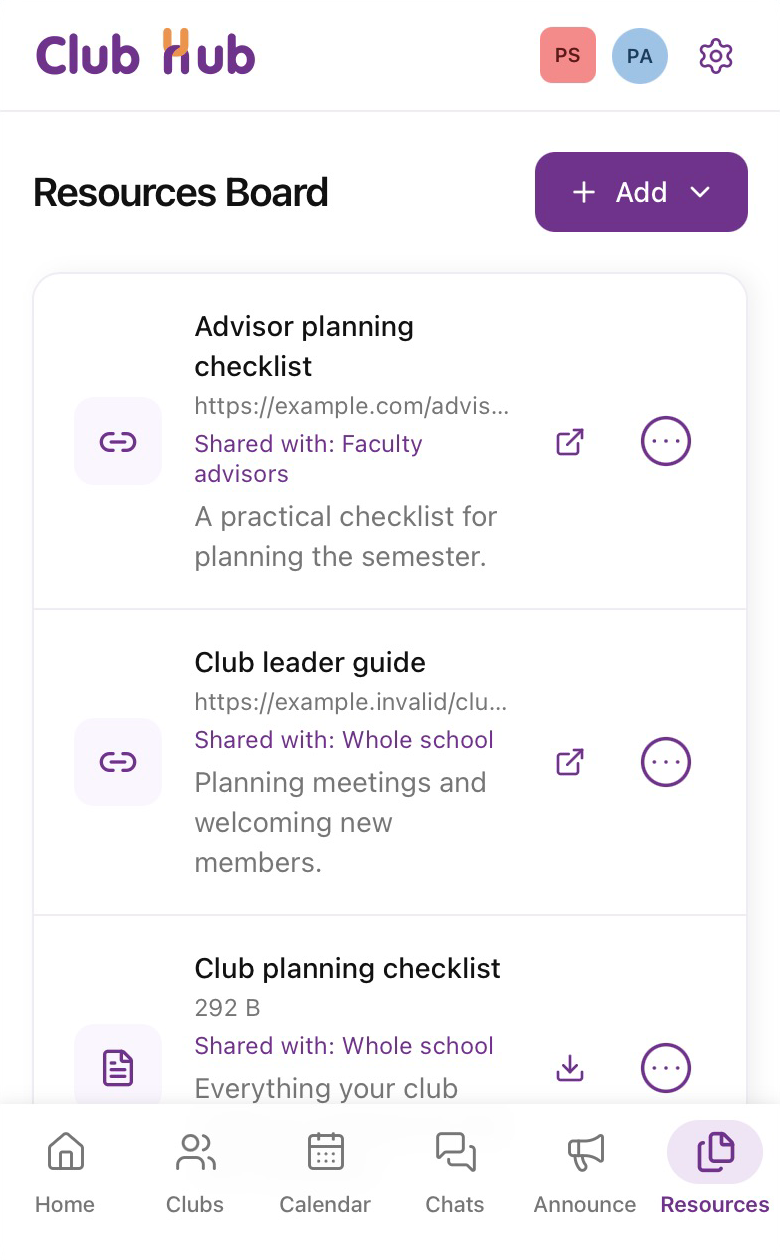
Mobile app: tap Resources in the bottom navigation. If the bottom bar is full, look in More. File downloads use your device’s sharing and saving options.
Starting with an empty board? Administrators can open it right away. Other users see Resources in their navigation once at least one resource has been shared with them.
Edit, remove, or turn off
Open a resource’s three-dot menu and choose Edit or Delete.
You can update its name, description, and audience. For links, you can also change the web address. To replace a file, add the new upload and delete the old entry.
No automatic notifications: adding or editing a resource does not send an email or push notification.
Turn the board off: disable Enable Resources Board in School settings. This hides the board and stops access through its file links. Existing resources are kept for when you enable it again.