Club Hub can put your club meetings on the calendar you already use, and keep them up to date when a meeting moves or is canceled. Connect your Google Calendar, or subscribe from Apple Calendar or Outlook with your own private link.
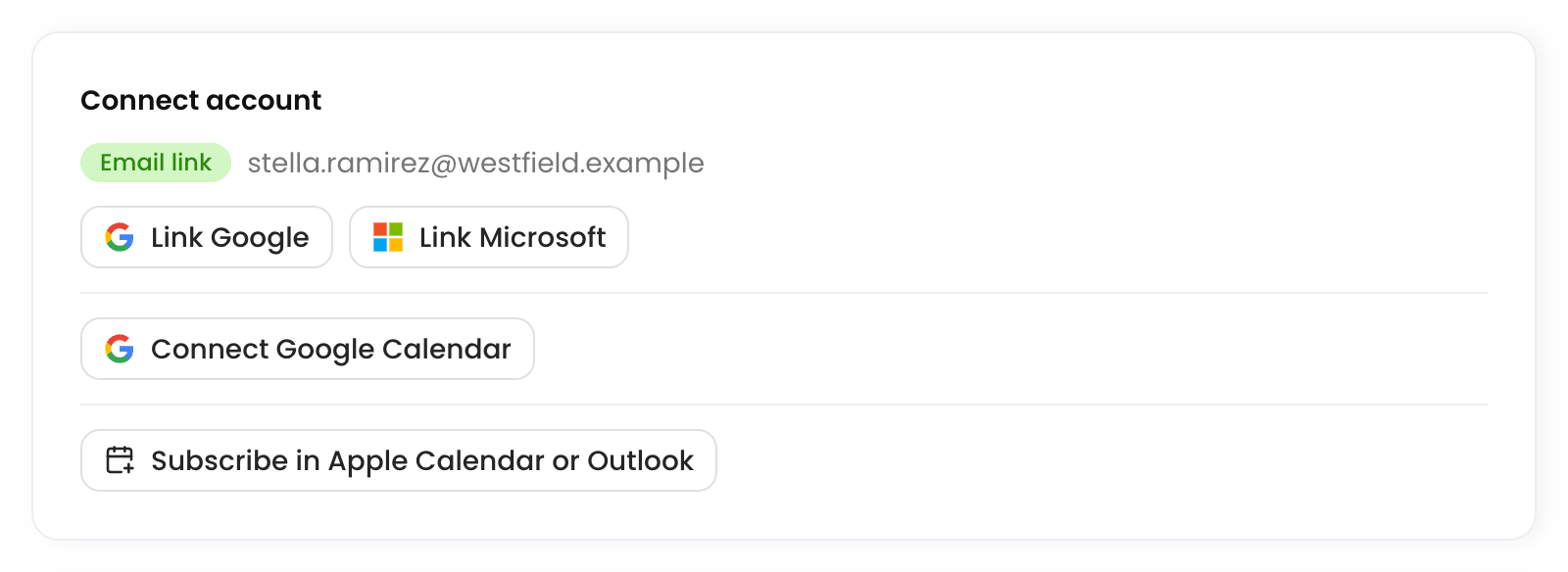
Both are in Settings → Personal information, under Connect account. They work at every school, for students, club leaders, faculty, and administrators alike, and there is nothing for an administrator to turn on.
Which one to use
| Google Calendar | Apple Calendar, Outlook, and others | |
|---|---|---|
| How | Connect your Google account | Subscribe with your own link |
| Where events go | Your Google account's main calendar | A separate Club Hub calendar |
| A change arrives | Within a few minutes | Within an hour to a day, depending on the app |
| Which events | Every upcoming event | From the last month to a year ahead |
| To stop | Disconnect, which removes the events | Remove the Club Hub calendar in your app |
Use one, not both. If you use Google Calendar, connect it rather than subscribing. Changes arrive sooner, and with both you would see every event twice.
What goes on your calendar
Both ways put the same events on your calendar.
- Your clubs' meetings. Every meeting and event of the clubs you are a member of, lead, or advise.
- Events you RSVP to, in any club.
- Clubs you have asked to join. Meetings open to everyone in the club, while your request waits.
Some meetings are left out:
- A meeting for one group of a club reaches only the people in that group. Club leaders and faculty advisors get every meeting of their club.
- A paused club's meetings come off until the club is active again.
- Faculty advisors at a school that requires an advisor at every meeting get only the meetings they confirm with Confirm Attendance or RSVP to.
Each entry is titled with its club in brackets, such as [Robotics Club] Design review. The room or the meeting link is its location, and its description links back to the event in Club Hub.
When a meeting moves, its entry moves. When a meeting is canceled, its entry disappears. When you leave a club, its upcoming meetings come off your calendar.
Connect Google Calendar
- Open Settings: the gear at the bottom of the left sidebar on a computer, or at the top right on a phone.
- Go to Personal information and find Connect account.
- Click Connect Google Calendar.
- Choose your Google account. A school account or a personal one both work.
- Allow Club Hub to manage events on your calendar, and keep every box ticked.
- You are back in Club Hub on the Google Calendar page. Your events arrive within a few minutes.
Club Hub adds events to your Google account's main calendar, and only ever changes the entries it created.
To check on it later, click Manage beside Google Calendar connected in Settings → Personal information. The Google Calendar page shows the account you connected, how many events are on your calendar, and when Club Hub last checked it.
Disconnect Google Calendar
Click Manage, then Disconnect, and confirm. Club Hub removes the events it added from your Google Calendar. This finishes in the background.
Subscribe from Apple Calendar or Outlook
- Open Settings → Personal information.
- Under Connect account, click Subscribe in Apple Calendar or Outlook.
- On the Calendar subscription page, choose your app:
- Apple Calendar opens Calendar on a Mac or an iPhone, which asks you to subscribe. Android phones don't show this button.
- Outlook opens Outlook on the web, ready to add the Club Hub calendar to your account. On a phone, it opens in your browser.
- Copy gives you the link for any other calendar app. Add a calendar by URL there and paste it.
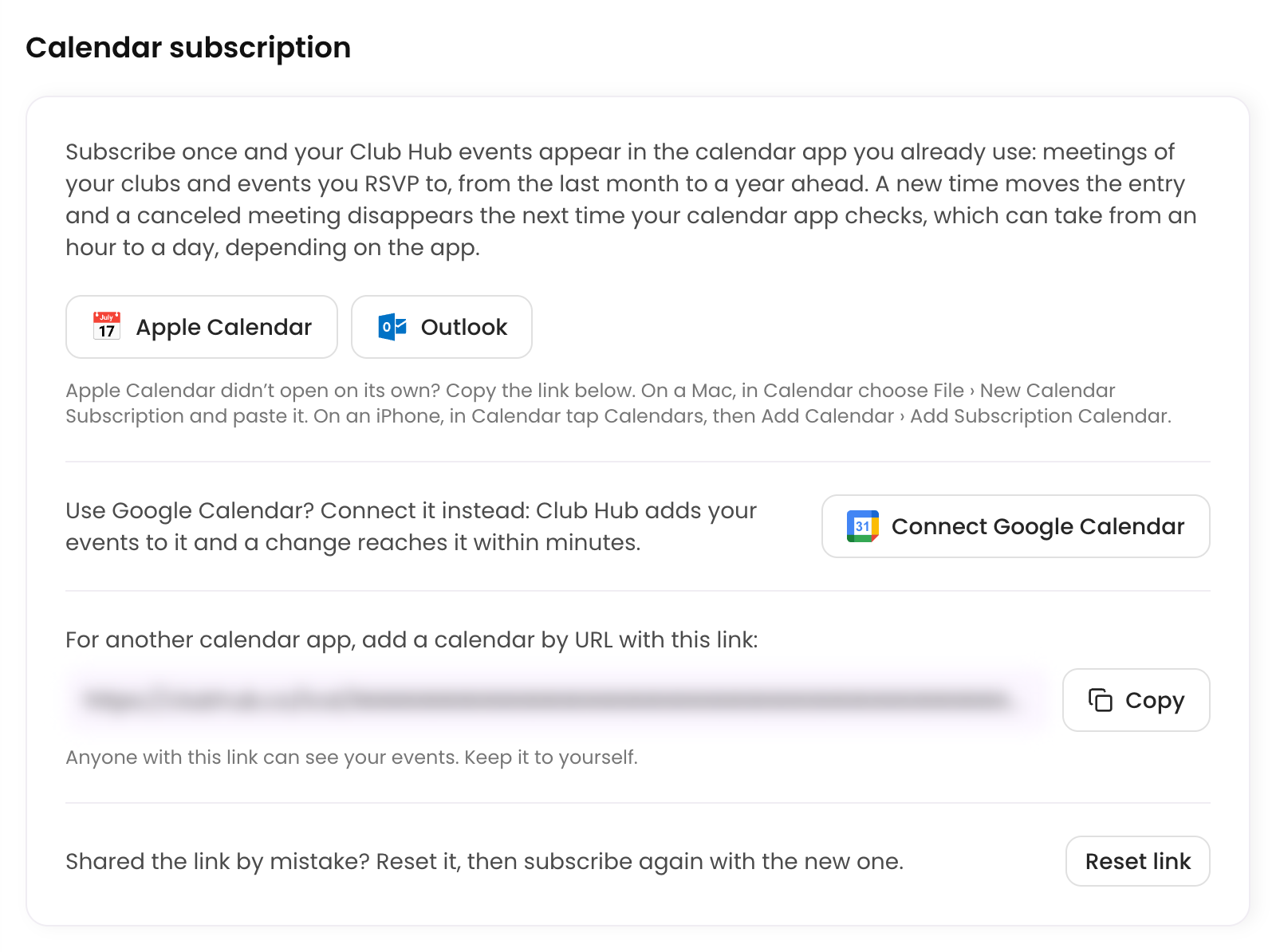
If Apple Calendar doesn't open on its own, click Copy, then:
- On a Mac: in Calendar, choose File → New Calendar Subscription and paste the link.
- On an iPhone: in Calendar, tap Calendars, then Add Calendar → Add Subscription Calendar, and paste the link.
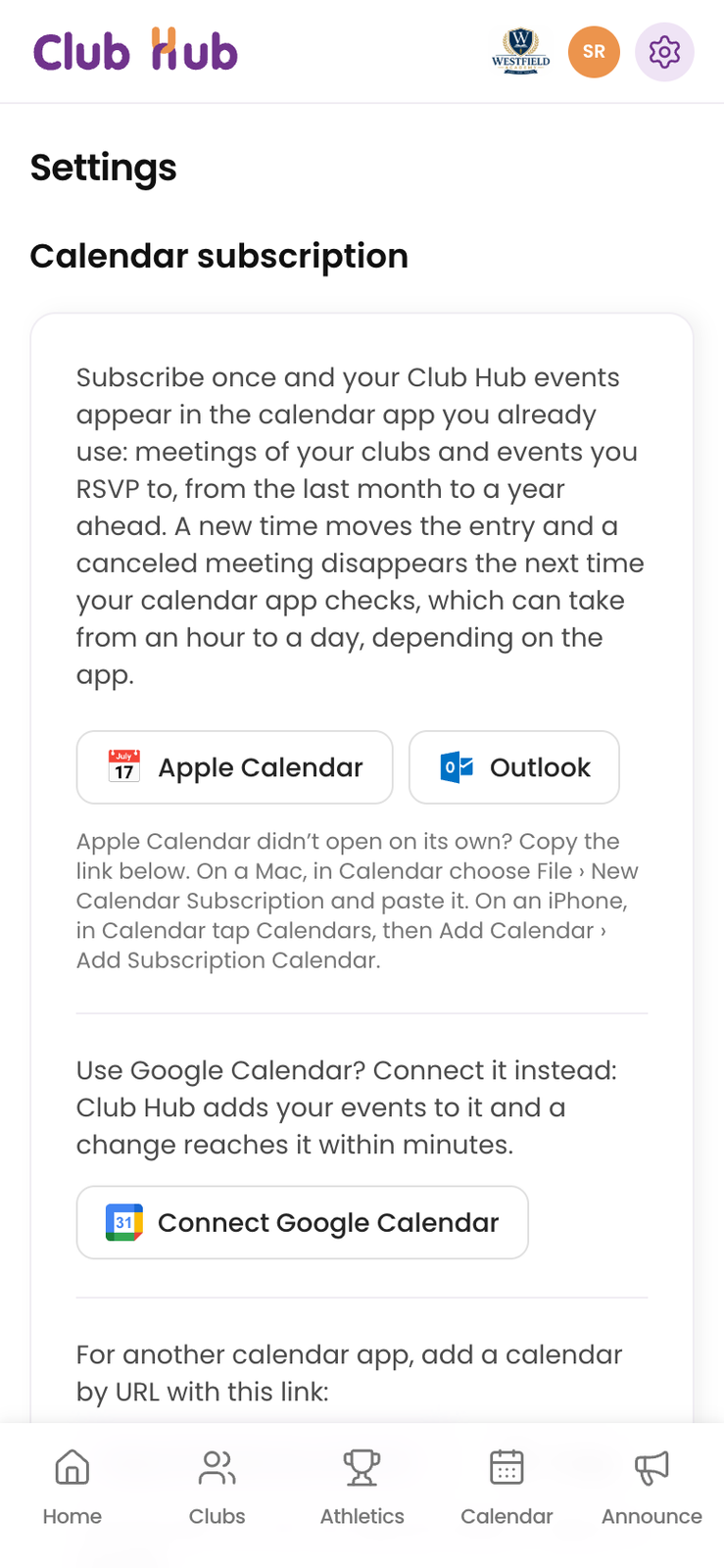
A change reaches a subscribed calendar the next time your calendar app checks, which takes from an hour to a day depending on the app.
Keep your link to yourself. Anyone with it can see your events. If you shared it by mistake, click Reset link on the Calendar subscription page and subscribe again with the new link. Every calendar on the old link stops getting updates.
To stop, remove the Club Hub calendar in your calendar app.
Add one event
Open an event from Home, the Calendar, or a club's page. Click Add to Calendar at the top right of its details, then choose Google, Outlook, or iCalendar (a file most calendar apps open).
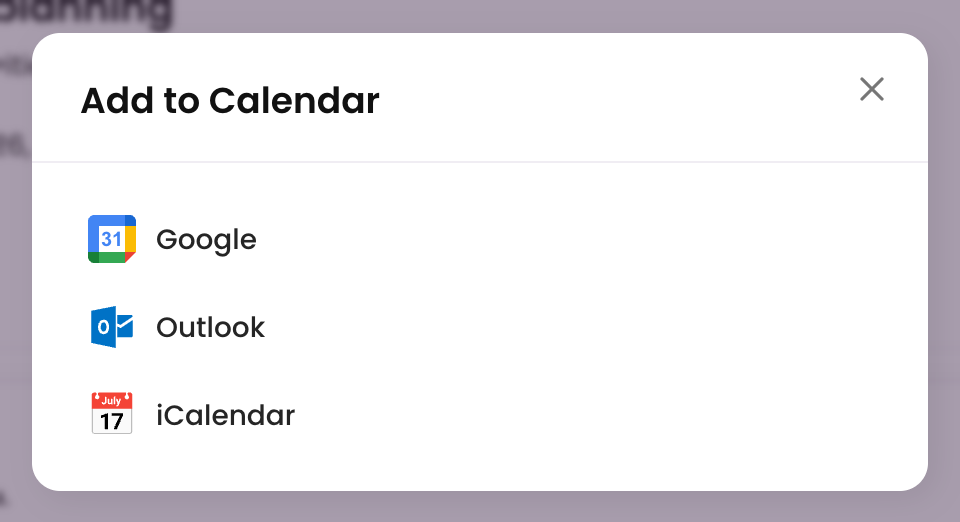
This adds a copy of that one event. The copy does not change if the event is moved or canceled later, so for meetings you go to every week, connect or subscribe instead.
Frequently asked questions
Why is a meeting missing from my calendar?
- It is for one group of the club, and you are not in that group.
- The club is paused.
- It belongs to a club you are not in. RSVP to it and it is added.
- The change has not arrived yet: a few minutes for Google Calendar, up to a day for a subscription.
How do I switch to a different Google account?
Disconnect the one you have and wait until Club Hub has removed its events. Then click Connect Google Calendar and choose the other account.
Home asks me to reconnect my Google Calendar
If you connected Google Calendar before Club Hub's update, Home shows Reconnect your Google Calendar. Click Reconnect, then Connect Google Calendar, and your events sync again.
The Google Calendar page says Reconnect needed
Club Hub lost access to your calendar, for example because the access was removed in your Google account. Click Reconnect and allow access again.
Can our school have one calendar with every club's meetings?
Yes. An administrator opens Settings → Event settings and, under Sync Events to School Wide Google Calendar, clicks Connect Google Calendar, chooses a calendar they can edit, and clicks Save Changes. It carries the upcoming meetings of every approved club except hidden ones. Share that calendar through Google Calendar to give your school access.
An administrator's own calendar, connected or subscribed, holds their own clubs and RSVPs, as everyone's does.