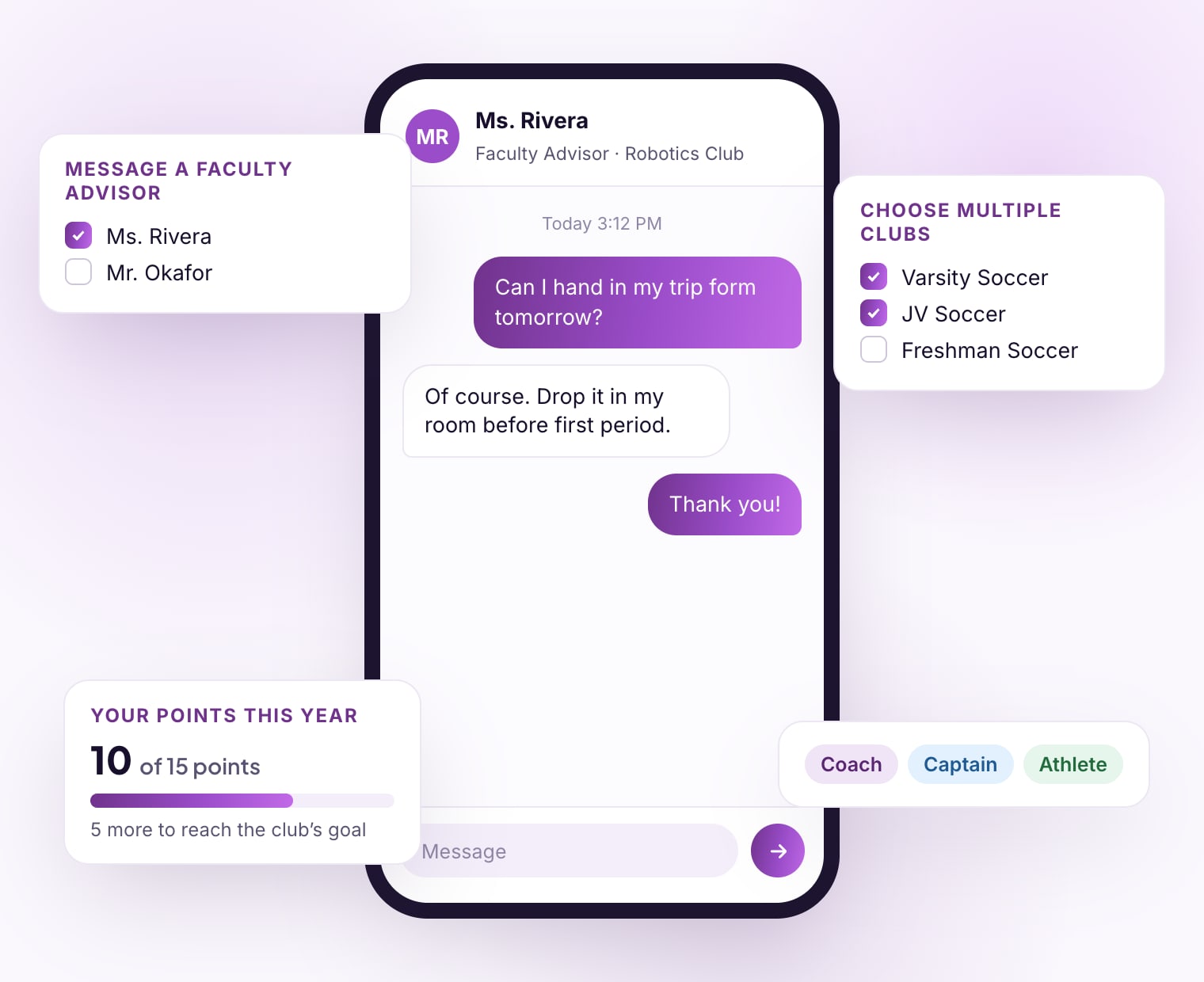
Five updates schools asked for this fall: private chats between students and their faculty advisors, an adult in every chat, one announcement for several clubs, points goals, and athletics wording. Here is what changed and how to set it up.
A student can start a private chat with the faculty advisors of any club they belong to, or the coaches of their team, without leaving Club Hub.
You asked for a safe way for a student to reach a moderator directly, without opening chats between students.
Administrators
Set it up
Go to Settings › Group chat.
Tick Let students message their faculty advisors. It saves by itself.
Group chat must be on too. Student messages stay off until you tick this.
Students
Use it
Open a club or team and press its ⋯ menu.
Choose Message a Faculty Advisor (Message a Coach on a team), or start from Chats › New chat.
Tick one or more advisors and press Create.
Only the club’s advisors can be chosen, so a student can’t start a chat with other students.
Asking again for the same advisors reopens the same chat instead of starting another.
Advisors see it in Chats with an unread count, and the Club Hub app sends a notification.
Administrators see every chat at the school in Chats, as they always have.
2
An adult in every chat
Leaders and advisors choose which advisors join each chat, and a chat with specific members always keeps at least one.
You asked that not every advisor be in every chat, but that there always be at least one adult, and for a faster way to find students in a long roster.
When a leader or advisor creates a chat with specific members, the advisors are a list of their own and none is ticked. The chat can’t be created until one is.
An advisor who creates a chat counts as the adult, so an advisor can message one student.
When creating a chat or adding members, a list of eight or more people has a search box that ignores capitals and accents: “jose” finds José.
The last advisor in a chat can’t leave or be removed. If they leave the club, the club’s other advisors are added for them.
A chat left with one person, who can’t add anyone, is closed and says so.
Set it up: nothing to do. It works wherever group chat is on.
3
One announcement, several clubs
An advisor or coach of two or more groups can post one announcement to all of them at once.
You asked to send one announcement to both a freshman and a varsity team, instead of posting it twice.
Advisors, coaches, and administrators
Use it
Go to Announcements and press New announcement.
Pick a club, then press Choose multiple clubs and add the others.
Write the subject and message, and press Post.
Each club gets its own copy, with its own comments. A student in two of the clubs sees it in both.
Advisors see only the clubs they advise. Administrators can choose any club.
Post to one club goes back. Attachments, scheduling, and drafts are for one club at a time.
4
A points goal for each club
A club can set the points it expects this school year, and every member sees how close they are.
You asked to show students their progress toward required points, like “10 of 15”.
Advisors and administrators
Set it up
Open the club and press Edit settings.
Under Membership preferences, enter a Points goal for the year.
Press Save changes. Leave it empty for no goal.
Students and advisors
Where it shows
The club page: Your points this year, with a progress bar and how many more points are needed.
The Members tab: each member’s points against the goal, such as 10 / 15.
A student’s profile, in the Points column.
Points goals appear at schools that track points. To start tracking points, contact the Club Hub team.
5
Coach, Captain, and Athlete
On a team, Club Hub now uses athletics words: the roster, role labels, invitations, member spreadsheets, Home, profiles, and the public page.
You asked to call members athletes and club leaders captains on teams.
Faculty Advisor reads Coach, Club Leader reads Captain, and Member reads Athlete.
Clubs keep Faculty Advisor, Club Leader, and Member.
A member import accepts “athlete” and “captain” as roles.
Set it up: nothing to do. It applies to every team.
6
Replies to comment emails
When someone comments on a faculty member’s or administrator’s announcement, replying to the email now reaches the person who commented.
We found that replies to “New comment on announcement” emails never reached the student who commented.
The email says where each reply goes: to the commenter by email, or to everyone in the comments on Club Hub.
A student leader’s email says to answer in the comments, so no classmate’s address is shared.
For administrators
Setup checklist
Five minutes, once.
Turn on student messagesSettings › Group chat › Let students message their faculty advisors.
Tell your advisors and coachesStudents can now message them. They reply from Chats on the web or in the Club Hub app, which notifies them.
Ask advisors to set points goalsAt schools that track points: Edit settings › Membership preferences on each club.
Nothing else to doAdvisors in every chat, posting to several clubs, team words, and comment replies are already on.
Questions
Good to know
Can students message each other?
No. A chat a student starts holds only the advisors they choose. Only an advisor in that chat, or an administrator, can add anyone else.
Can administrators see these chats?
Yes. Administrators see every chat at the school in Chats.
How are advisors told about a new message?
The Club Hub app sends a notification, and Chats shows an unread count on the web. Chat messages don’t send email.
What happens when an advisor leaves a club?
If they were the last advisor in a chat, the club’s other advisors are added to it. If the club has no other advisor, a chat left with only the student closes and says so.
Can I turn student messages off again?
Yes. Untick the same setting in Settings › Group chat, and students can no longer start chats with their advisors.
Questions about these updates?
Write to us from the chat in Club Hub, or reach the team here.